.gif.c635a56b7fefe720de75a19d4745de74.gif)
StnCld316
Forum Admin
-
Joined
-
Last visited
Everything posted by StnCld316
-
.thumb.gif.9ff513ac73d201304fa9372c2114c99e.gif) (Image Content No Longer Available)
Apartment Topic for Anna, Kayla and Shane. Please Note: When Uploading any Pictures a Third Party Host Must be Used. For the Time Being Please Do Not Upload Using Attachments.
Alex & Tony have Departed. They have been replaced by Sofia & Daniel.
This Apartment is Now Online.
All I have ever done is Refresh the Page when it times out.
Topic for Sonia & Paul. Place your Comments and Pictures for this Apartment
There are many alternatives now to choose from. Not like in the old days when it all began when it RLC. The Good thing with LifeUnderCam they have a little something for everyone. There are more Apartments coming so stay tuned.
Everything is fine in this Topic. I have been in touch with LifeUnderCam and they said Pictures are fine to upload directly.
Coming Soon. Sofia & Daniel.
(Image Content No Longer Available)
Apartment Topic for Anna, Kayla and Shane. Please Note: When Uploading any Pictures a Third Party Host Must be Used. For the Time Being Please Do Not Upload Using Attachments.
Alex & Tony have Departed. They have been replaced by Sofia & Daniel.
This Apartment is Now Online.
All I have ever done is Refresh the Page when it times out.
Topic for Sonia & Paul. Place your Comments and Pictures for this Apartment
There are many alternatives now to choose from. Not like in the old days when it all began when it RLC. The Good thing with LifeUnderCam they have a little something for everyone. There are more Apartments coming so stay tuned.
Everything is fine in this Topic. I have been in touch with LifeUnderCam and they said Pictures are fine to upload directly.
Coming Soon. Sofia & Daniel.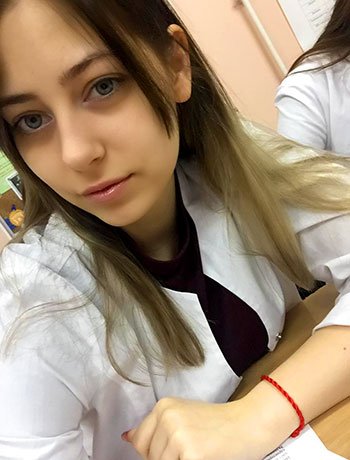
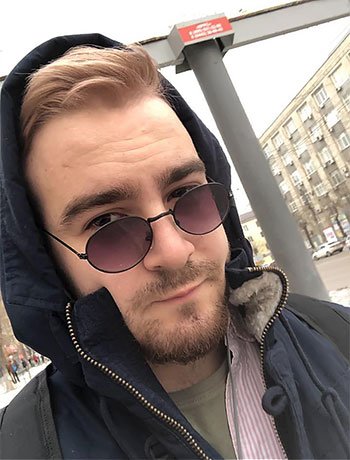 Apartment Topic for Sofia & Daniel. Link to this Apartment: https://lifeundercam.com/ Pictures Can Be Uploaded Directly to RLCF if Feature is Available
Apartment Topic for Grace & Tony. Note: We don't allow Camarads Uploads to Public Boards on RLCF.
This Topic is for the General Discussion of LifeUnderCam. Please leave the Apartment Topics for what they're Intended for. LifeUnderCam has been Kind & Generous of letting the Membership Post Pictures of the Apartments from their Site. If you wish to see Videos Please Support their Site. They have a Library of Numerous Videos.
Apartment Topic for Sofia & Daniel. Link to this Apartment: https://lifeundercam.com/ Pictures Can Be Uploaded Directly to RLCF if Feature is Available
Apartment Topic for Grace & Tony. Note: We don't allow Camarads Uploads to Public Boards on RLCF.
This Topic is for the General Discussion of LifeUnderCam. Please leave the Apartment Topics for what they're Intended for. LifeUnderCam has been Kind & Generous of letting the Membership Post Pictures of the Apartments from their Site. If you wish to see Videos Please Support their Site. They have a Library of Numerous Videos.Account
Navigation
Search
Configure browser push notifications
Chrome (Android)
- Tap the lock icon next to the address bar.
- Tap Permissions → Notifications.
- Adjust your preference.
Chrome (Desktop)
- Click the padlock icon in the address bar.
- Select Site settings.
- Find Notifications and adjust your preference.
Safari (iOS 16.4+)
- Ensure the site is installed via Add to Home Screen.
- Open Settings App → Notifications.
- Find your app name and adjust your preference.
Safari (macOS)
- Go to Safari → Preferences.
- Click the Websites tab.
- Select Notifications in the sidebar.
- Find this website and adjust your preference.
Edge (Android)
- Tap the lock icon next to the address bar.
- Tap Permissions.
- Find Notifications and adjust your preference.
Edge (Desktop)
- Click the padlock icon in the address bar.
- Click Permissions for this site.
- Find Notifications and adjust your preference.
Firefox (Android)
- Go to Settings → Site permissions.
- Tap Notifications.
- Find this site in the list and adjust your preference.
Firefox (Desktop)
- Open Firefox Settings.
- Search for Notifications.
- Find this site in the list and adjust your preference.

.png.9612da8730e7a6b39e0844efc0d5e71c.png)
.png.ca0f3cea3ada89d61ca6e6f608cab37d.png)

.png.3338b1a8592727a5fdfdafc94c19ceb6.png)
.png.de125197b82904507362a5aa943c8523.png)
.png.2953daa52914f909b3334693e90d1799.png)
.png.3ee8fce07b269a0163d0908bb1906ace.png)