
RUBBERMAN
Paid Members
-
Joined
Everything posted by RUBBERMAN
-
 Dam, "I was right"...I wonder who's going to take care of the baby, Nina can't take care of herself with out Kira as is!!! Why waste time coming back if that was what was in the making?
 -
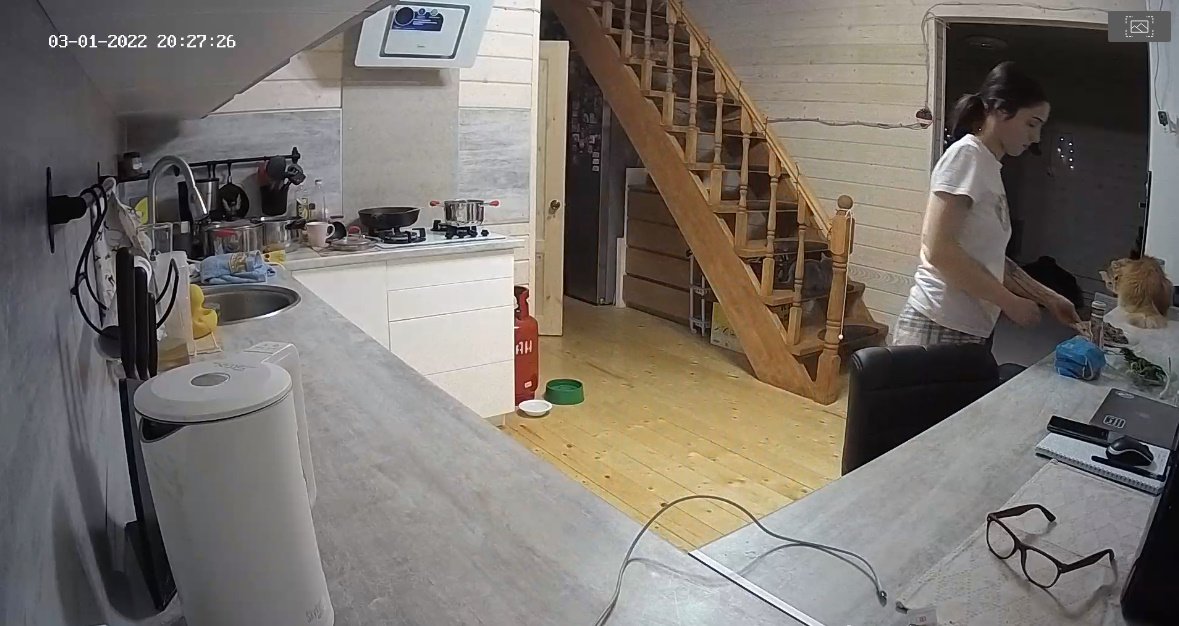
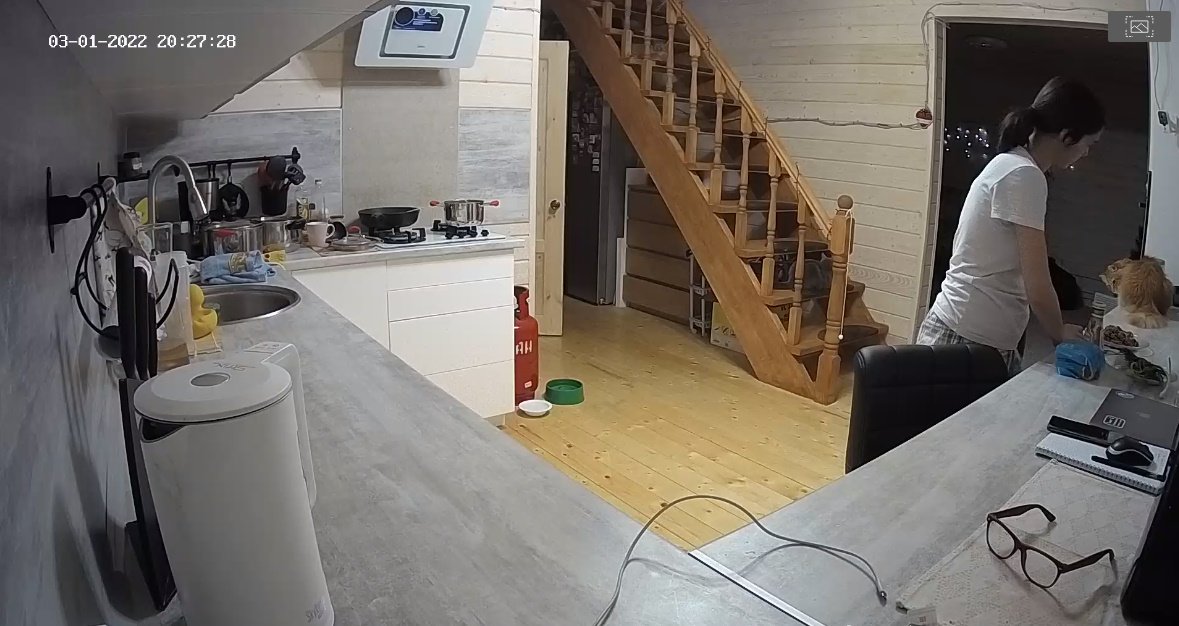
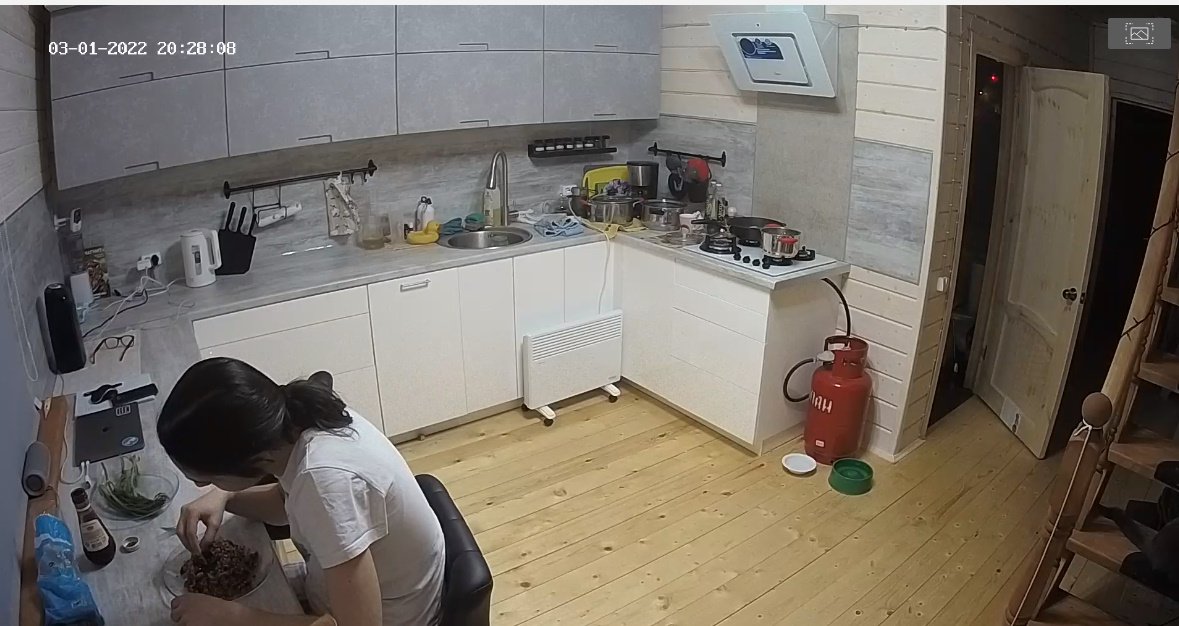
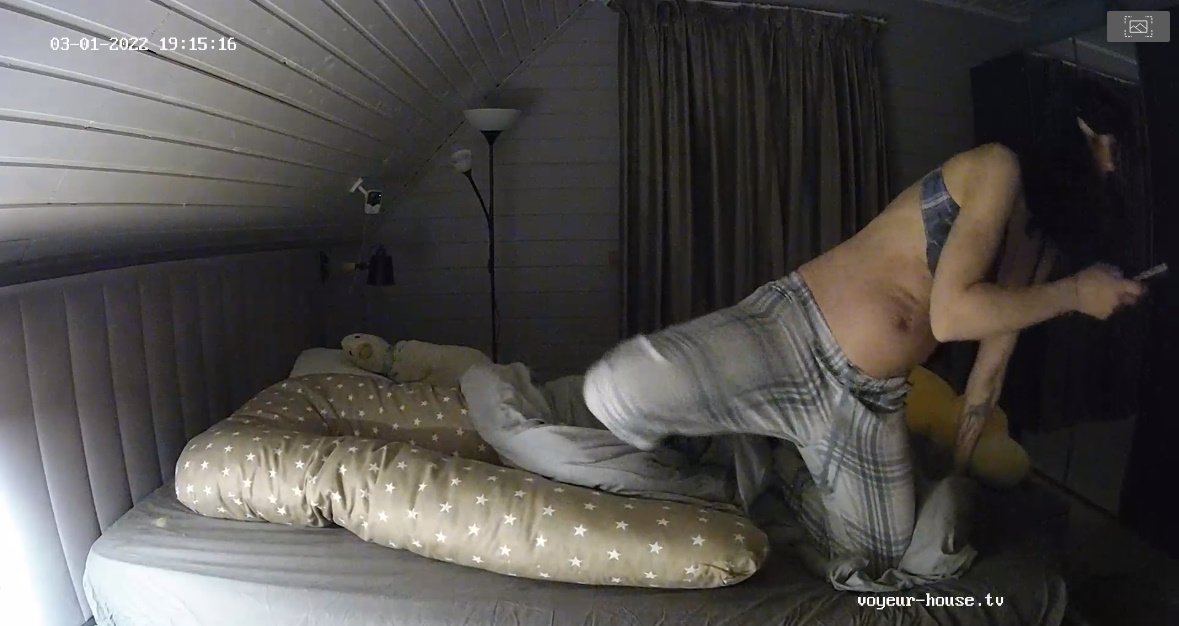
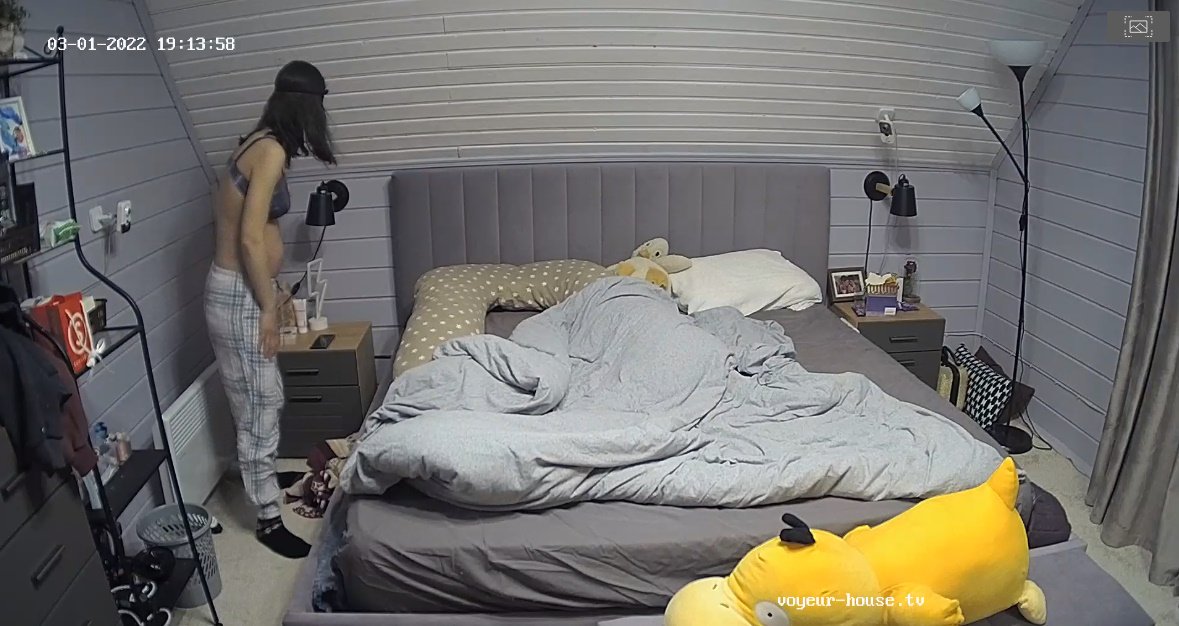
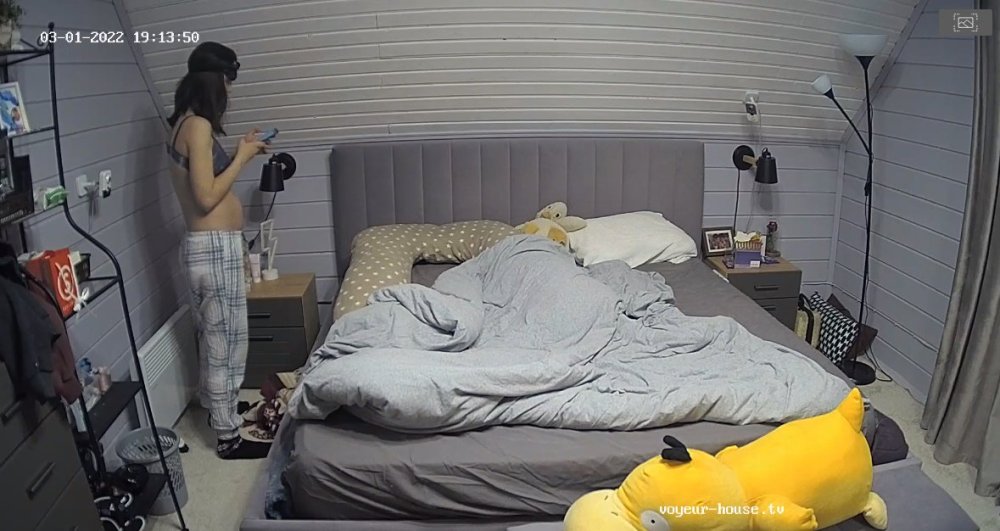
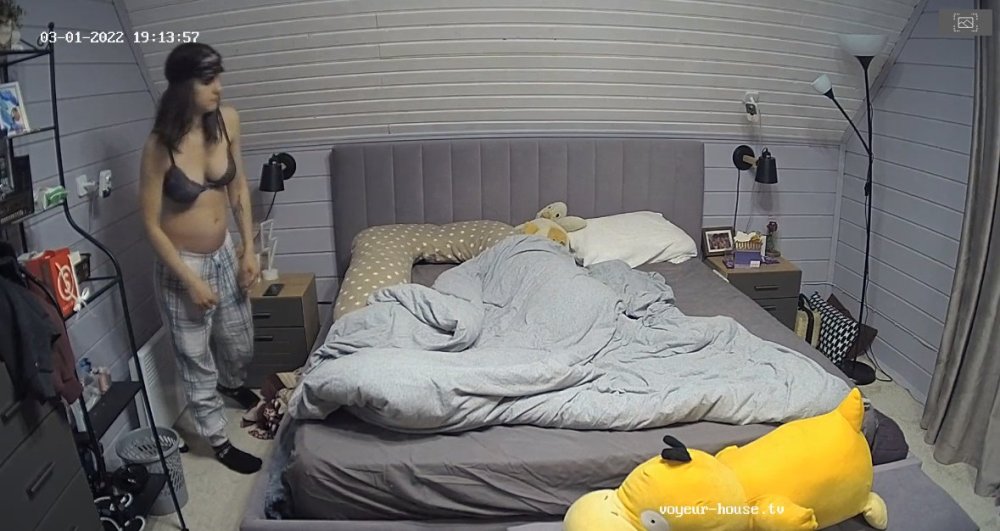
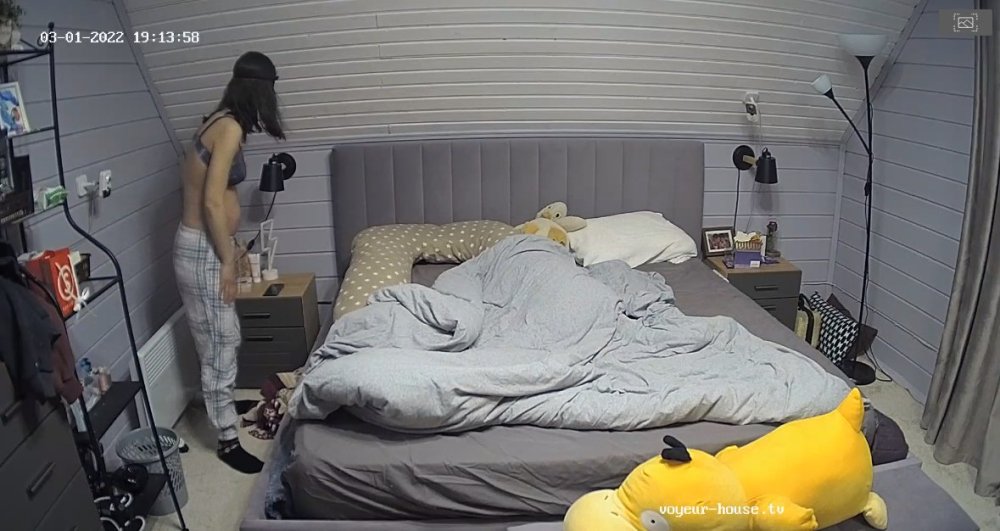
Since my last comments about these two "Nina and Kira" I have been viewing Kira daily who seems to be alone in that apartment 99% of the time by her self. I am sure she has to be very lonely only seeing Nina when its more less bed time. "I've also notice that either Kira is putting on weight around her wist and tummy and is starting to look a bit pregnant. I have also notice she has been moving around the apartment a bit different too, "some days looking sad and lonely" it would be nice if VHTV would let its paying members know what's really going on with those two instead of making everything they do a guessing game. Its obvious VHTV is hiding something about these two, who has completely stop having sex on cam all together. "Don't want to start a rumor, but I do wonder if Kira is really pregnant?"
Account
Navigation
Search
Configure browser push notifications
Chrome (Android)
- Tap the lock icon next to the address bar.
- Tap Permissions → Notifications.
- Adjust your preference.
Chrome (Desktop)
- Click the padlock icon in the address bar.
- Select Site settings.
- Find Notifications and adjust your preference.
Safari (iOS 16.4+)
- Ensure the site is installed via Add to Home Screen.
- Open Settings App → Notifications.
- Find your app name and adjust your preference.
Safari (macOS)
- Go to Safari → Preferences.
- Click the Websites tab.
- Select Notifications in the sidebar.
- Find this website and adjust your preference.
Edge (Android)
- Tap the lock icon next to the address bar.
- Tap Permissions.
- Find Notifications and adjust your preference.
Edge (Desktop)
- Click the padlock icon in the address bar.
- Click Permissions for this site.
- Find Notifications and adjust your preference.
Firefox (Android)
- Go to Settings → Site permissions.
- Tap Notifications.
- Find this site in the list and adjust your preference.
Firefox (Desktop)
- Open Firefox Settings.
- Search for Notifications.
- Find this site in the list and adjust your preference.