
RUBBERMAN
Paid Members
-
Joined
Everything posted by RUBBERMAN
-
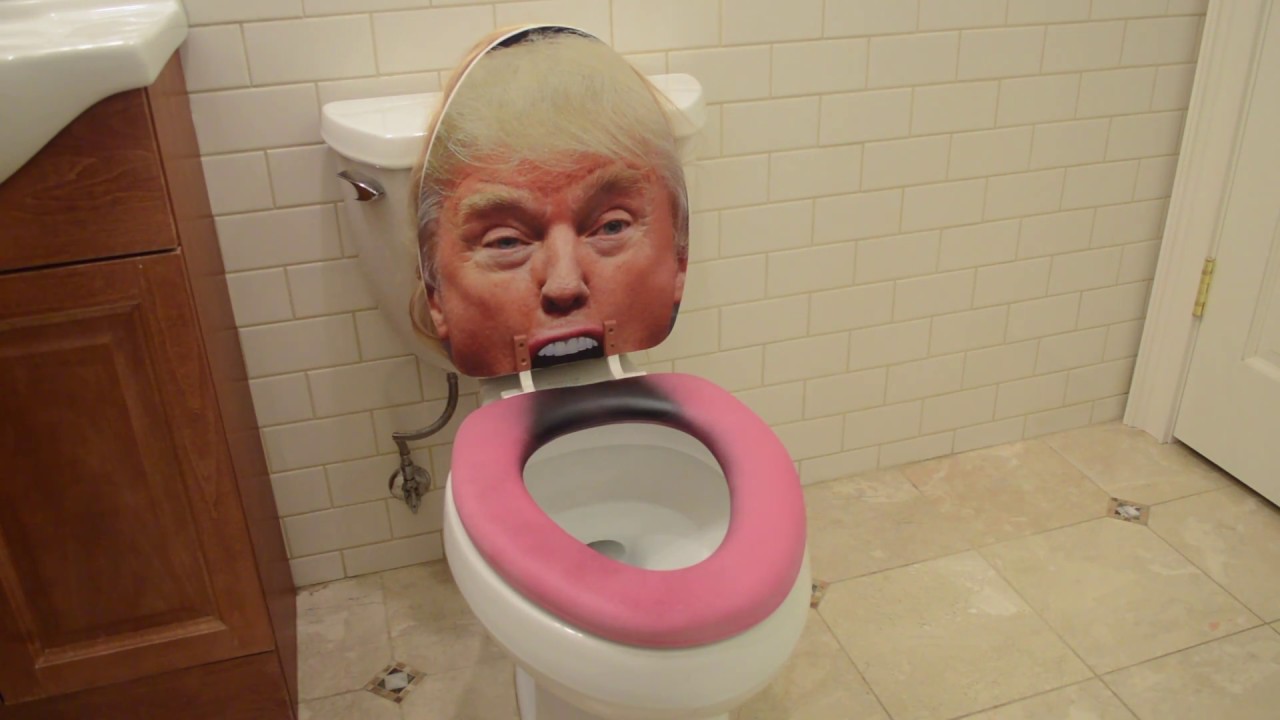
 Since his lost, looks like Trump well be getting his old job back after all. LOL
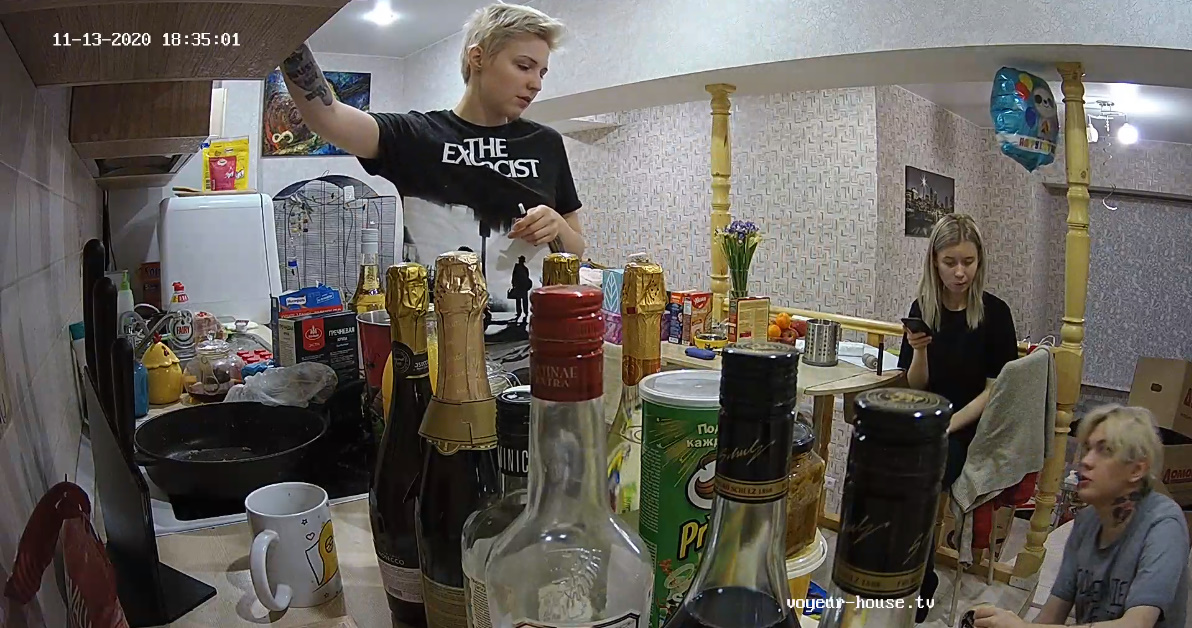
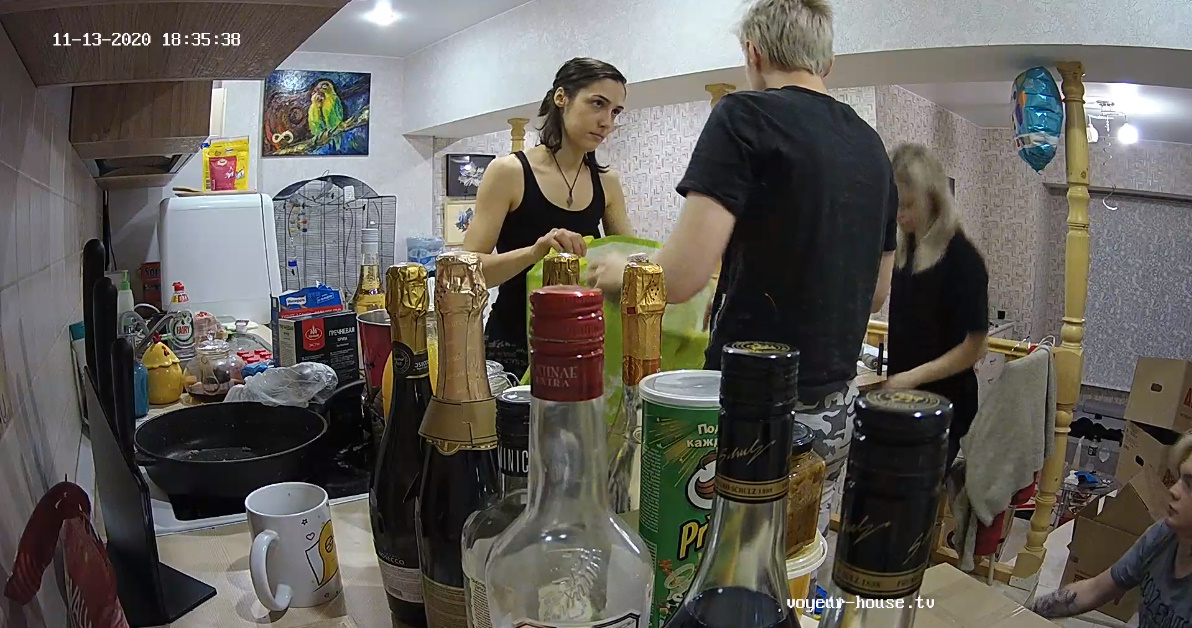
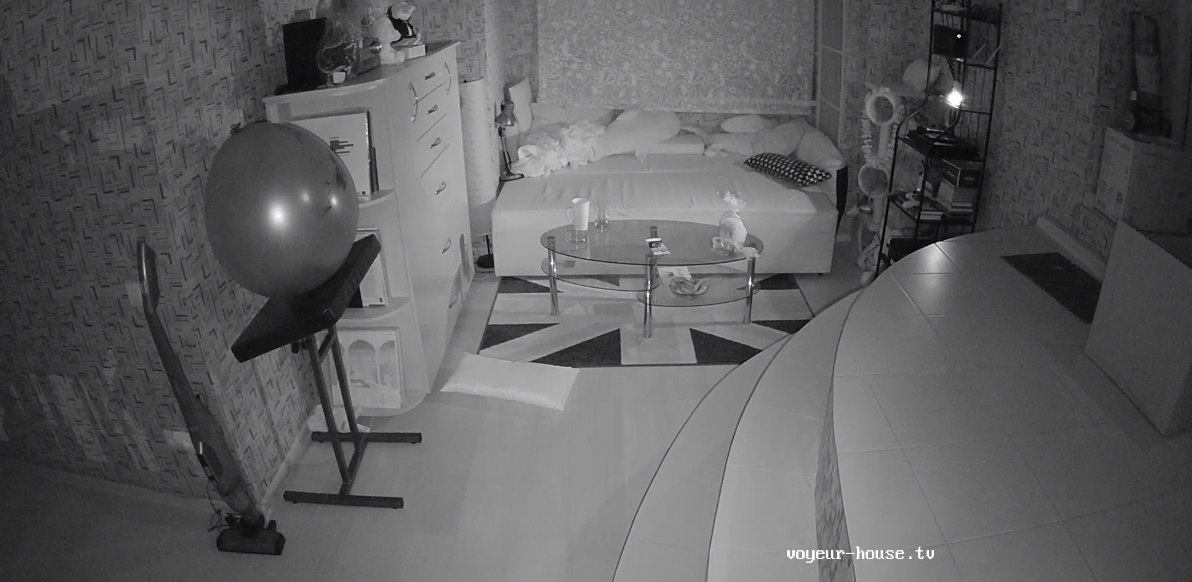
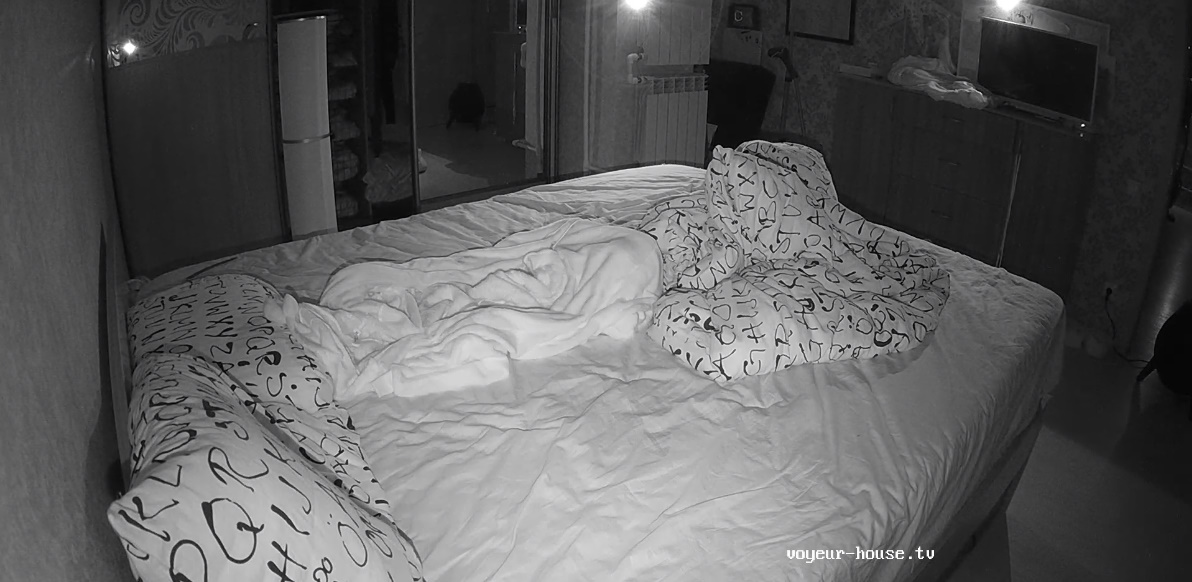
 I guess you where right about Nina and Kira moving, "this is there 3rd move with in the year, they don't seem to stay around long enough to be rated by a house fly, and what's the use of having a bigger place if your gone 90% of the time anyway unless they well have an extra couple joining them, which well be very doubtful seeing how moody Kira gets at time. Oh well lets see how this next move well turn out this and hopefully final time."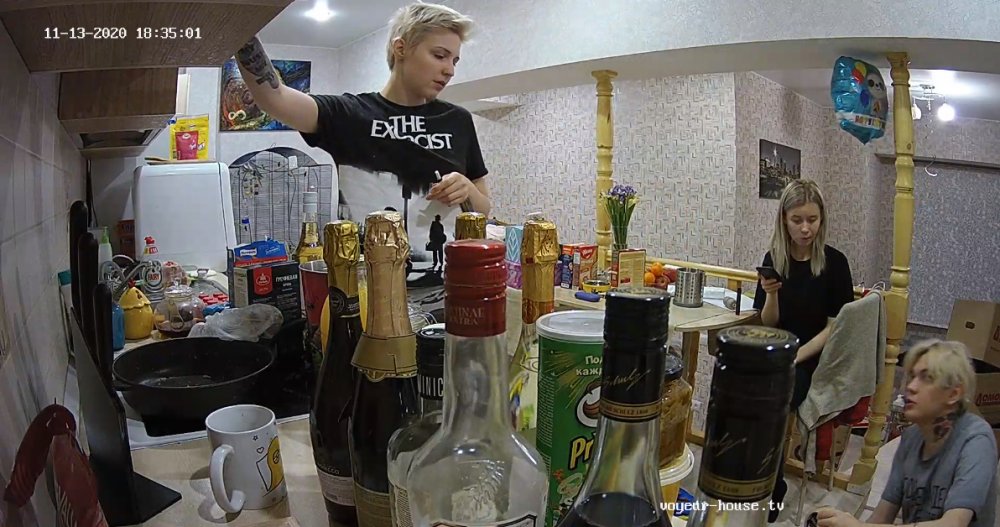
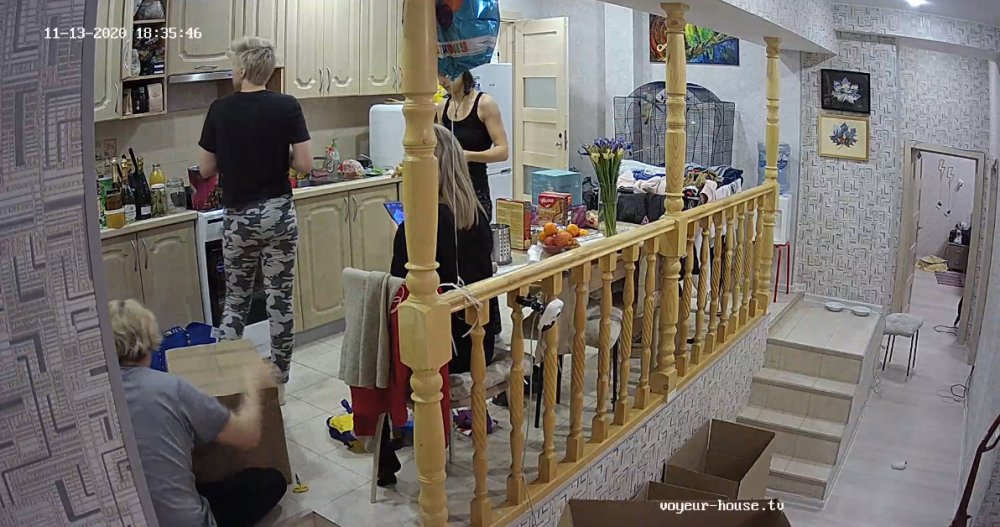


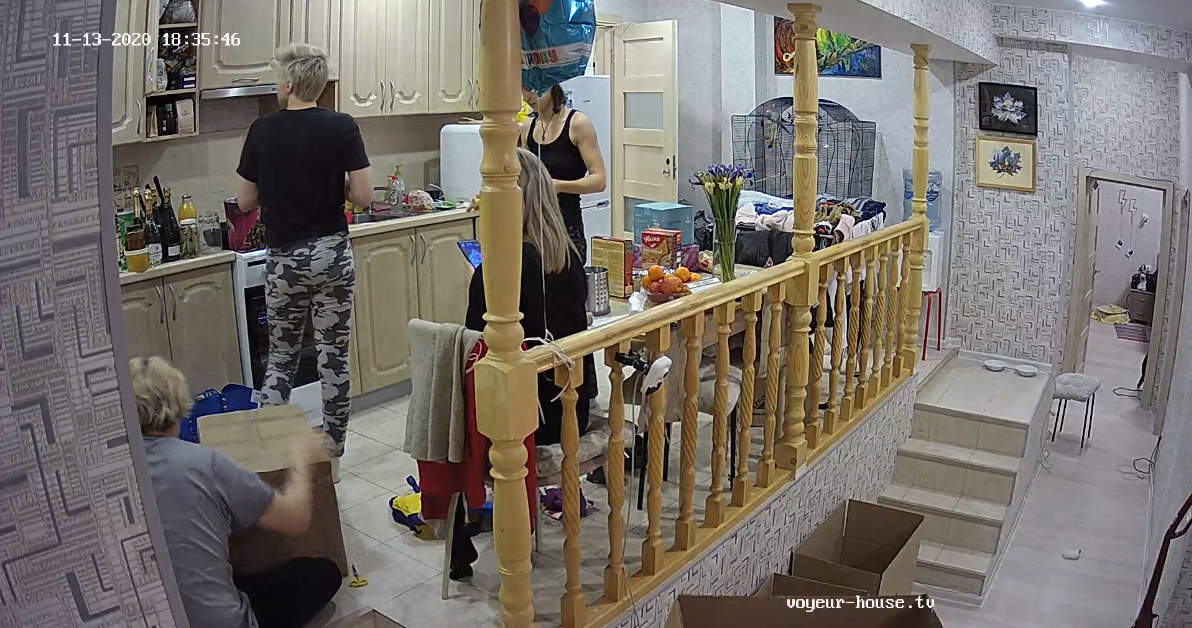
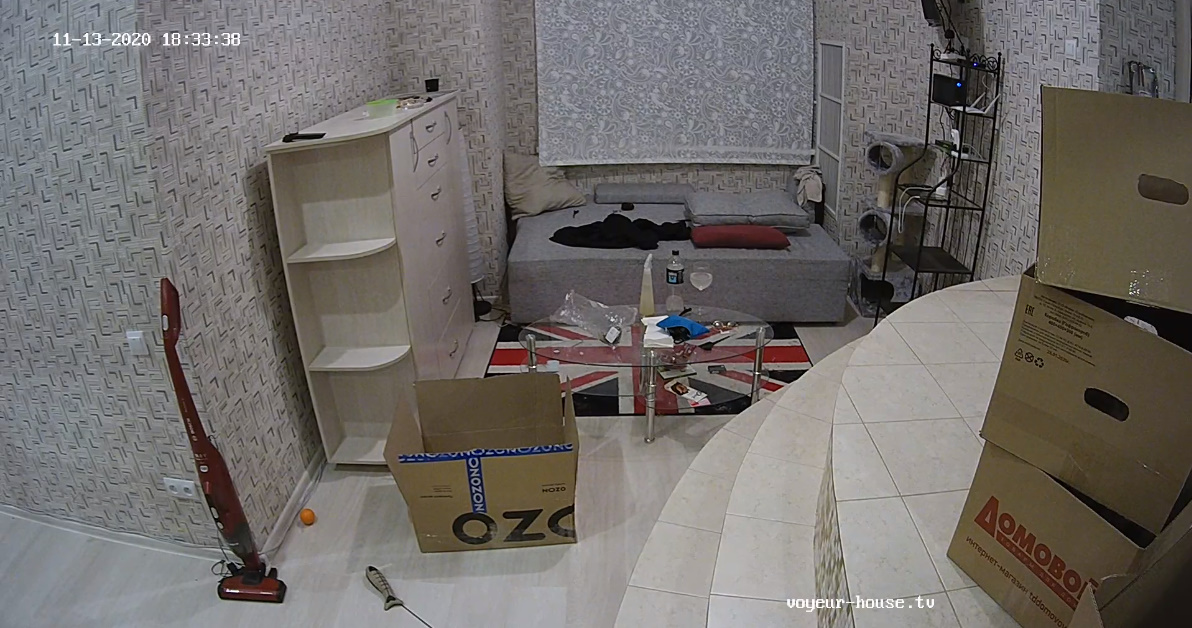
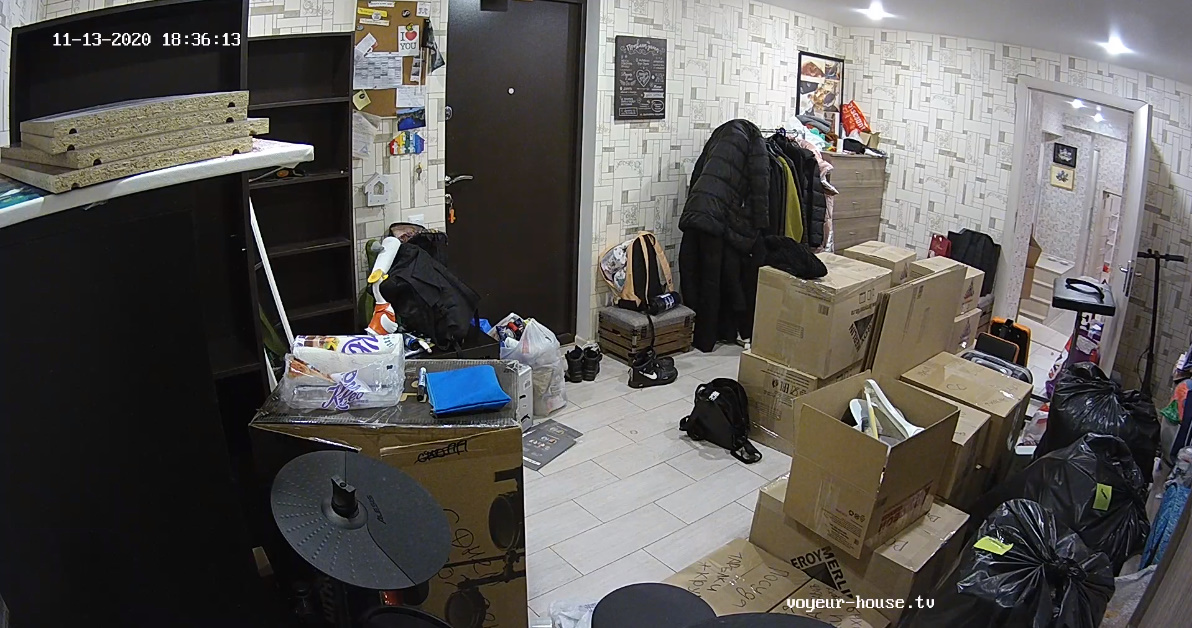
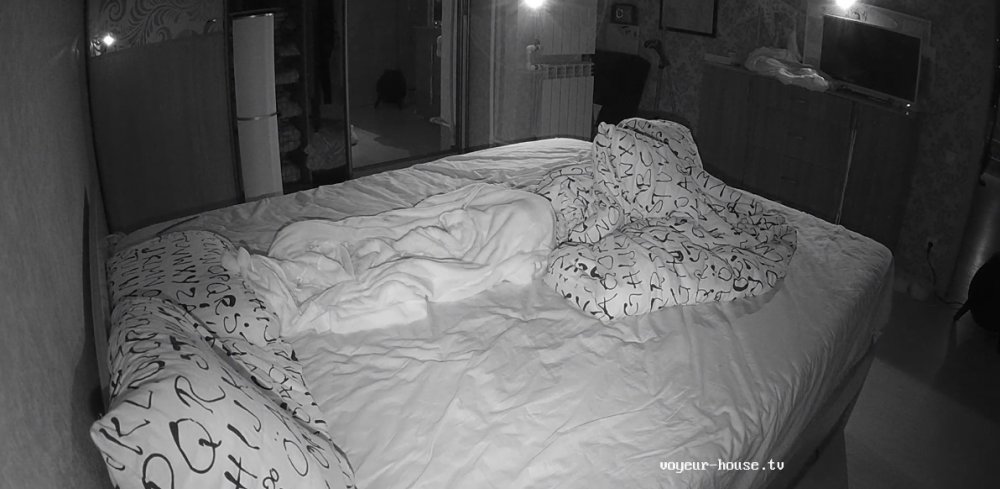
 Looks like these two are missing in action again!!! and still breaking records when it comes to staying gone most of the time!!!.....but there are empty box's in the hallway, I wonder if they are leaving or moving again? Oh well.."what's going on next door?" LOL
Account
Navigation
Search
Configure browser push notifications
Chrome (Android)
- Tap the lock icon next to the address bar.
- Tap Permissions → Notifications.
- Adjust your preference.
Chrome (Desktop)
- Click the padlock icon in the address bar.
- Select Site settings.
- Find Notifications and adjust your preference.
Safari (iOS 16.4+)
- Ensure the site is installed via Add to Home Screen.
- Open Settings App → Notifications.
- Find your app name and adjust your preference.
Safari (macOS)
- Go to Safari → Preferences.
- Click the Websites tab.
- Select Notifications in the sidebar.
- Find this website and adjust your preference.
Edge (Android)
- Tap the lock icon next to the address bar.
- Tap Permissions.
- Find Notifications and adjust your preference.
Edge (Desktop)
- Click the padlock icon in the address bar.
- Click Permissions for this site.
- Find Notifications and adjust your preference.
Firefox (Android)
- Go to Settings → Site permissions.
- Tap Notifications.
- Find this site in the list and adjust your preference.
Firefox (Desktop)
- Open Firefox Settings.
- Search for Notifications.
- Find this site in the list and adjust your preference.