
cyberleader
Hero Member
-
Joined
-
Last visited
Everything posted by cyberleader
-
 banana,cucumber, courgette,carrot, and anything long and penis shape is good for insertion
 -
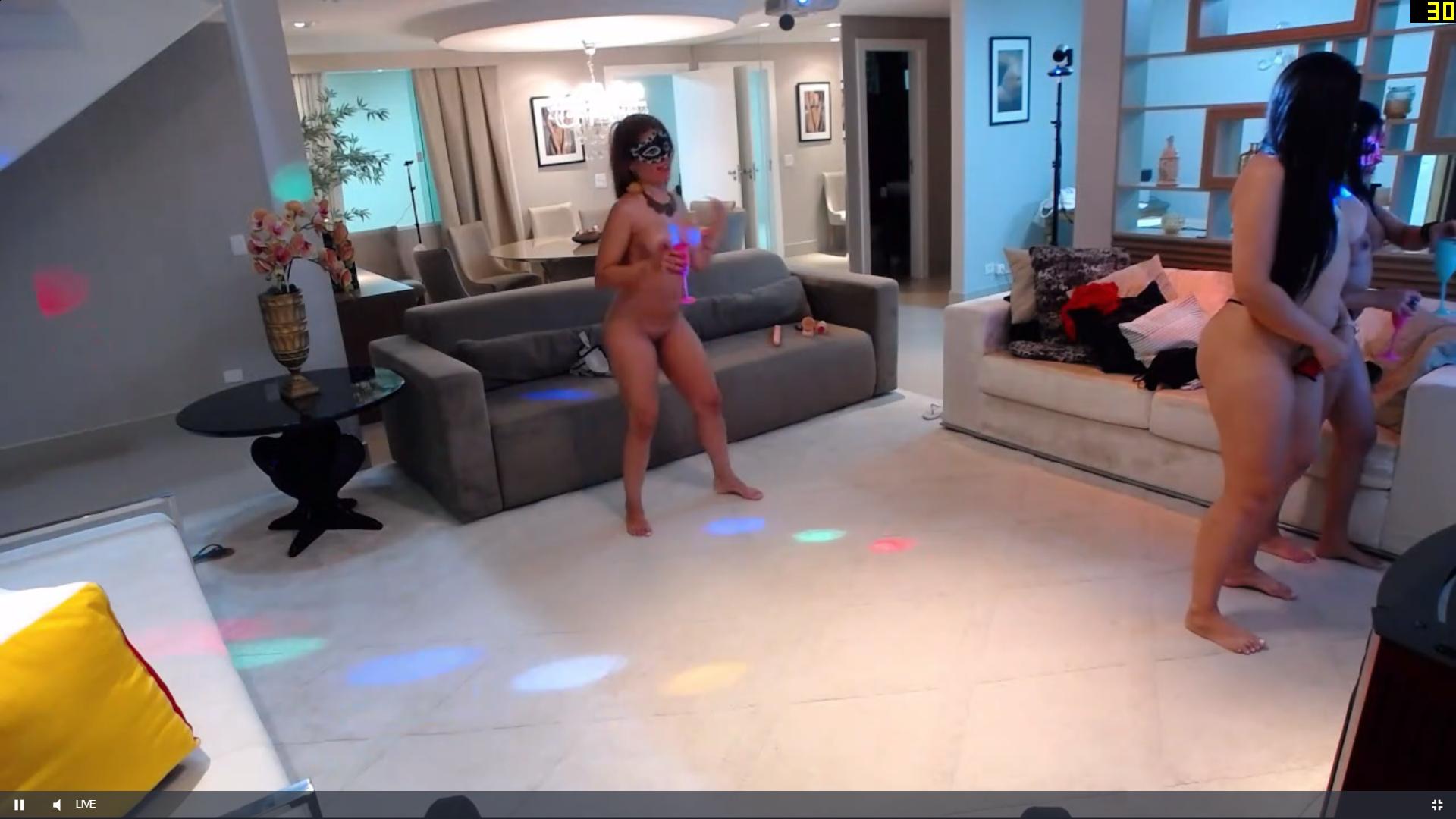
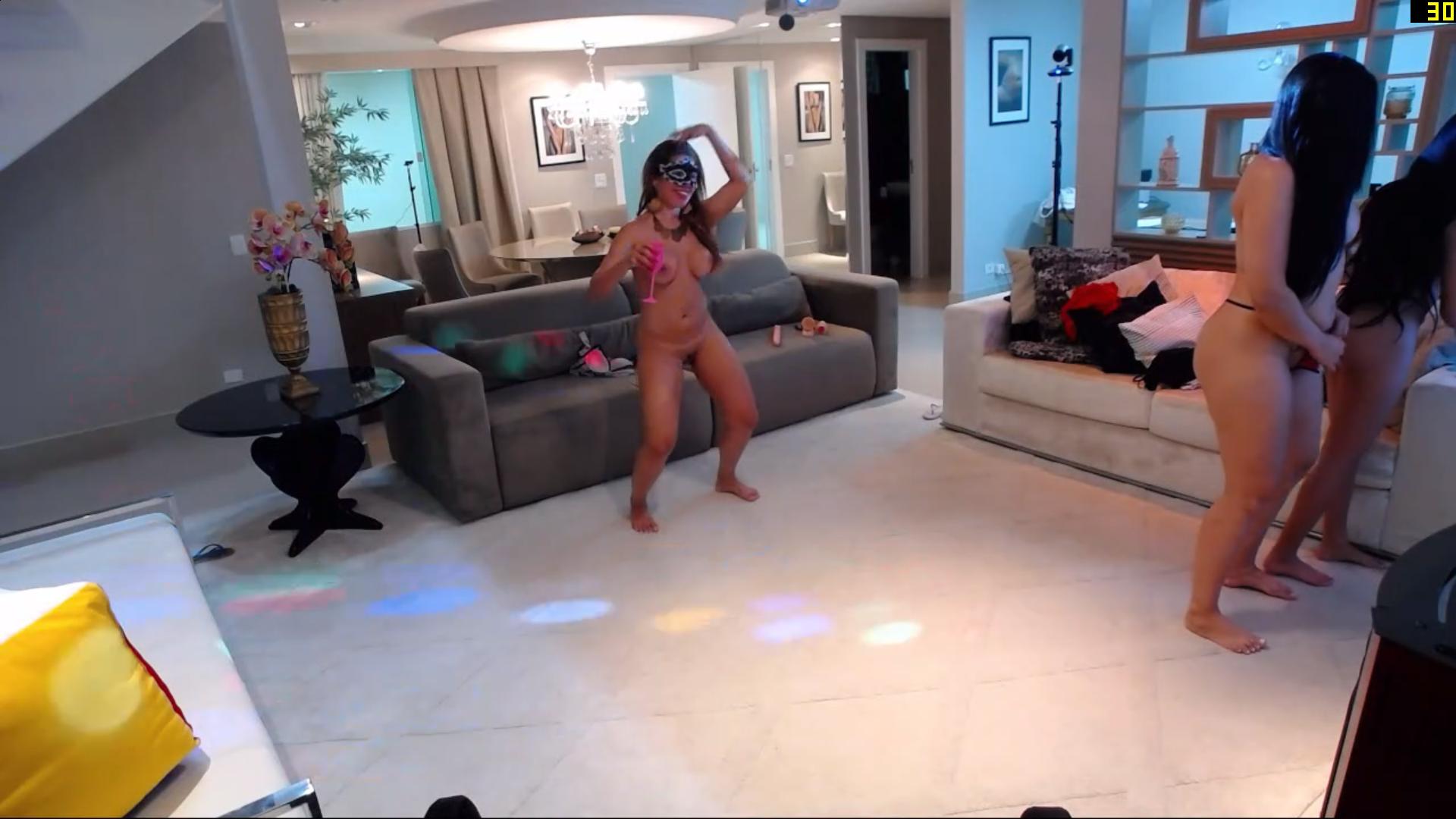
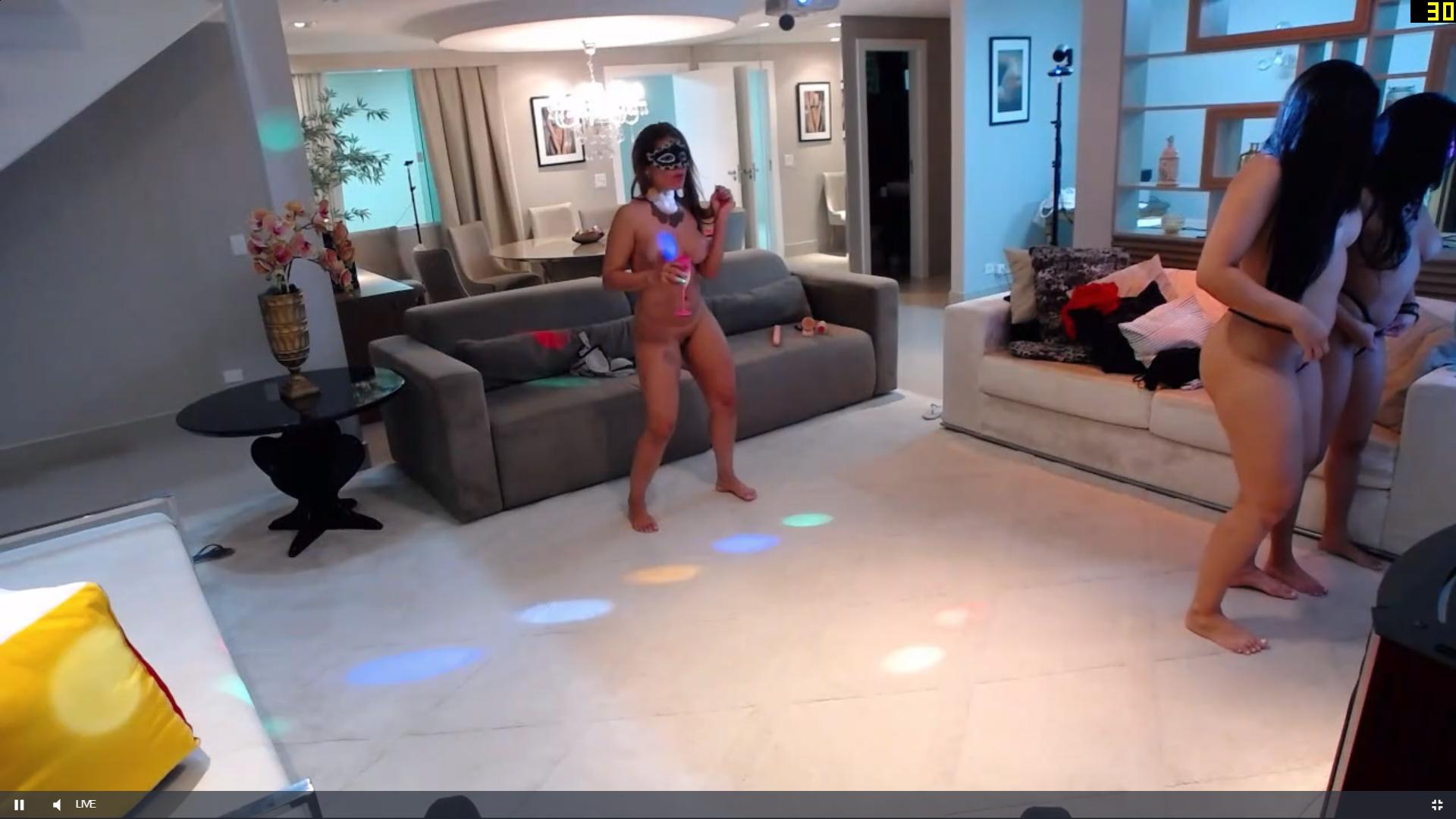
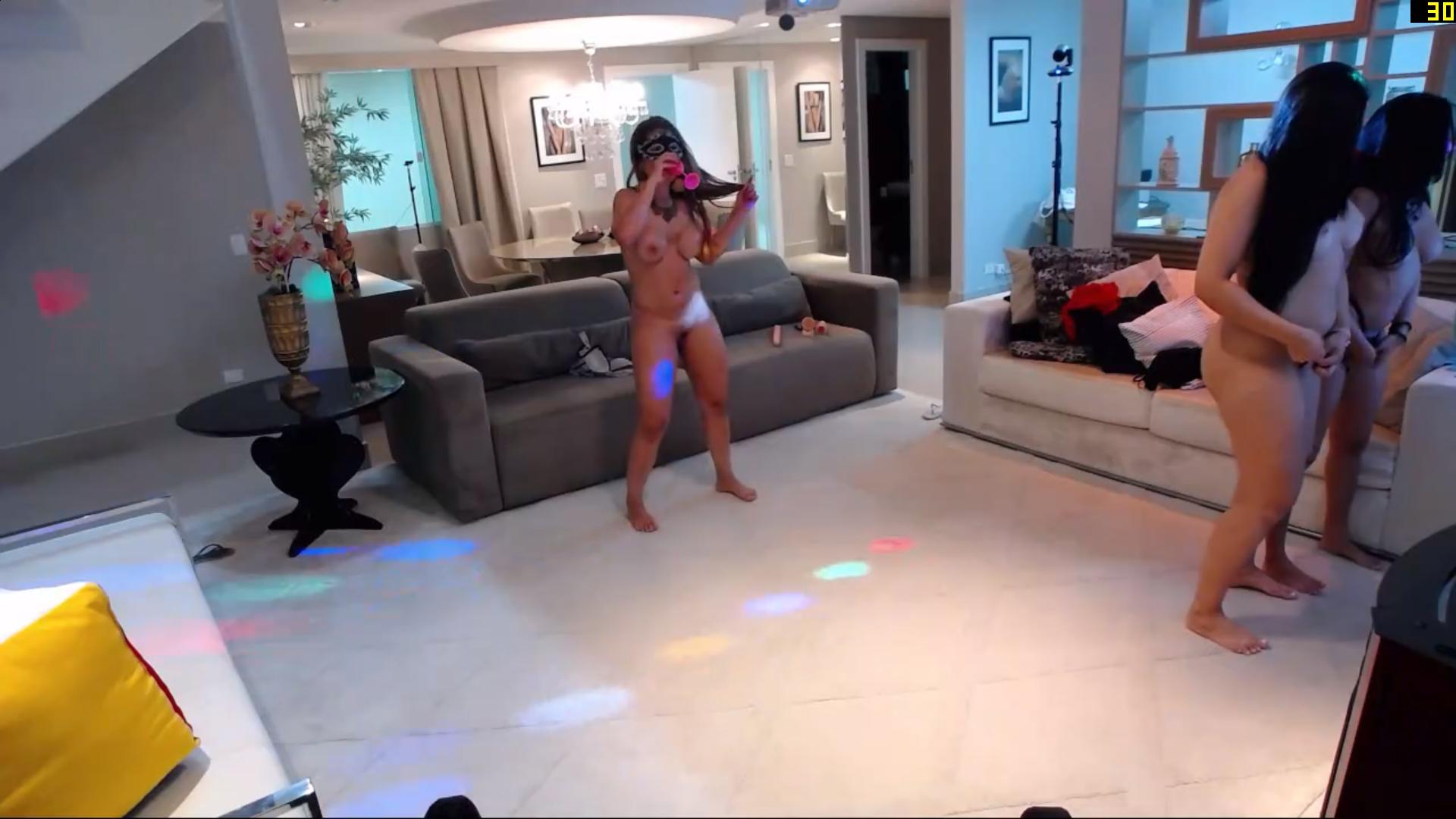
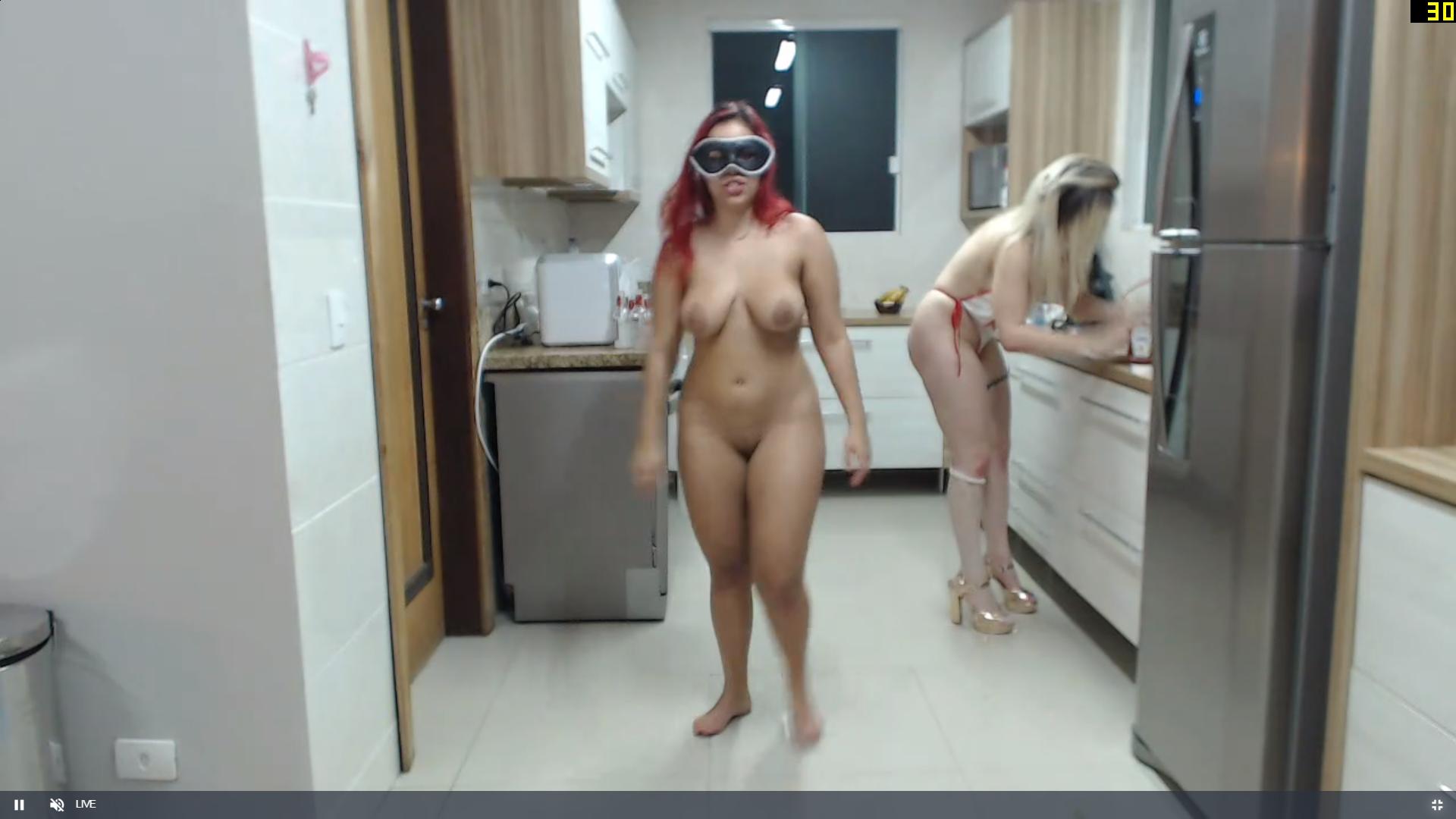
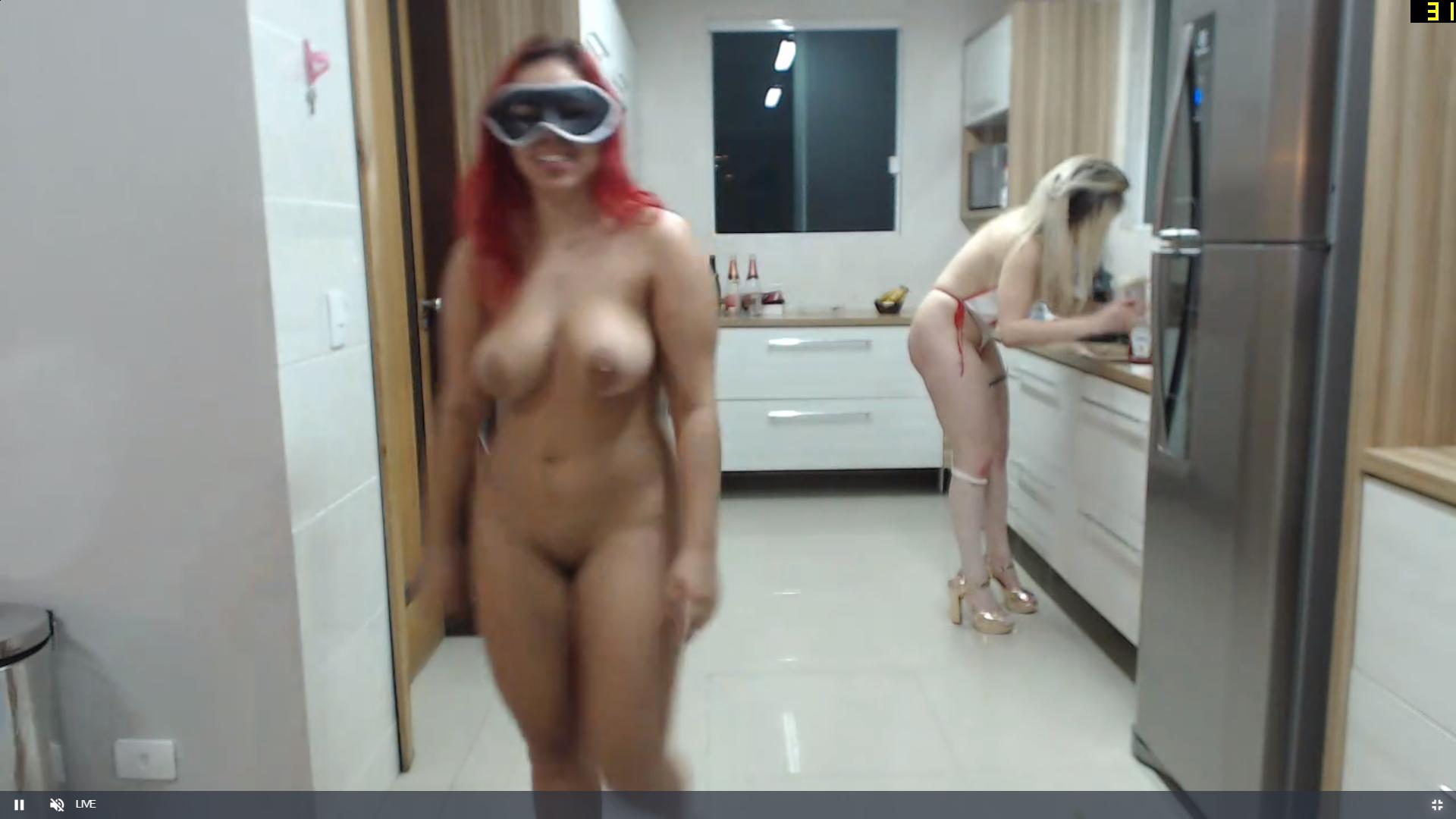
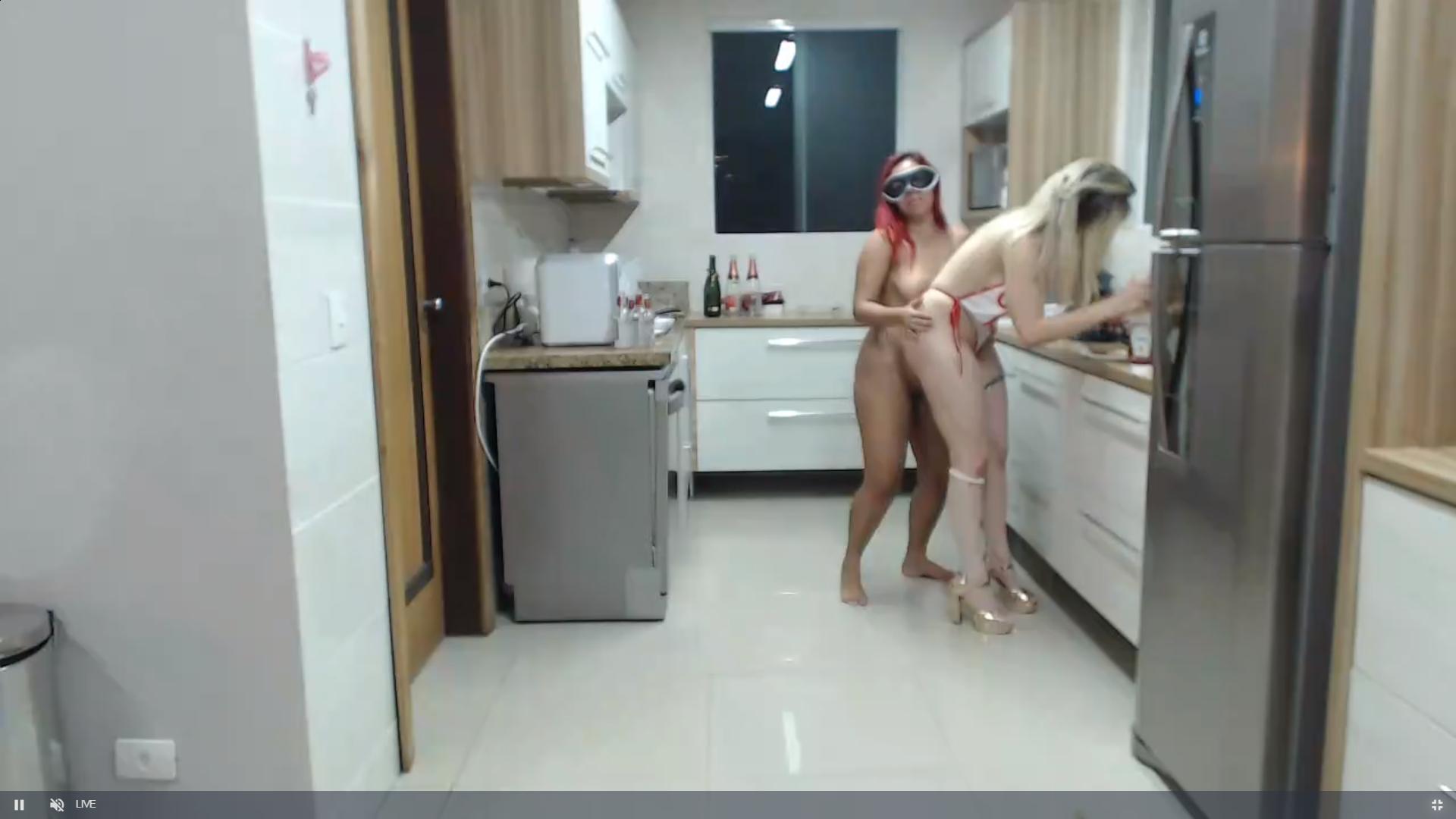
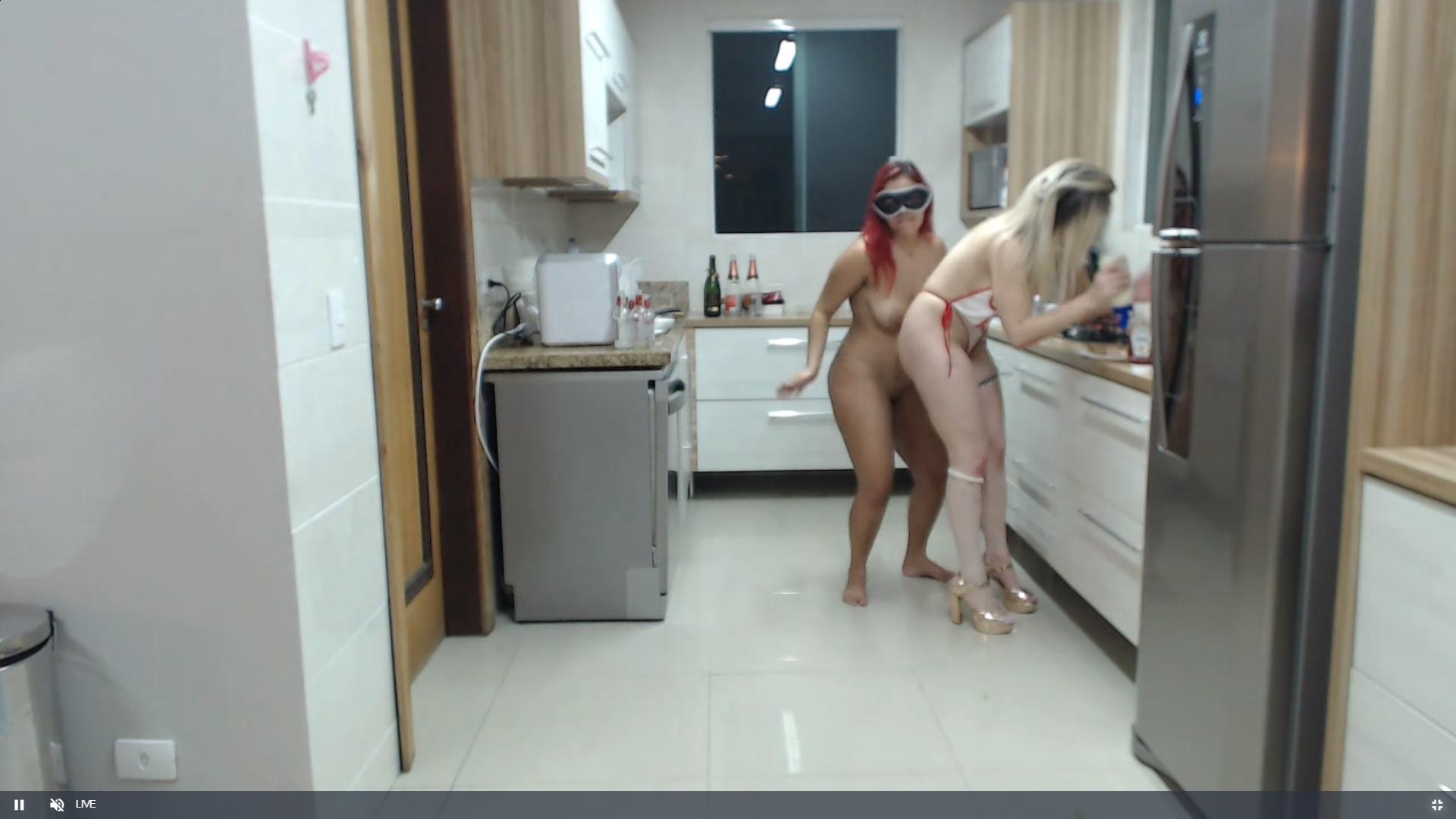
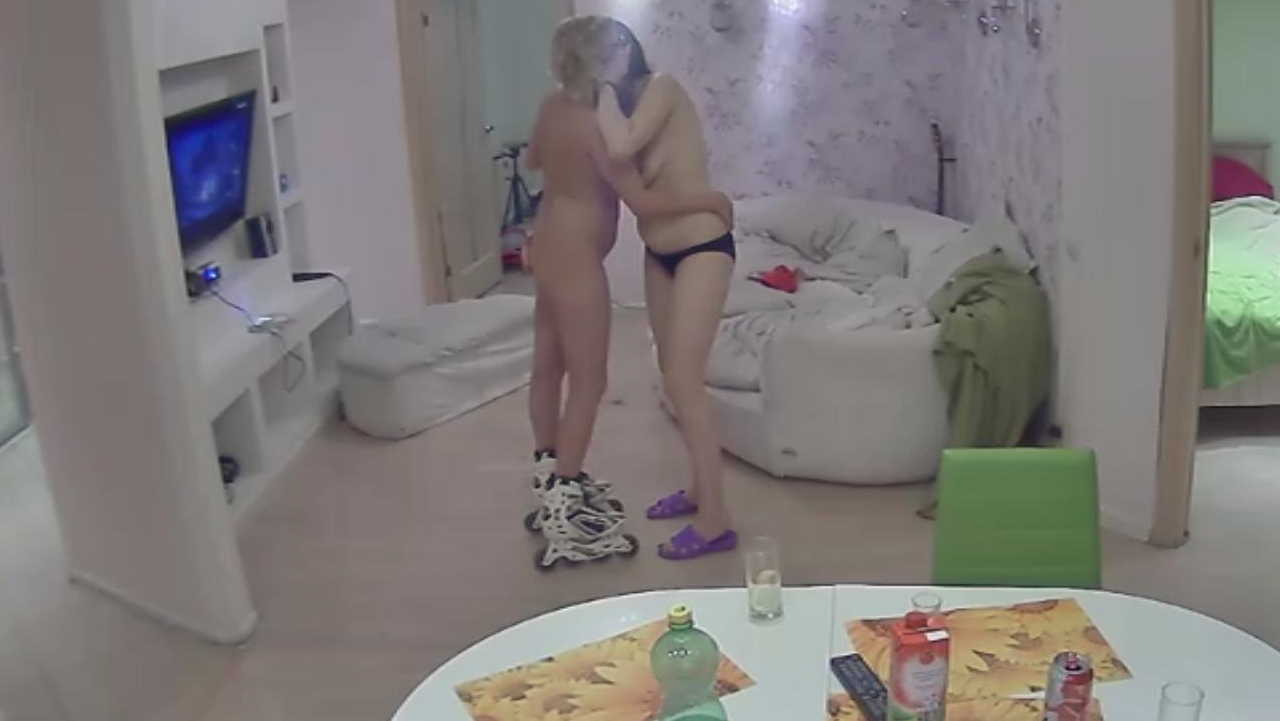
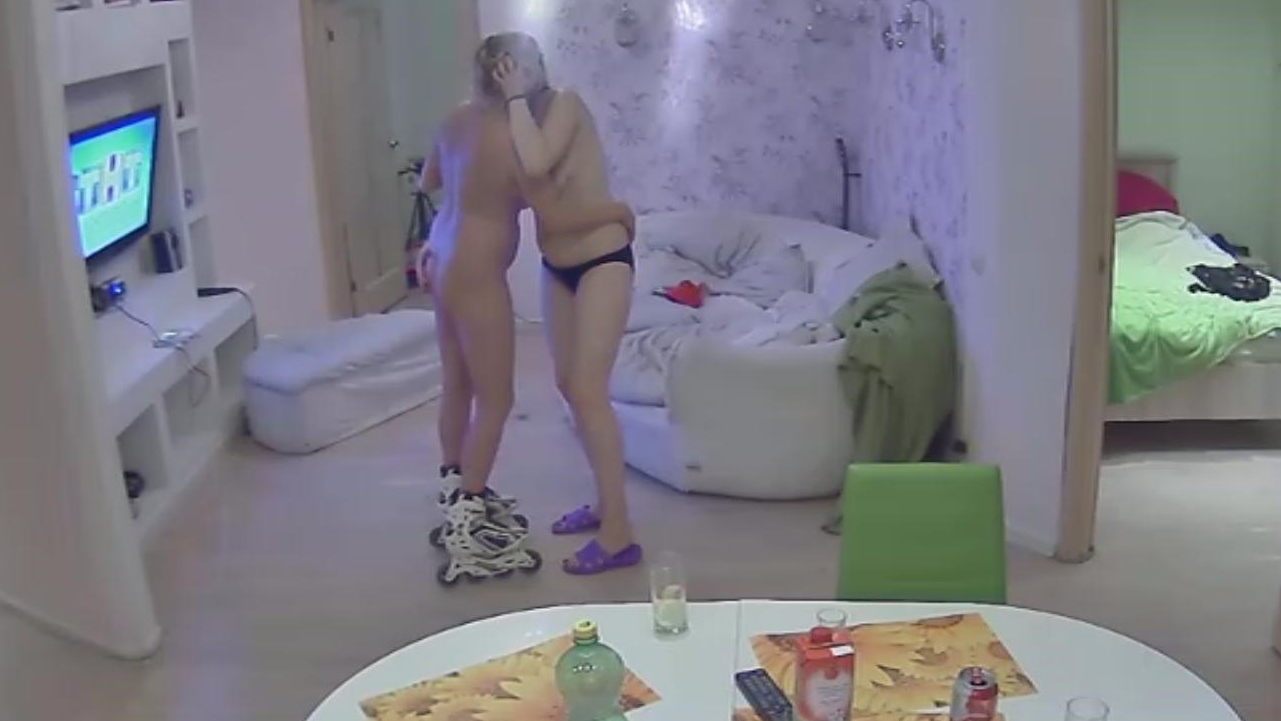
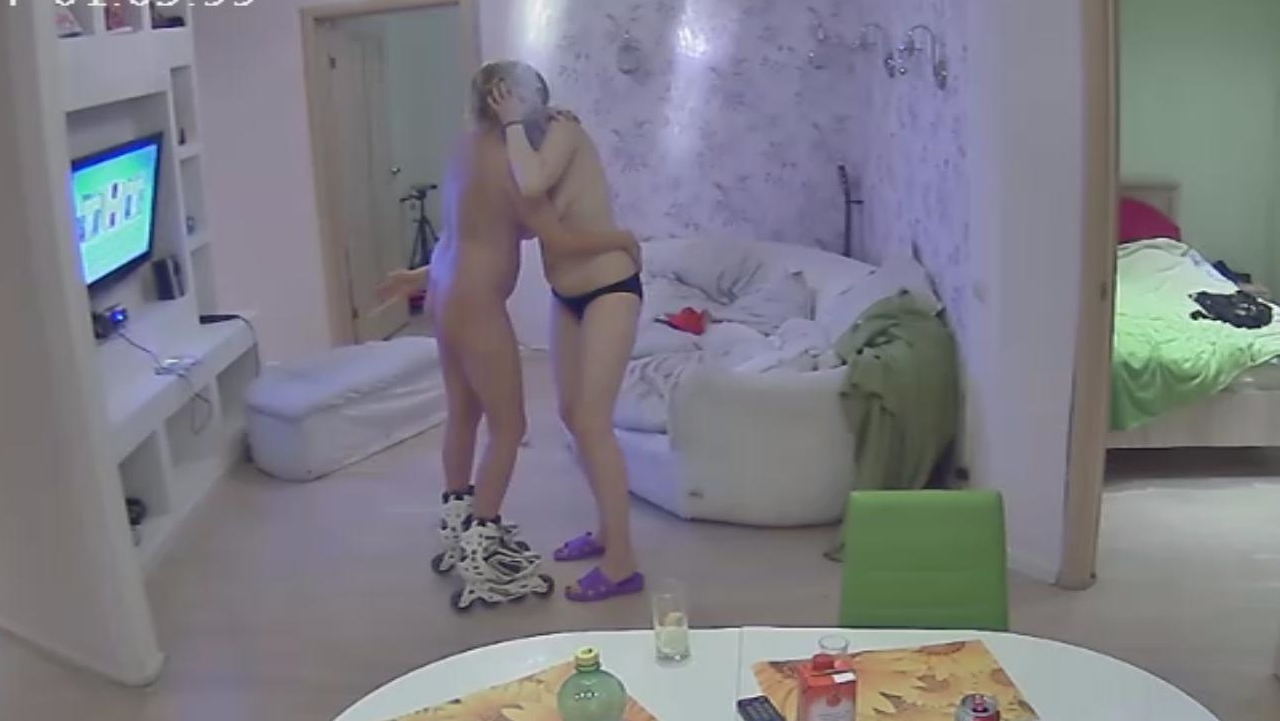
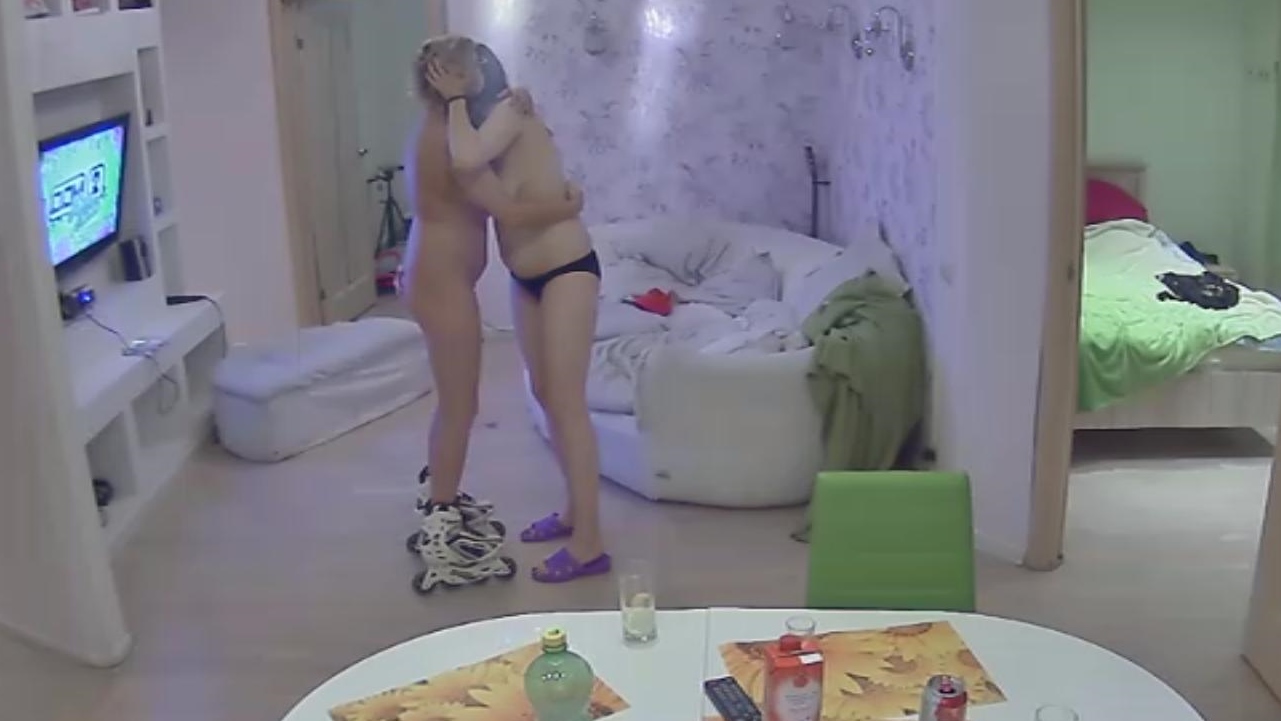
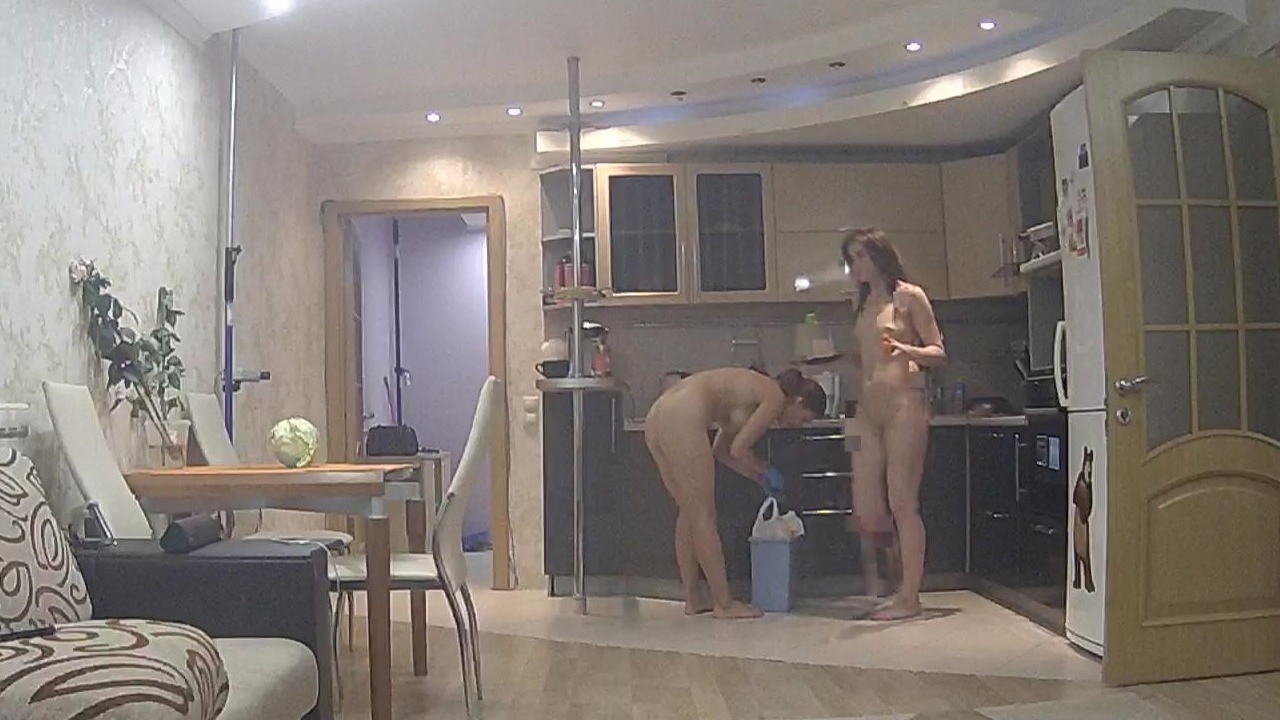
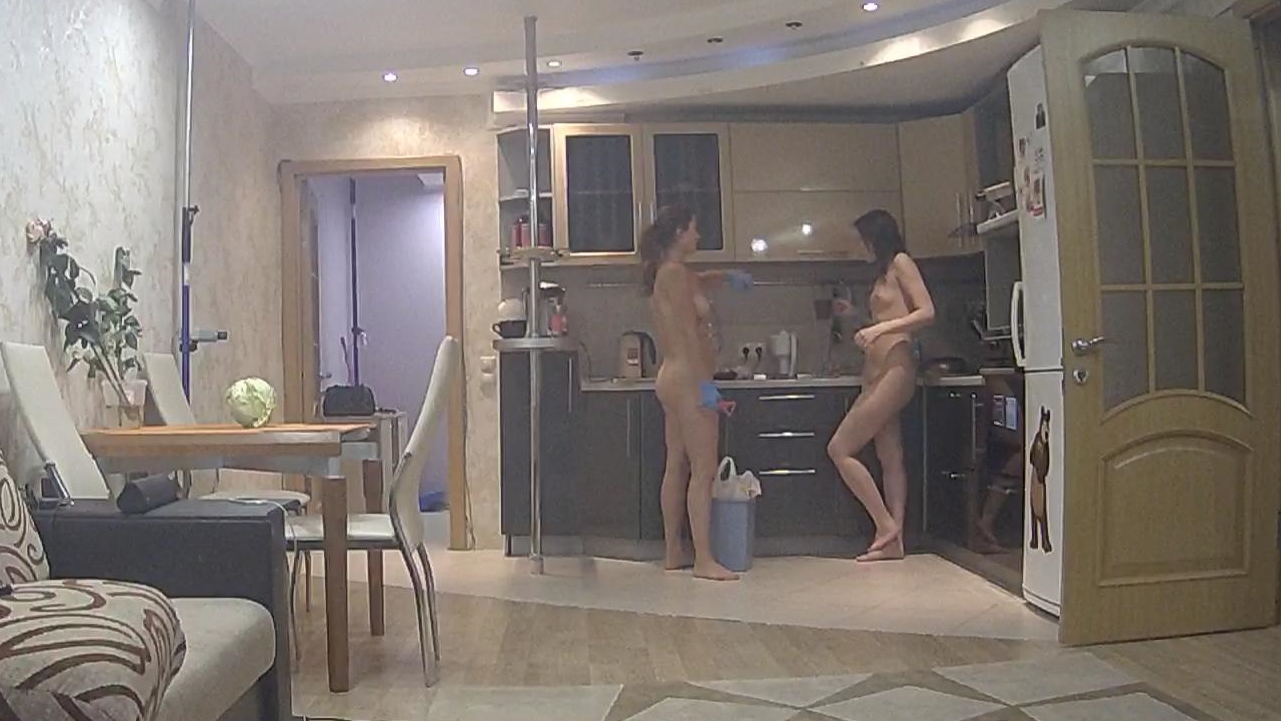
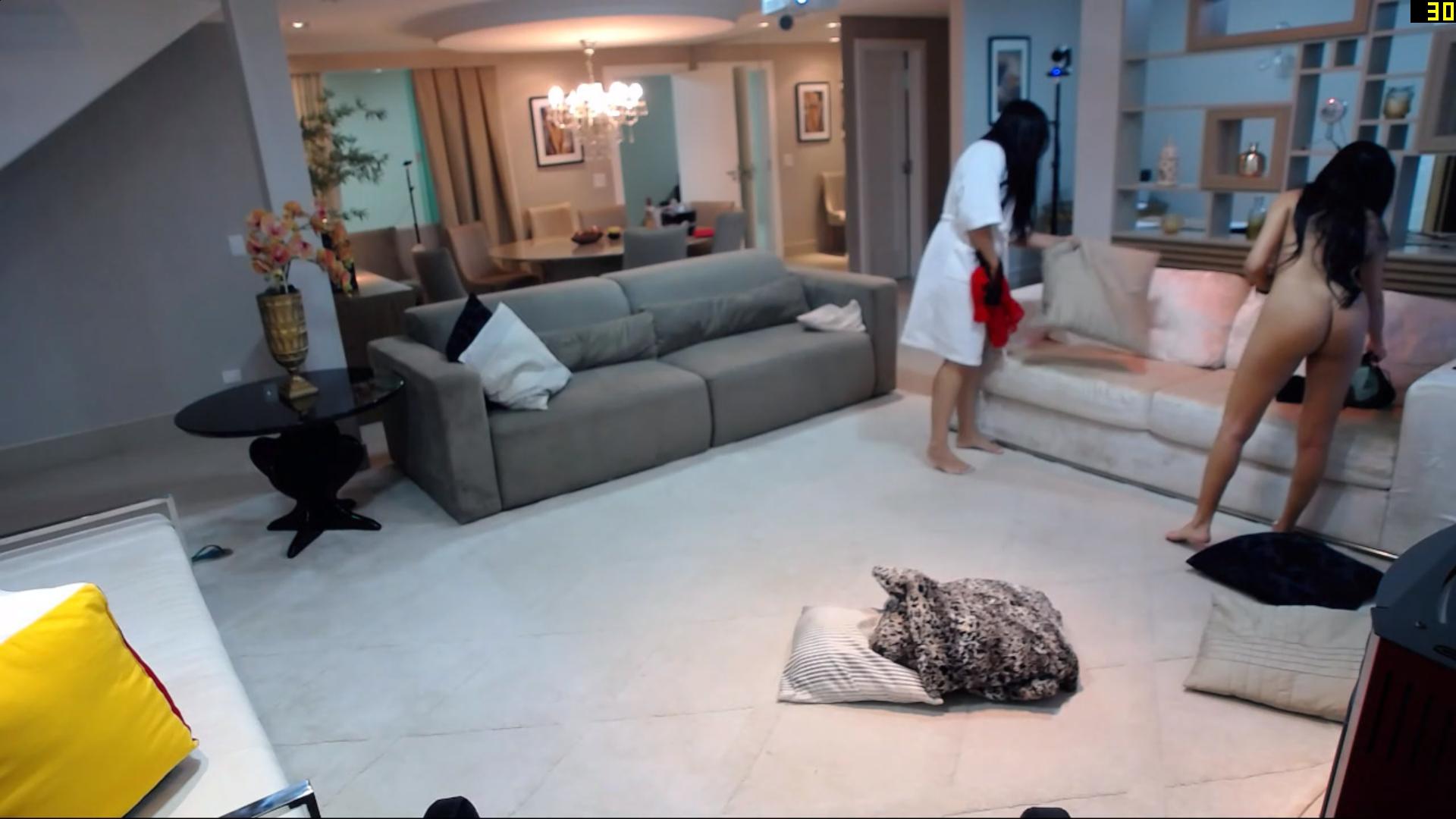
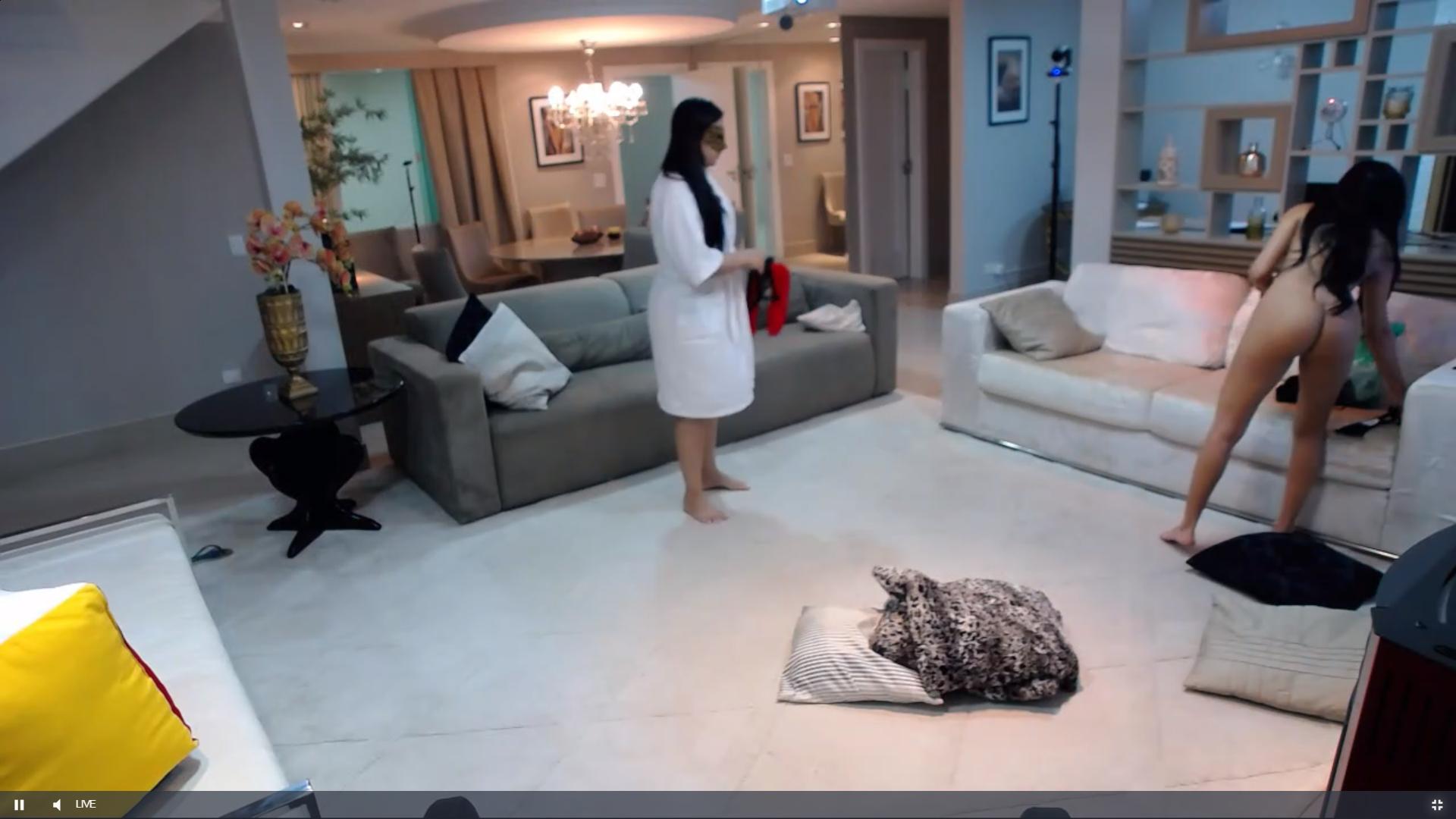
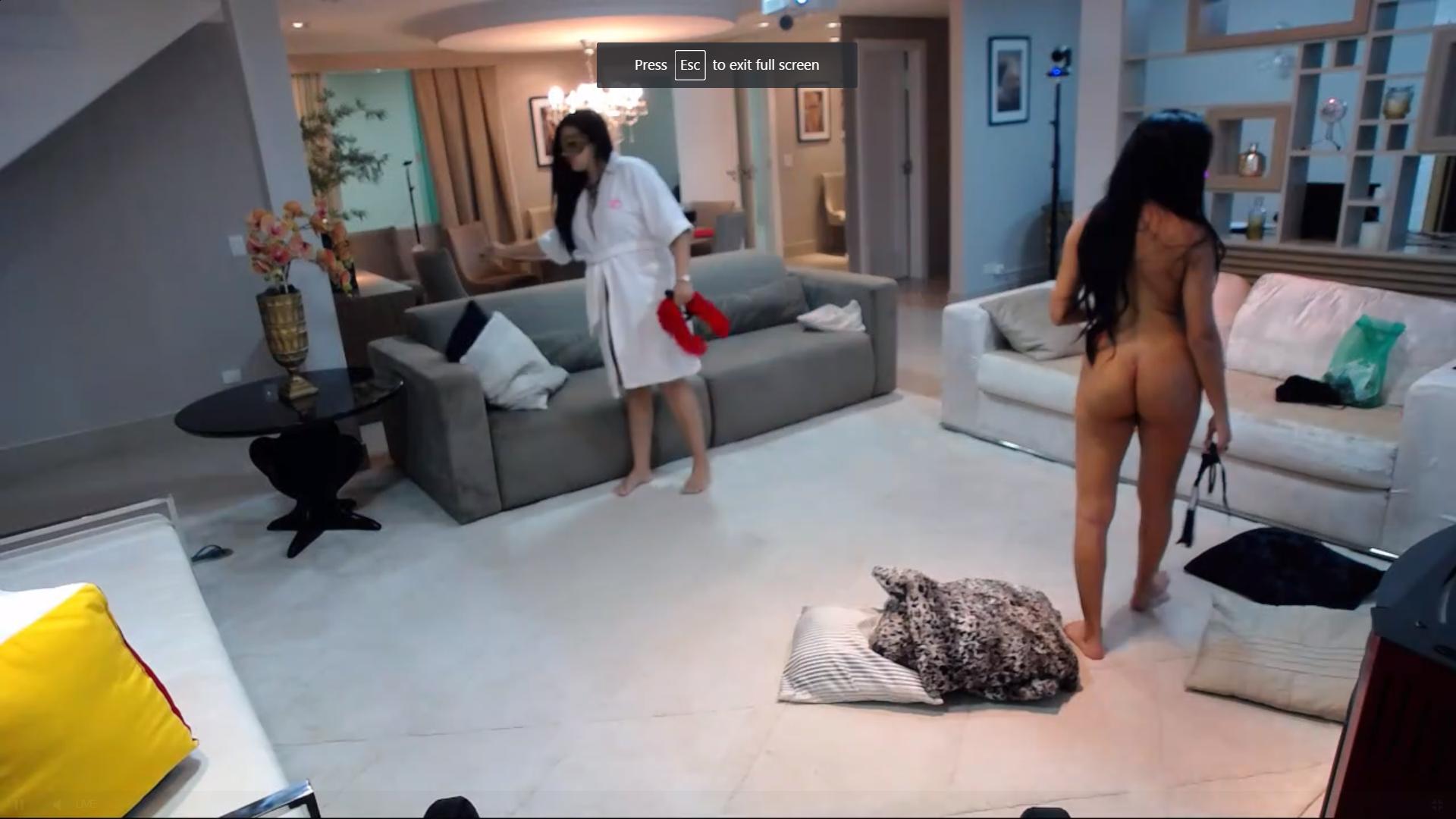
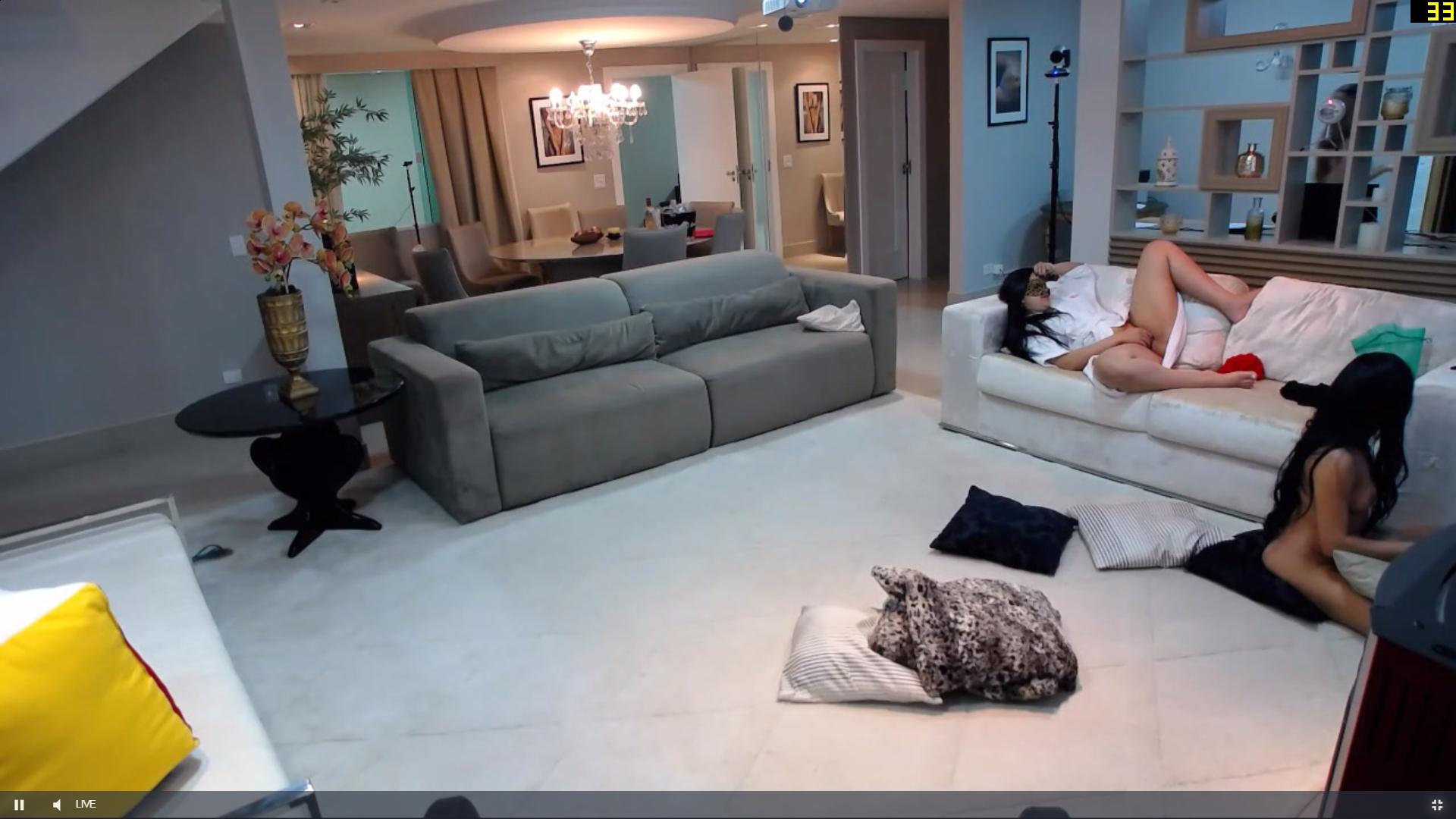
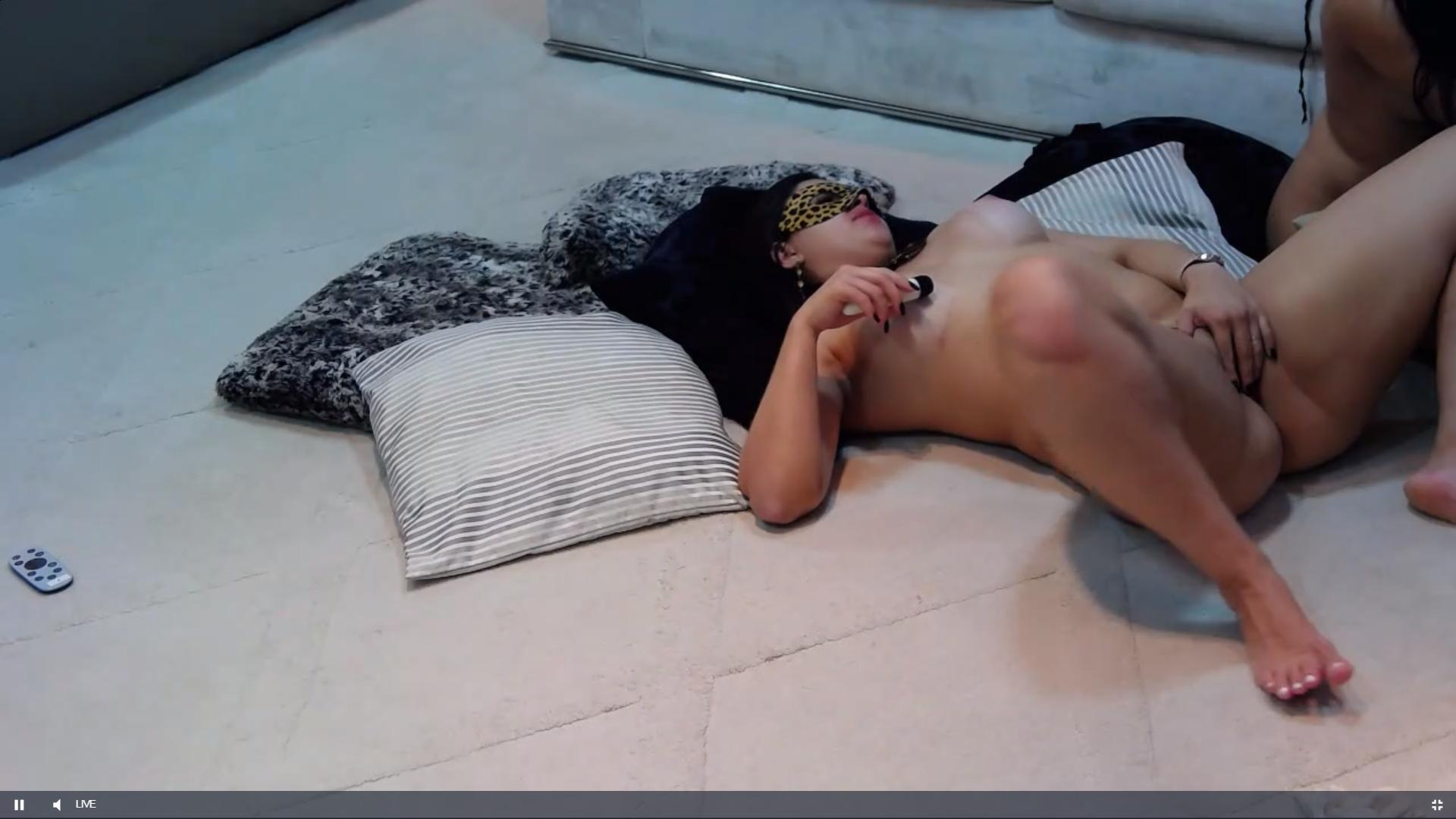
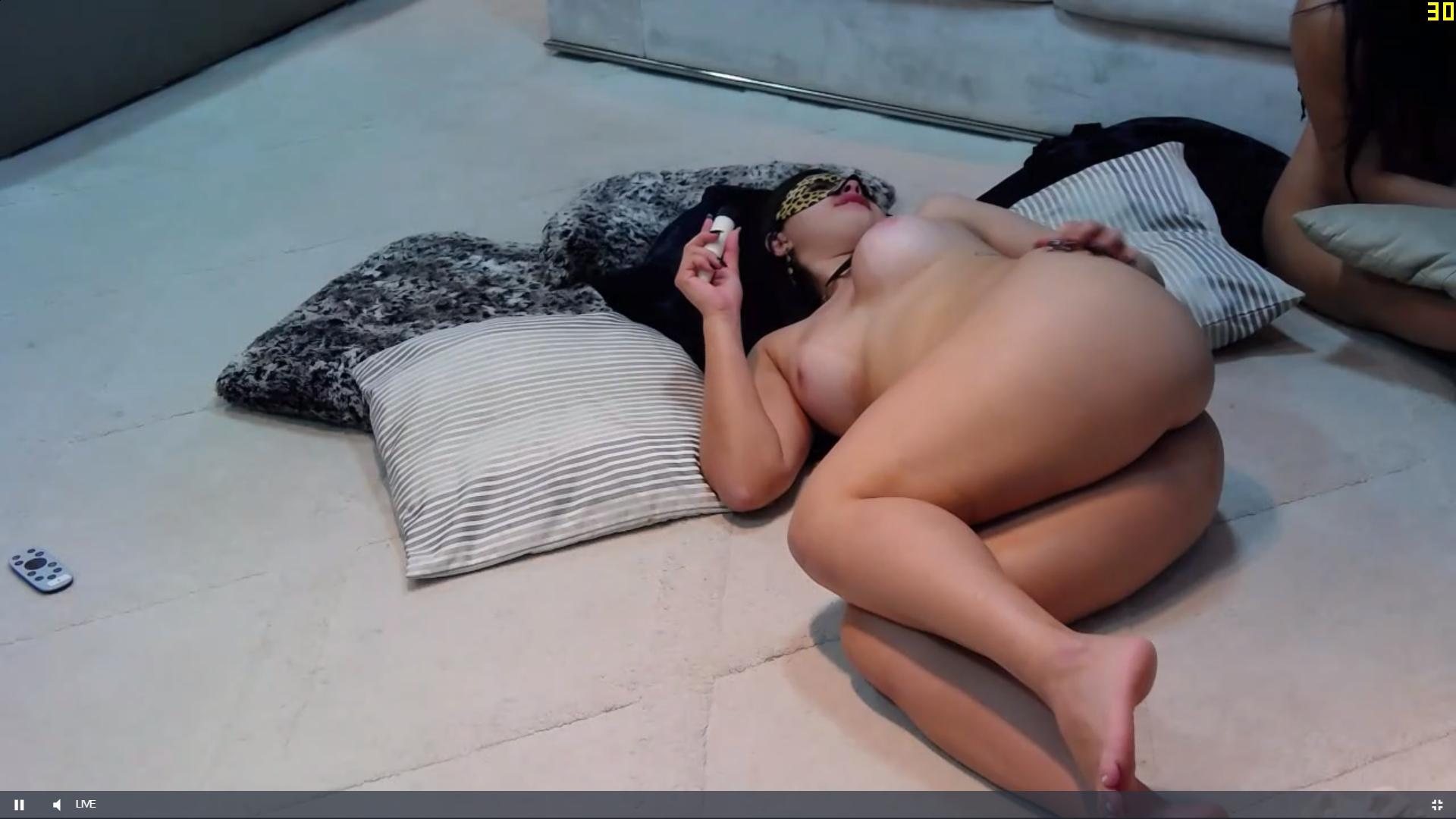
it would be nice if they did,but i would rather be there with my video cameras,though i would need extra storage space as i think 5TB would not be enough.it seems news of the casa girls has spread as there seems to be naked girls all bout the place,not that i am complaining but i think their introduction has made everyone step up the game. i use the double tap when getting shots ans motion cam blur,but there are only a couple of rejections out of the many captures,
-
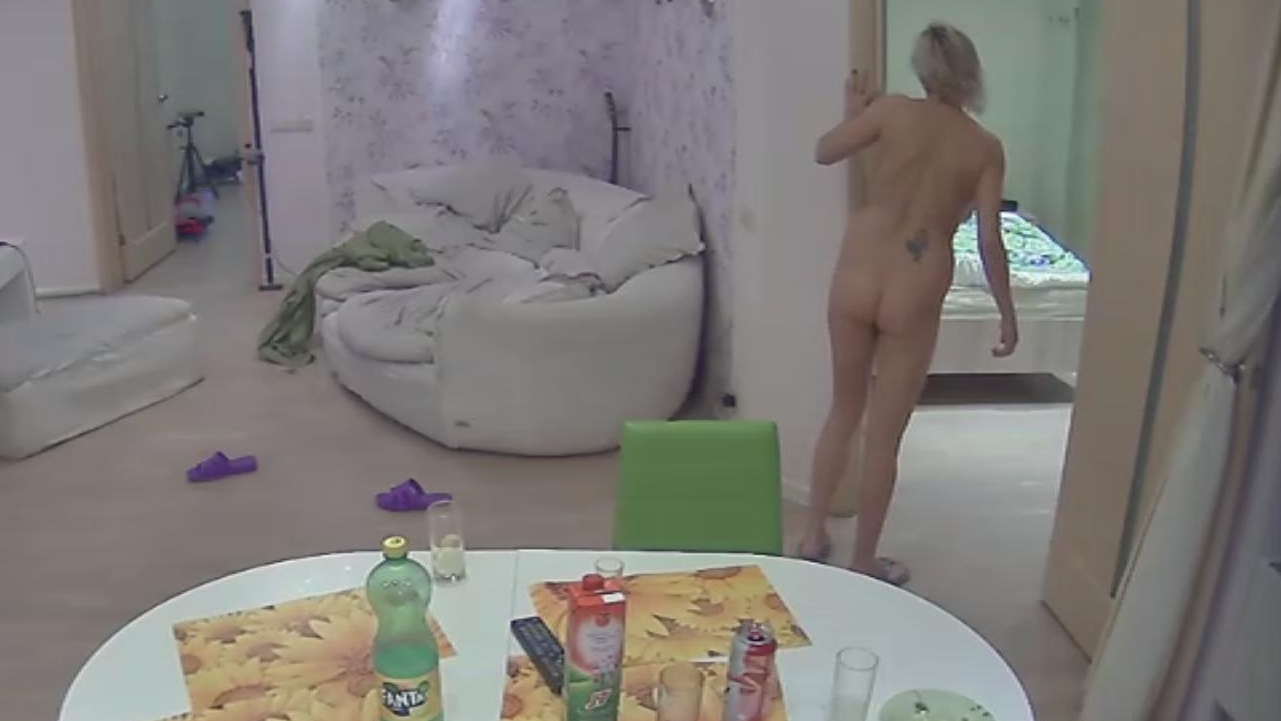
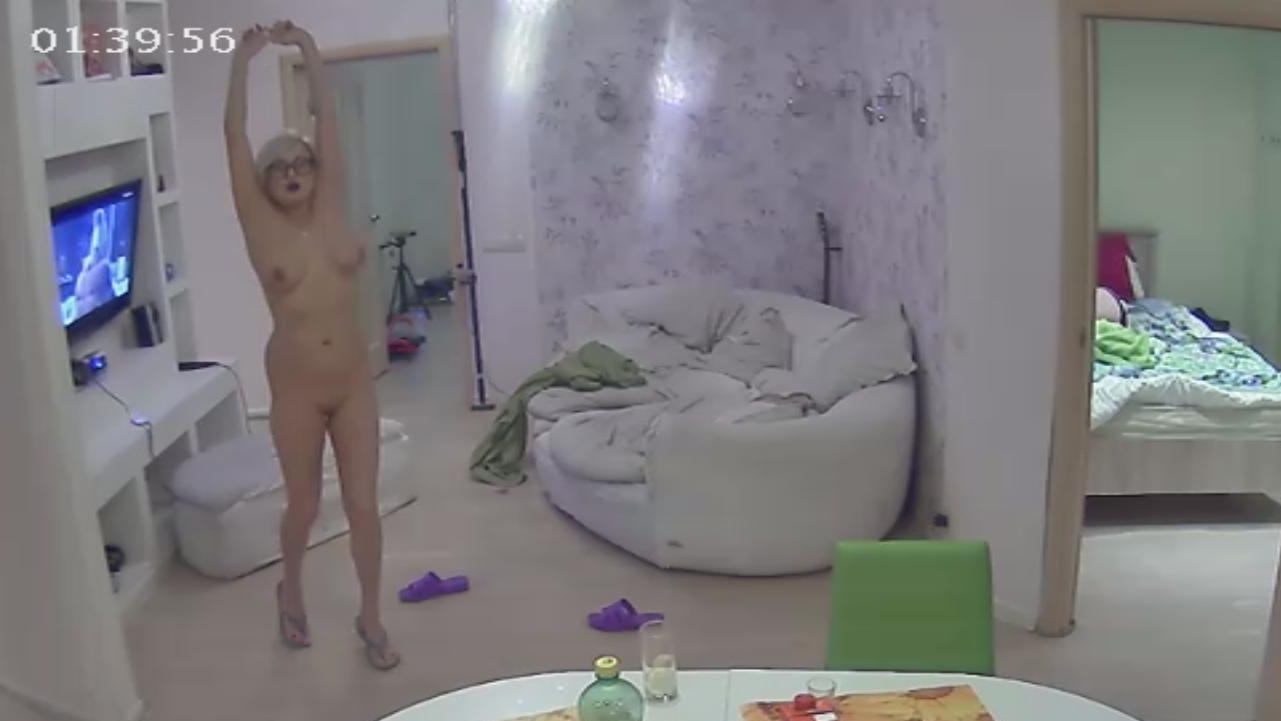
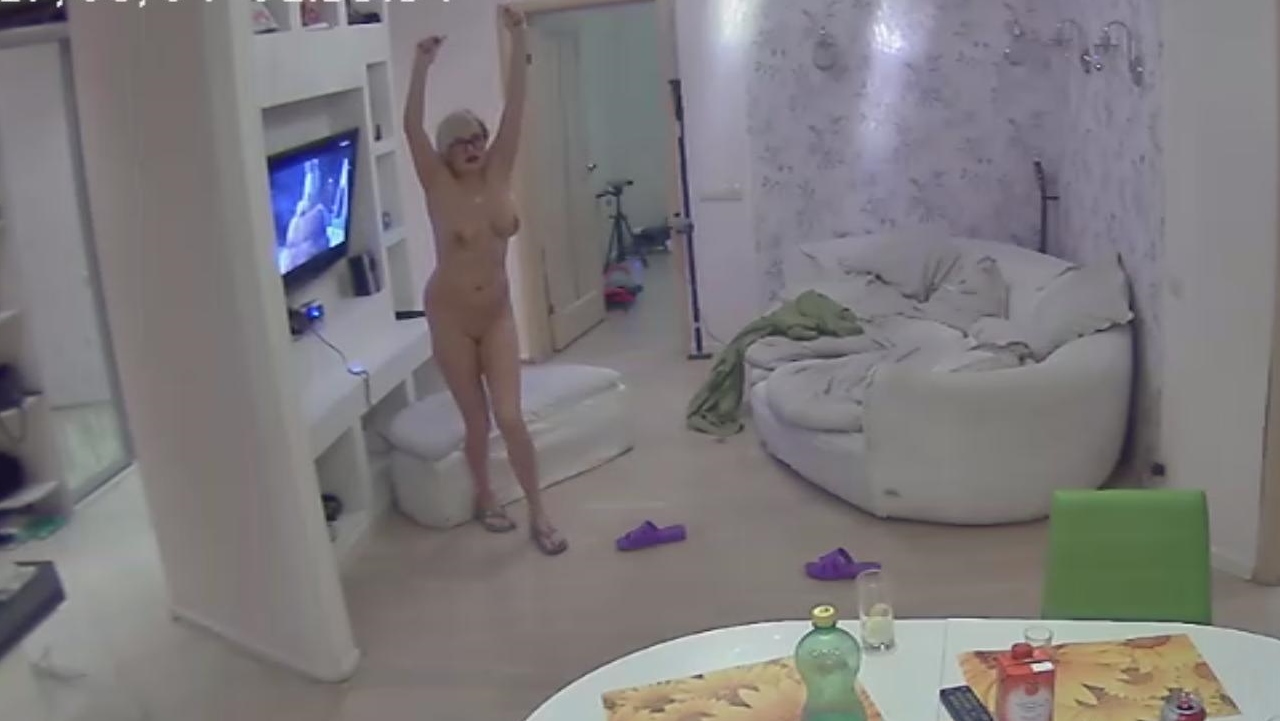
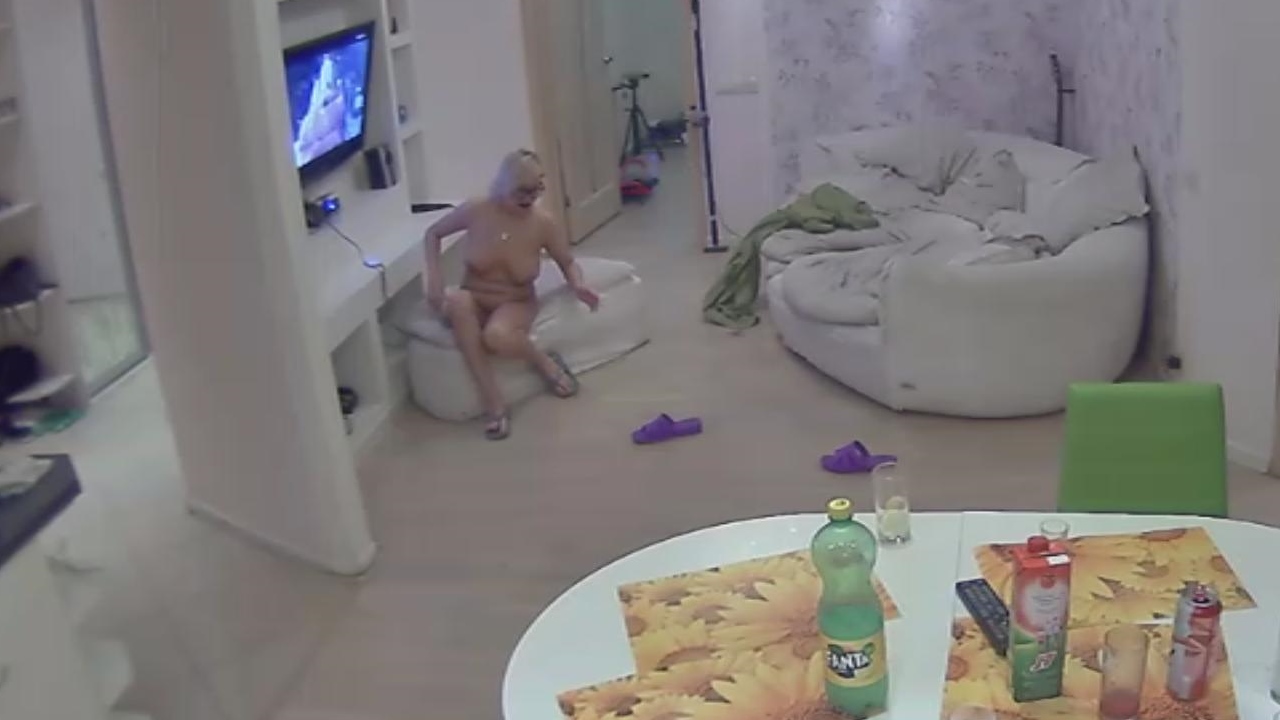
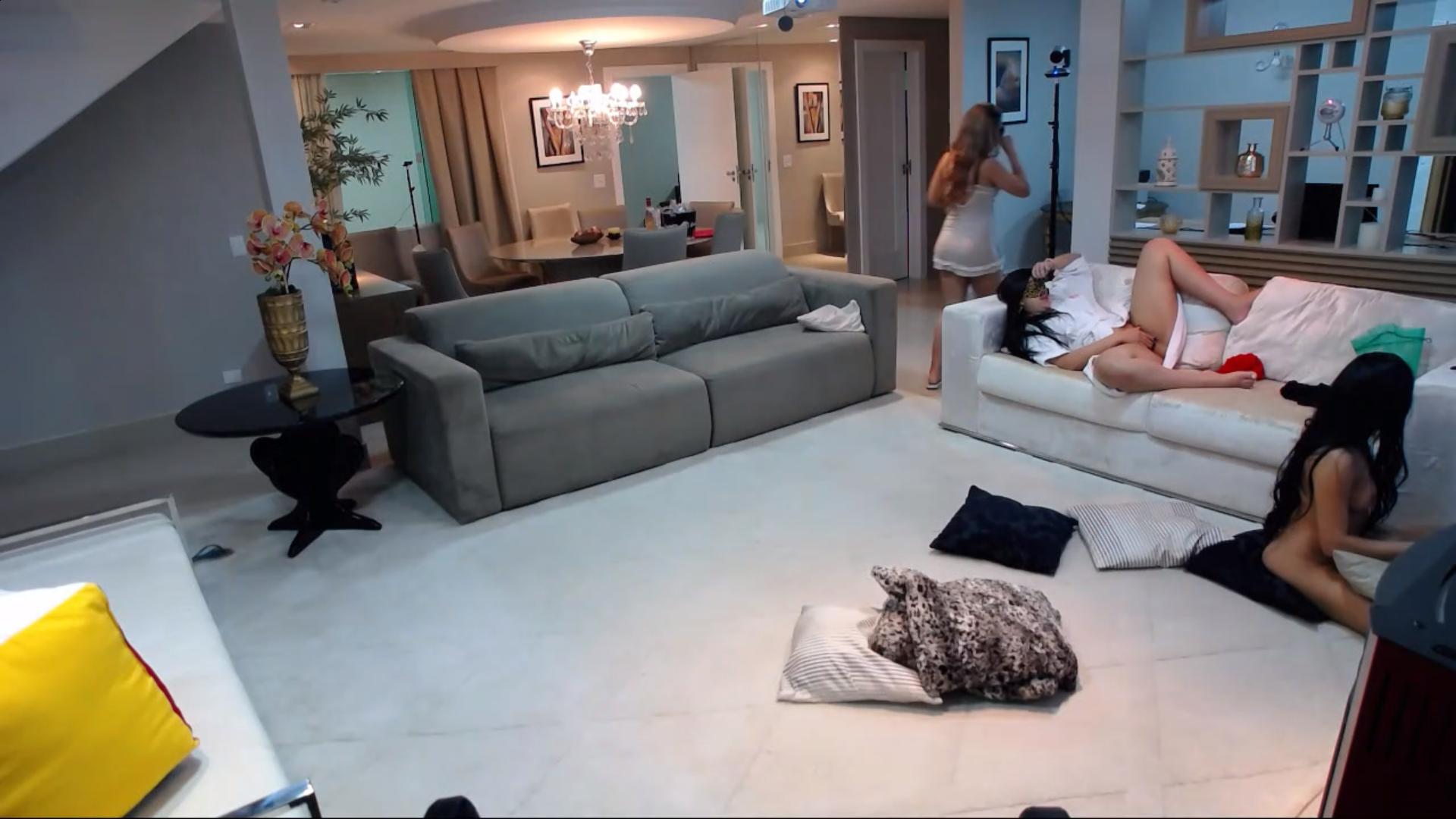
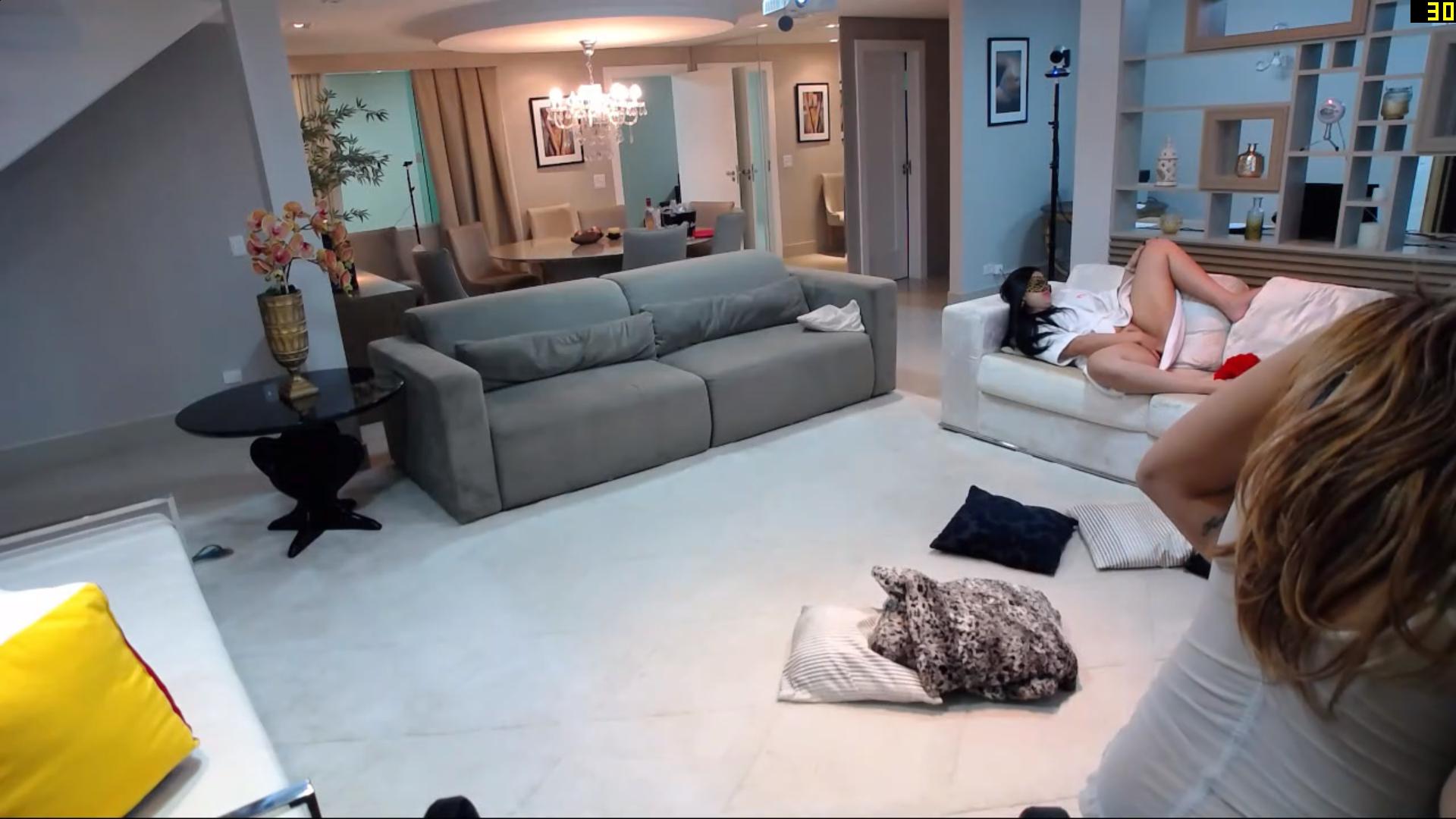
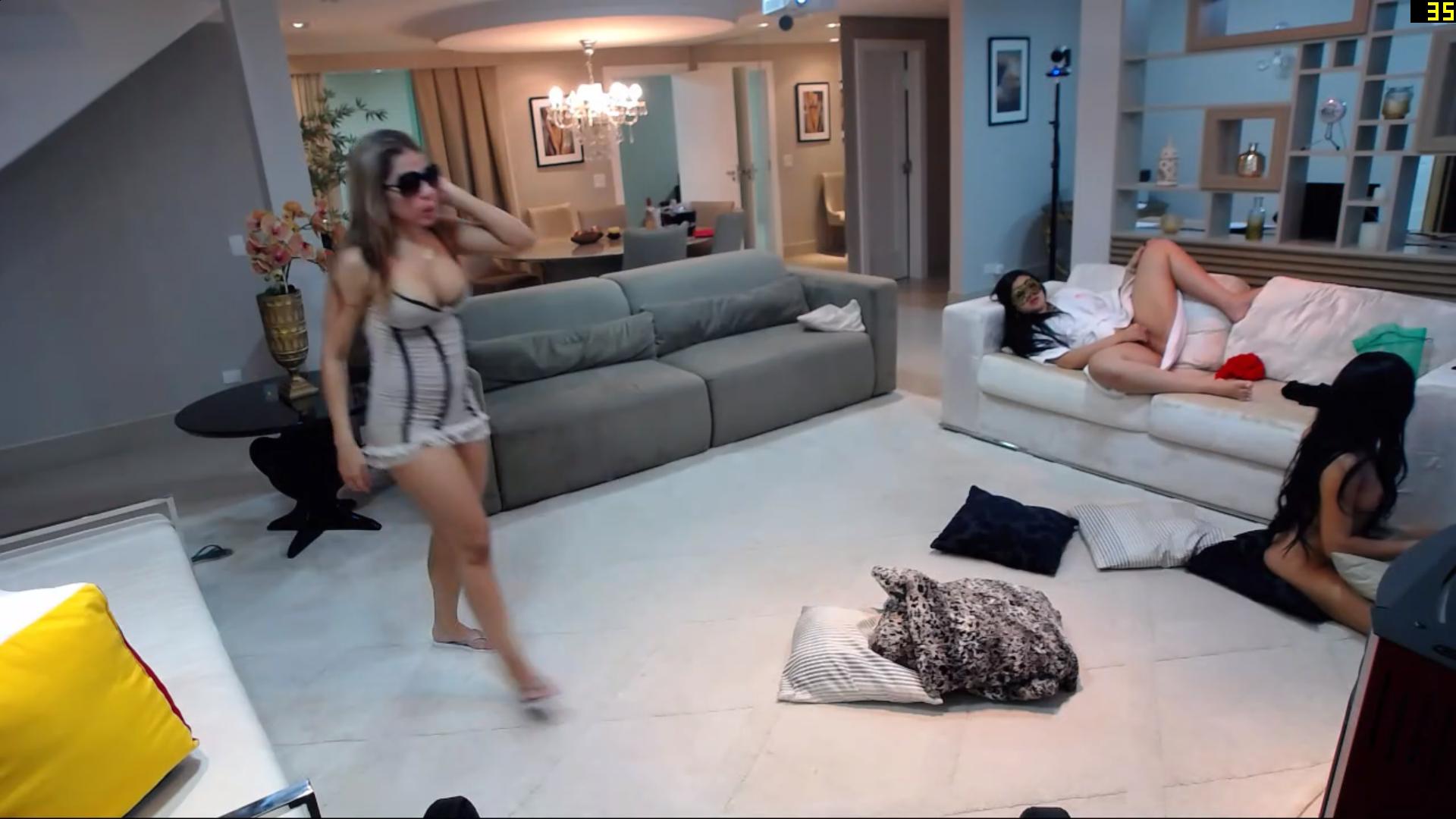
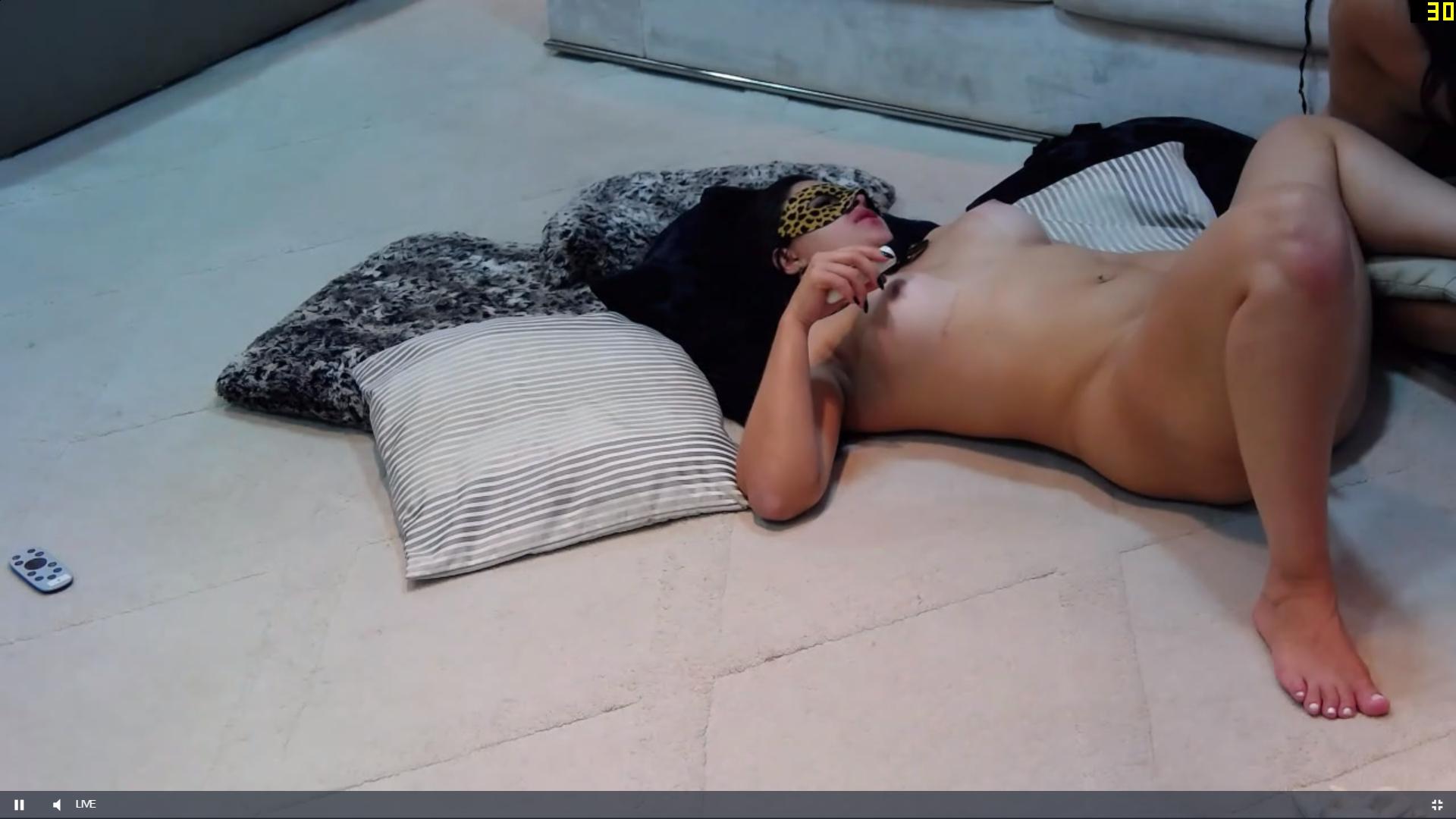
no worries about running out of likes,i know its a boost thing,your comments are well appreciated by me.i know almost what type of shots you like,so i try and capture the goodies.sometime multiples as they maybe moving at the time of the shot,i am more of a situation photographer rather than pose photography,and i think i capture the situations rather well..all in all thanks for your likes and comments..
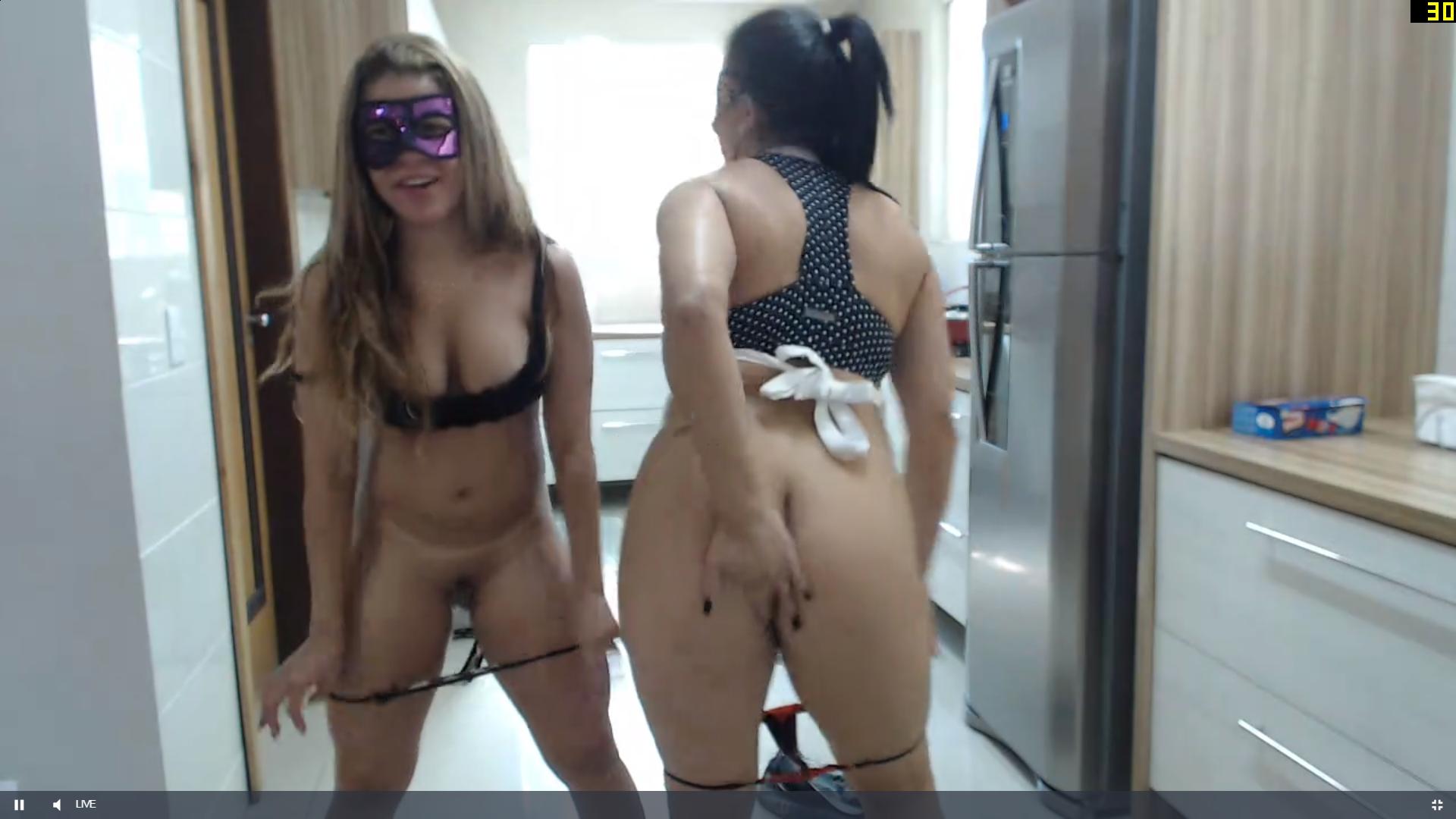
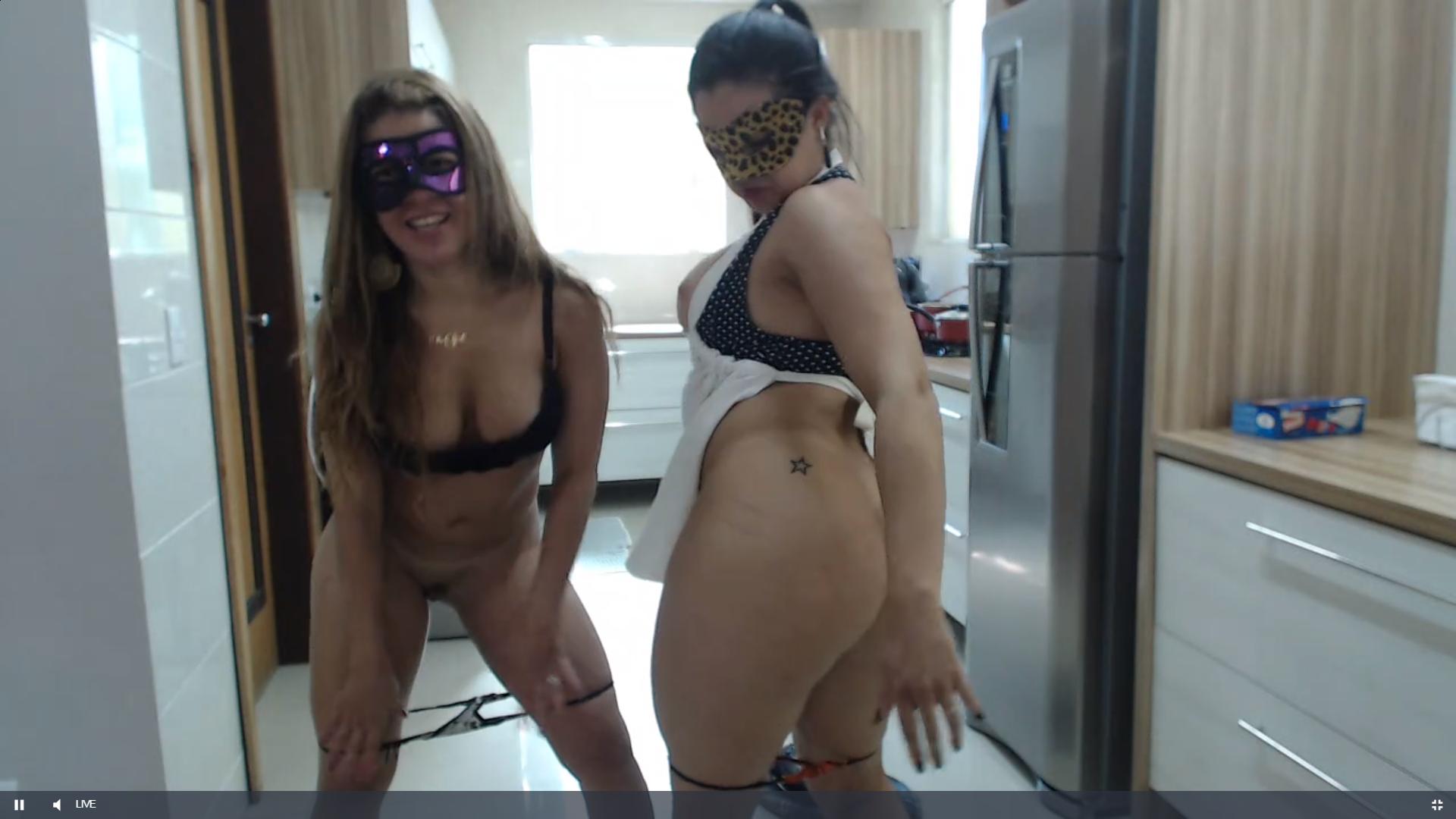
its true the masks are a turn off,but they do make up for it with their shows
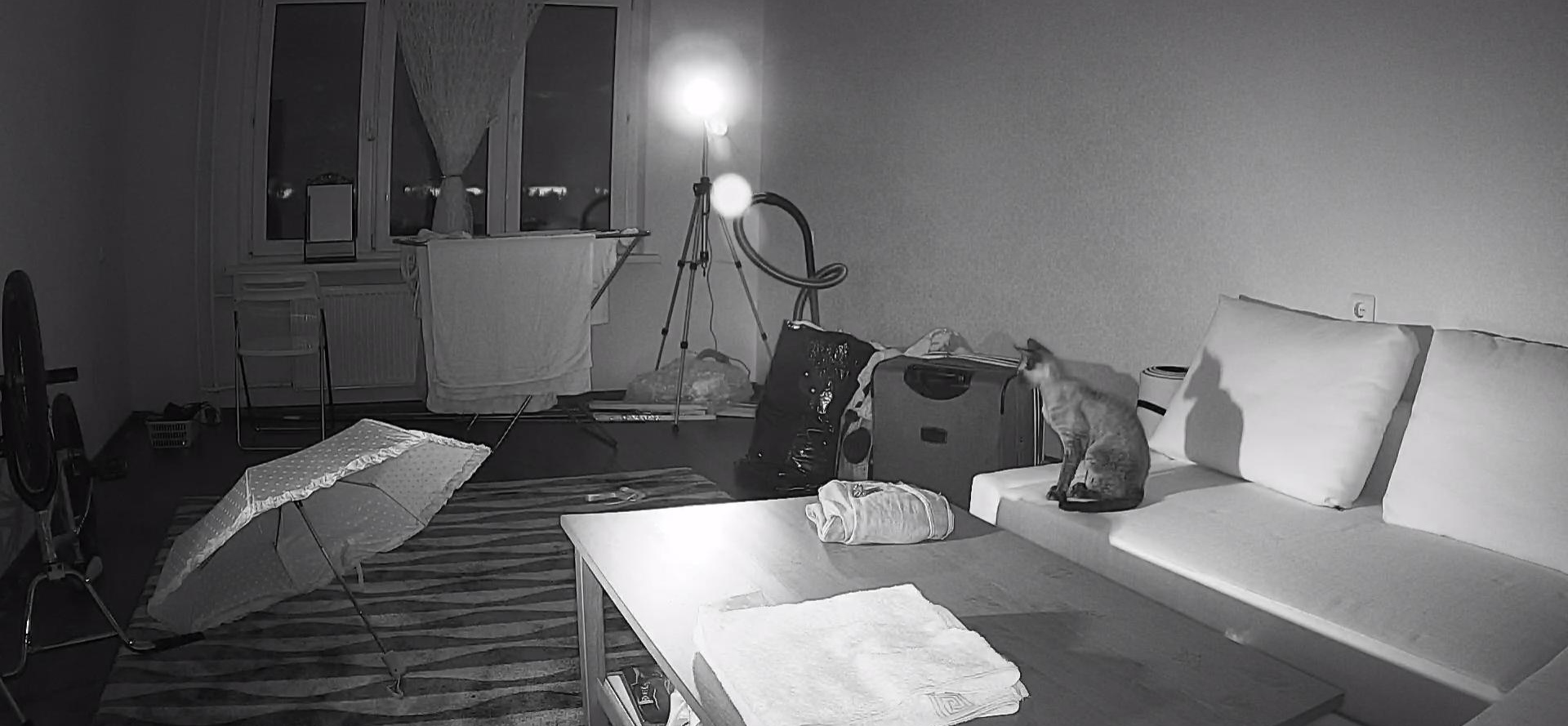
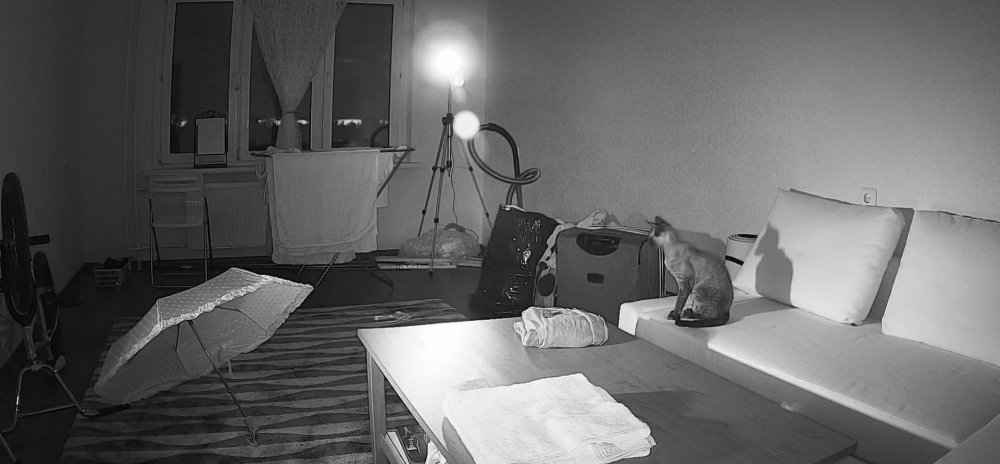
the only pussy i have seen in this apartment so far,a quad ped feline..lol
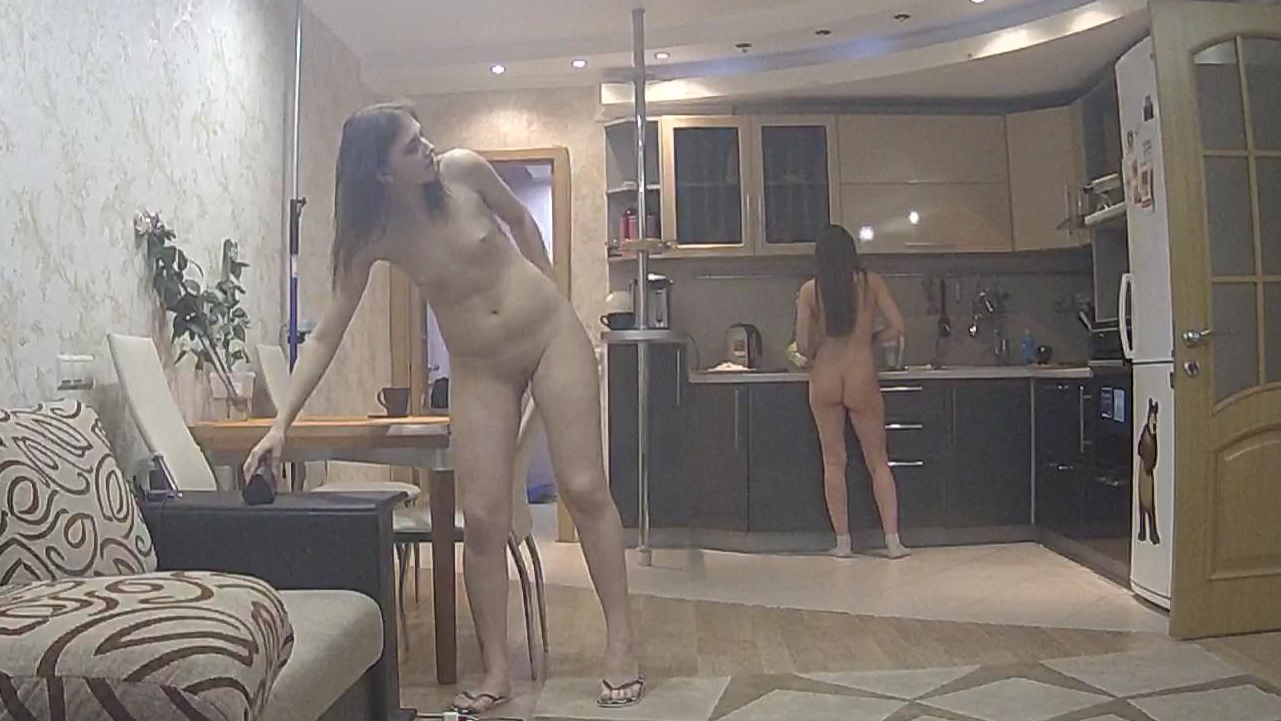
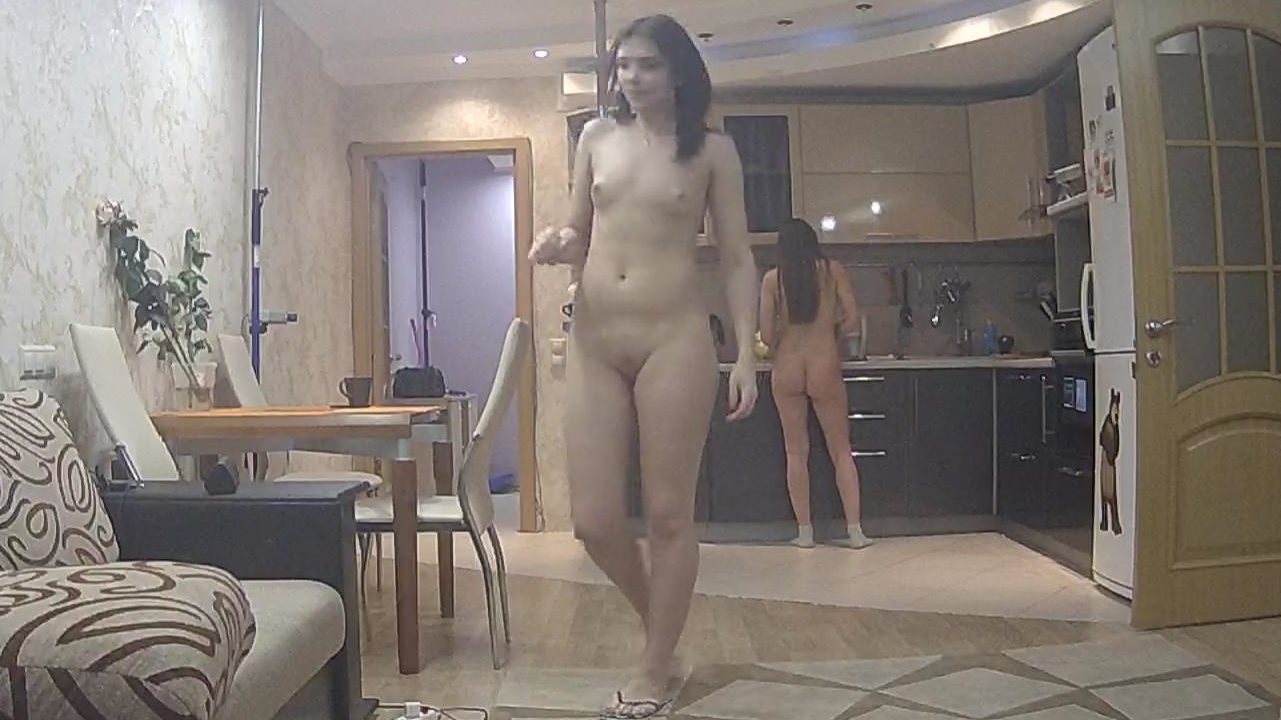
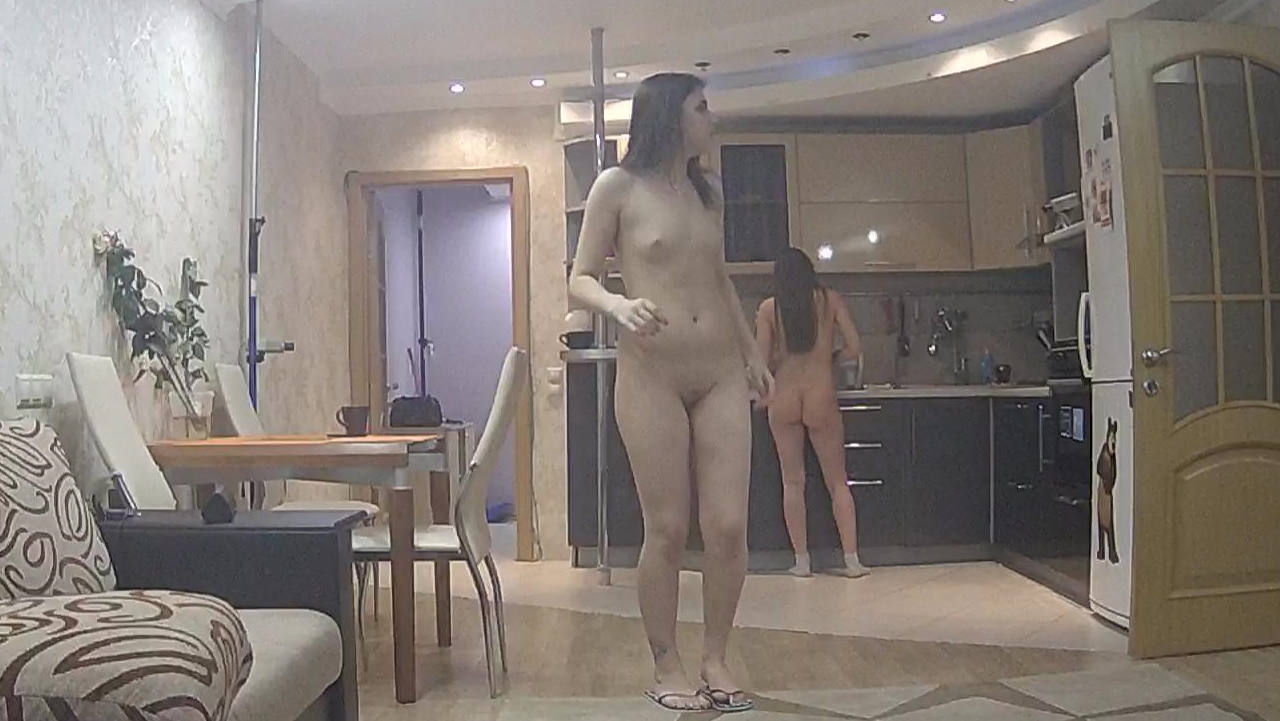
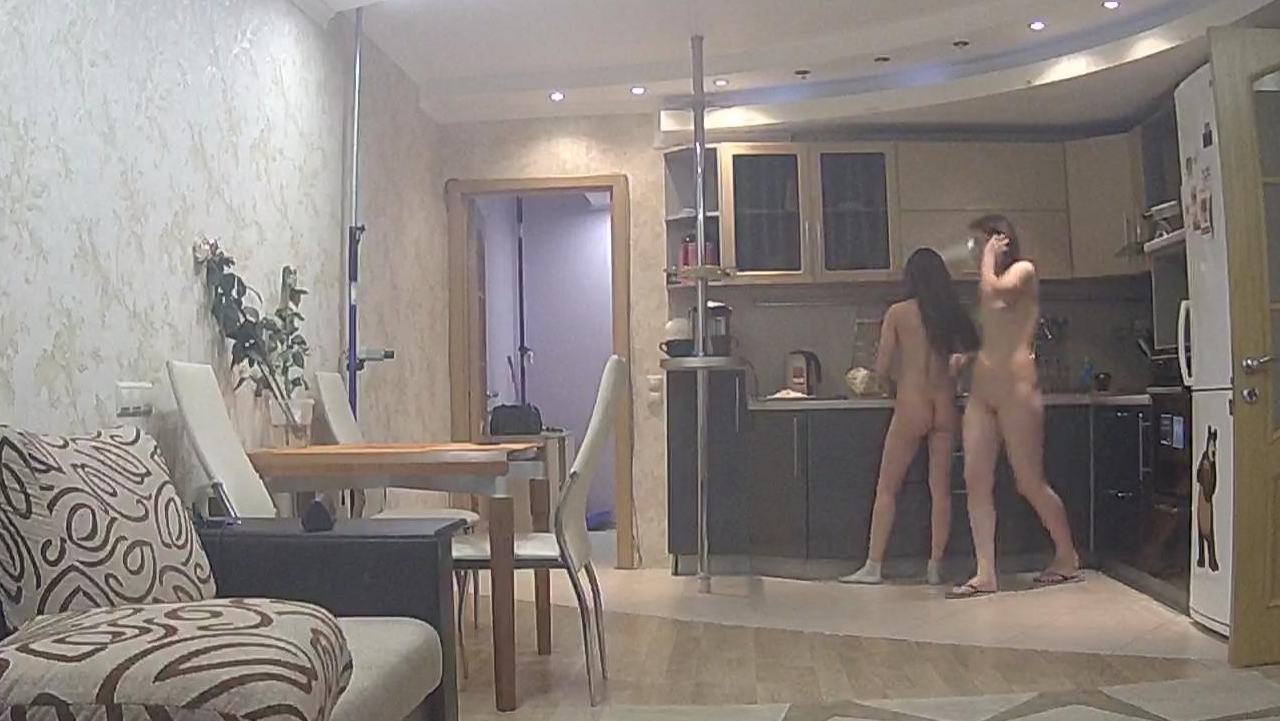
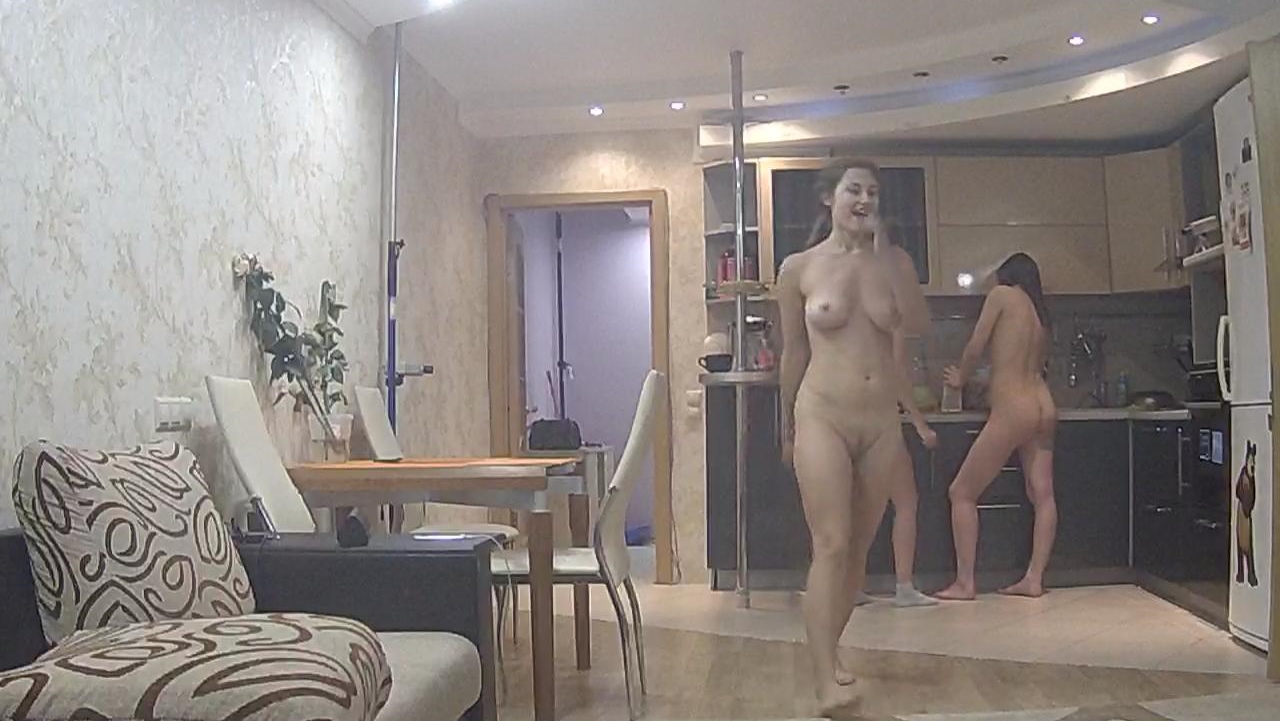
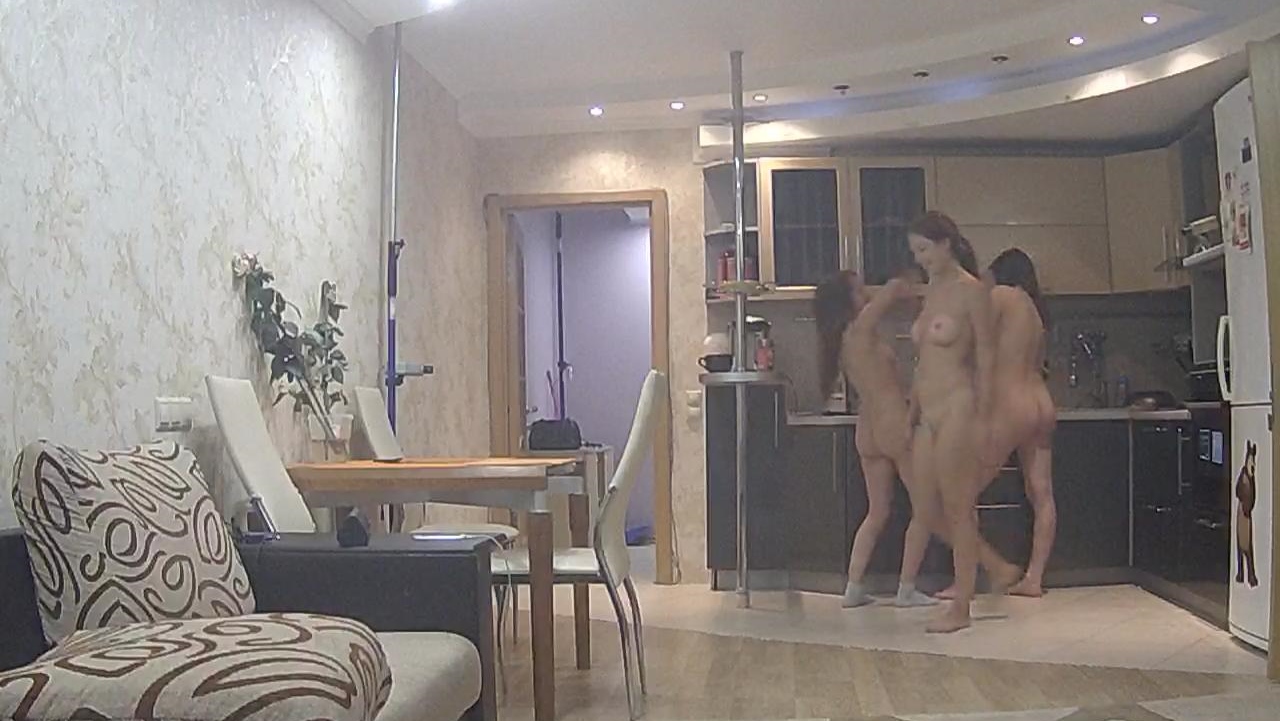
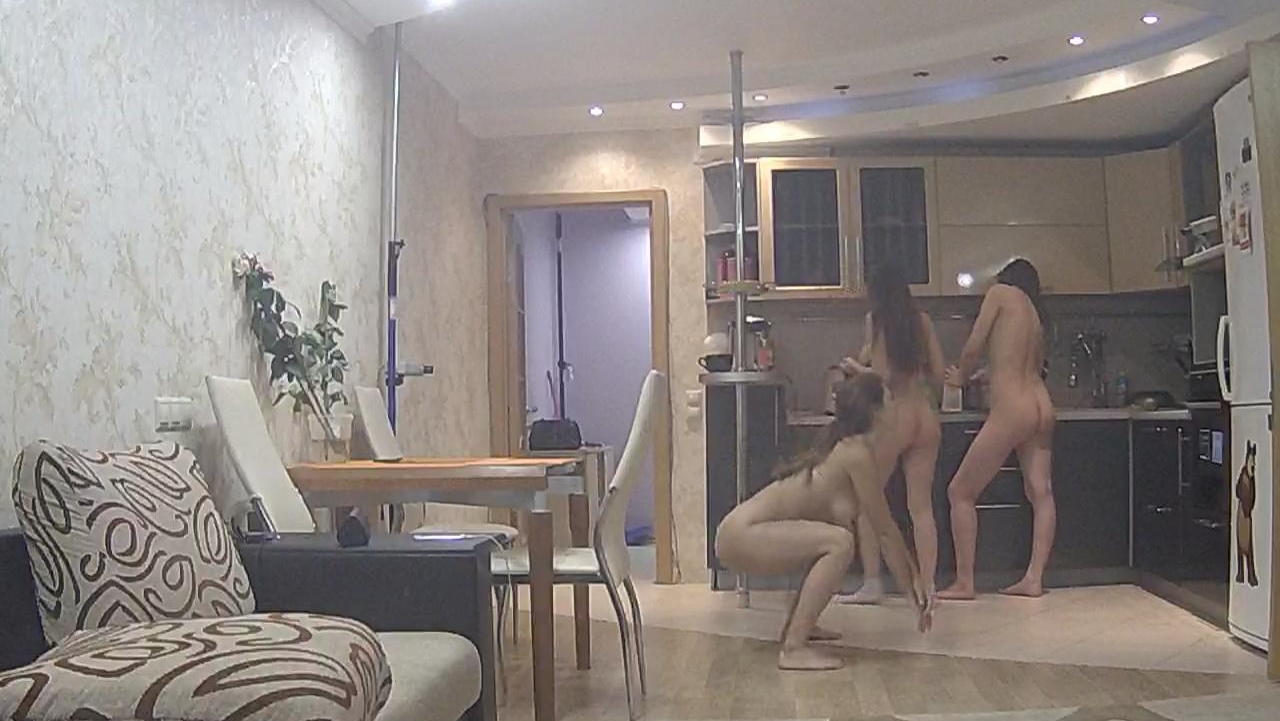
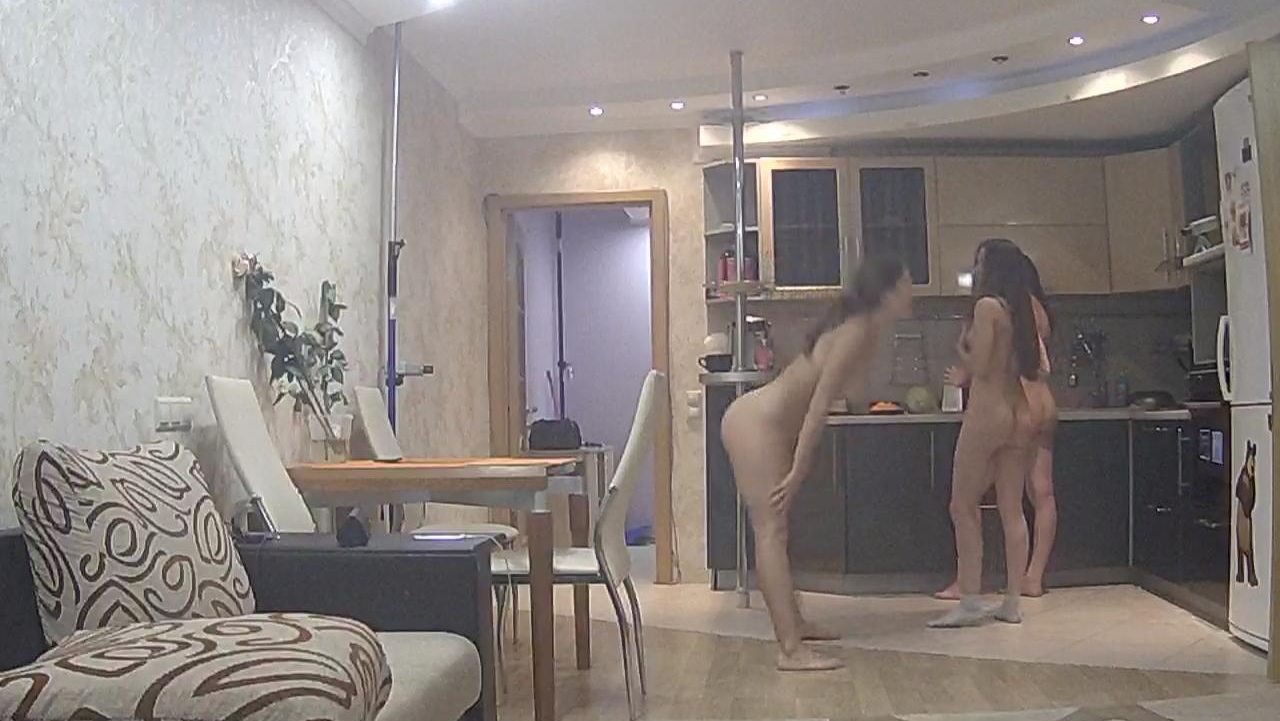
 washtime
Account
Navigation
Search
Configure browser push notifications
Chrome (Android)
- Tap the lock icon next to the address bar.
- Tap Permissions → Notifications.
- Adjust your preference.
Chrome (Desktop)
- Click the padlock icon in the address bar.
- Select Site settings.
- Find Notifications and adjust your preference.
Safari (iOS 16.4+)
- Ensure the site is installed via Add to Home Screen.
- Open Settings App → Notifications.
- Find your app name and adjust your preference.
Safari (macOS)
- Go to Safari → Preferences.
- Click the Websites tab.
- Select Notifications in the sidebar.
- Find this website and adjust your preference.
Edge (Android)
- Tap the lock icon next to the address bar.
- Tap Permissions.
- Find Notifications and adjust your preference.
Edge (Desktop)
- Click the padlock icon in the address bar.
- Click Permissions for this site.
- Find Notifications and adjust your preference.
Firefox (Android)
- Go to Settings → Site permissions.
- Tap Notifications.
- Find this site in the list and adjust your preference.
Firefox (Desktop)
- Open Firefox Settings.
- Search for Notifications.
- Find this site in the list and adjust your preference.




































.jpg.dd6f3b2744e52d9cdf01bf8276ecdf94.jpg)