
cyberleader
Hero Member
-
Joined
-
Last visited
Everything posted by cyberleader
-
 your logic is correct,the picture quality doe ruin a good viewing,its also funny when it speeds up going backwards and forwards,like someone is using a jog shuttle wheel.
 -
oiled arse the best

 like the artistic flair when it comes to cleaning
 it was getting good untill the power went out there would have been more,but that dammed electricity supply ,it was the start of something good,in future we might have to keep some pound coins handy for the electric meter.just so as we can get a good view
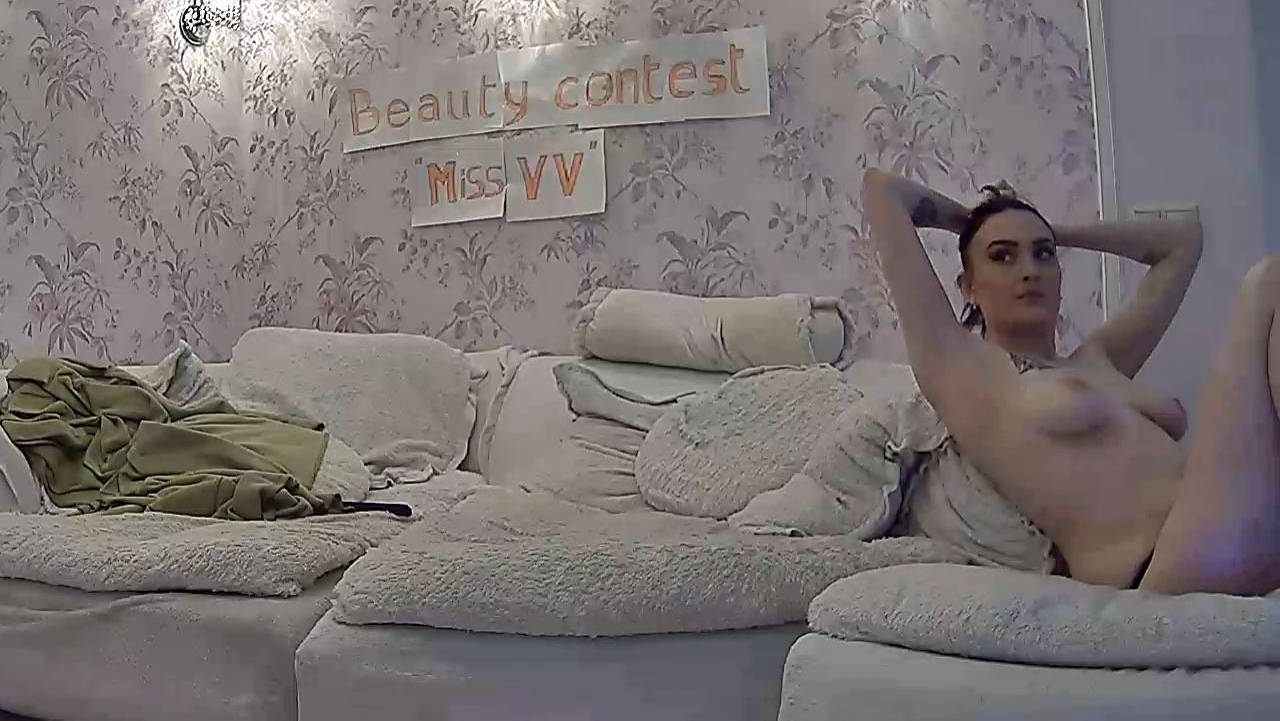
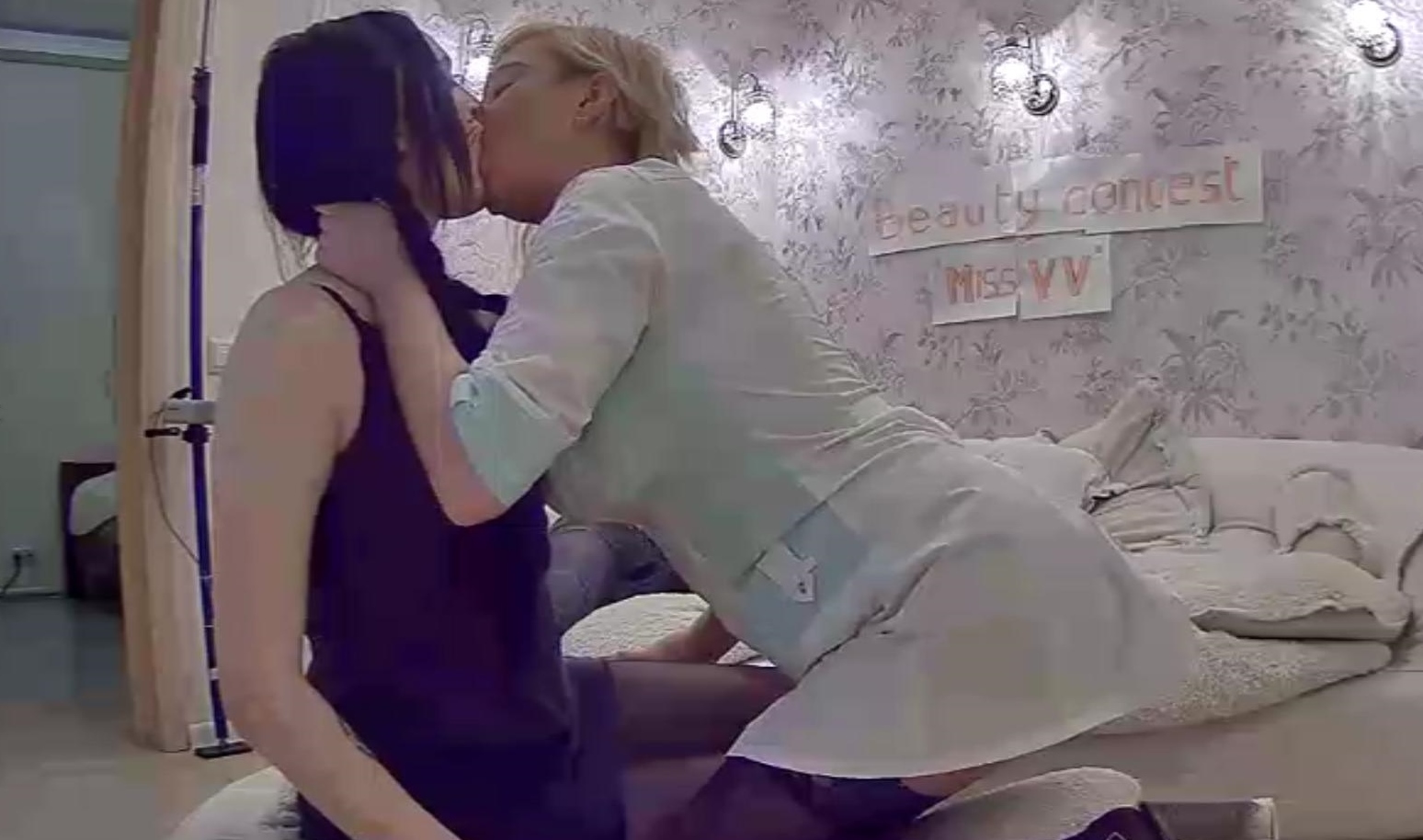
miss VV contest winner in my opinion,remember when she first came aboard how shy she was? now marna has really opened up
it was getting good untill the power went out there would have been more,but that dammed electricity supply ,it was the start of something good,in future we might have to keep some pound coins handy for the electric meter.just so as we can get a good view
miss VV contest winner in my opinion,remember when she first came aboard how shy she was? now marna has really opened up
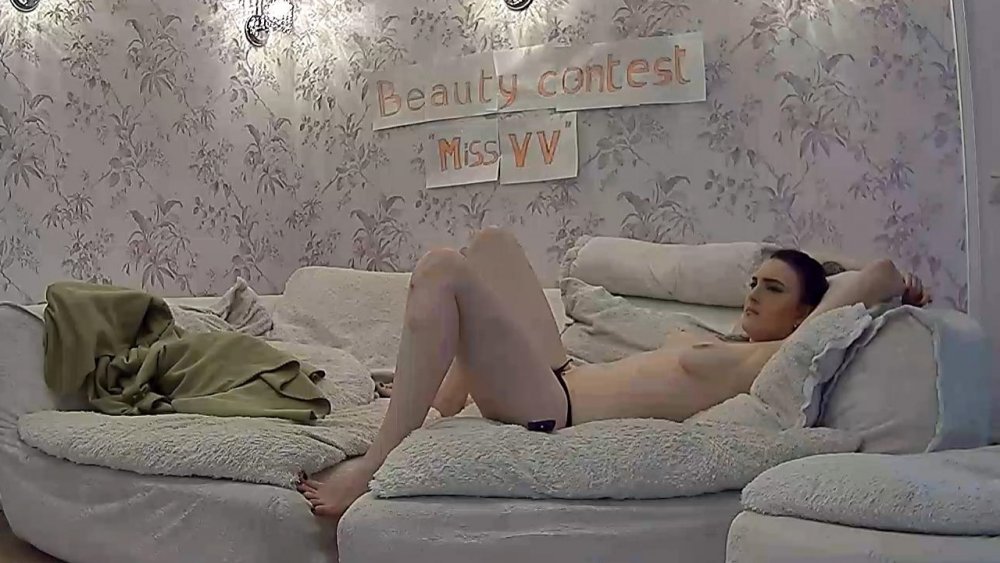
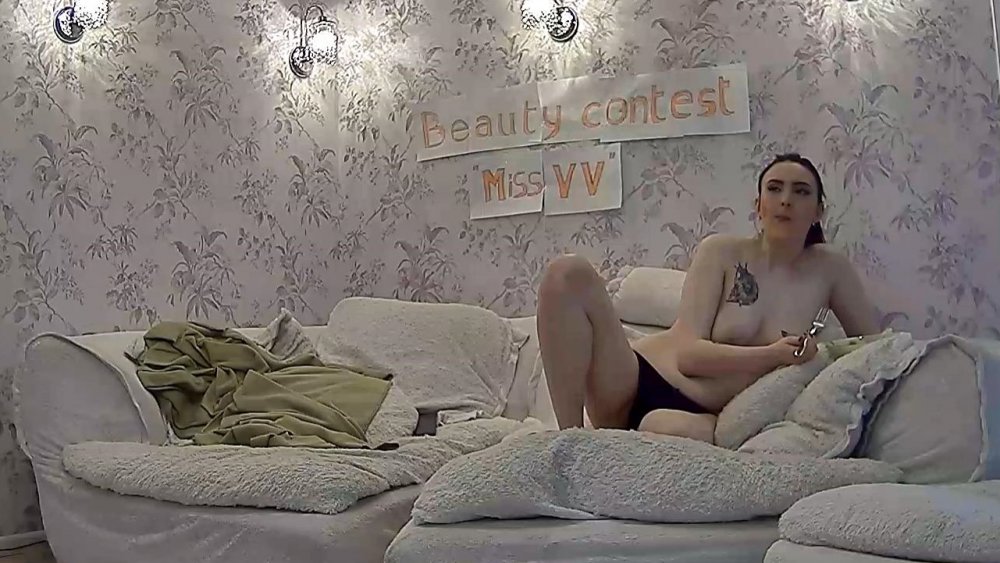
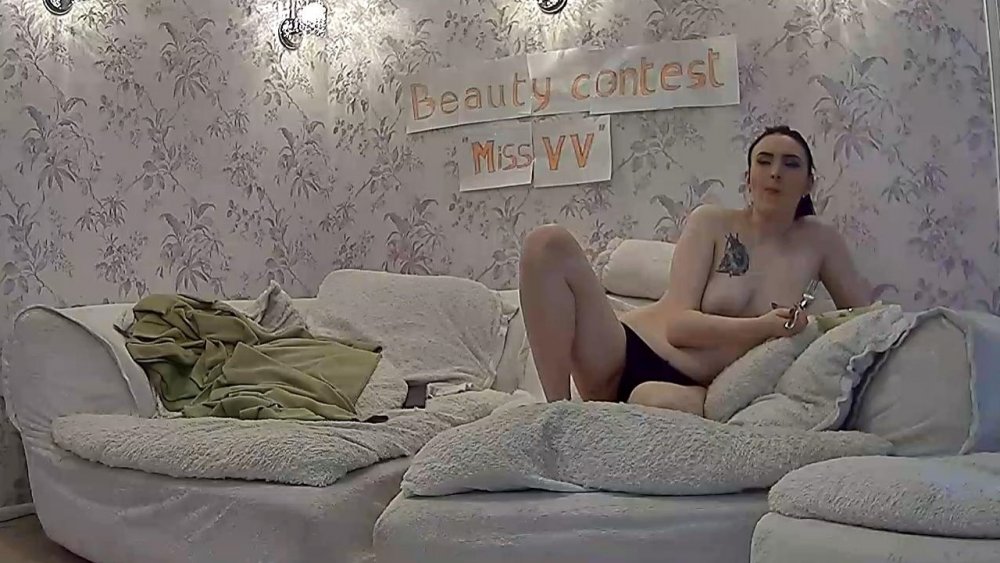
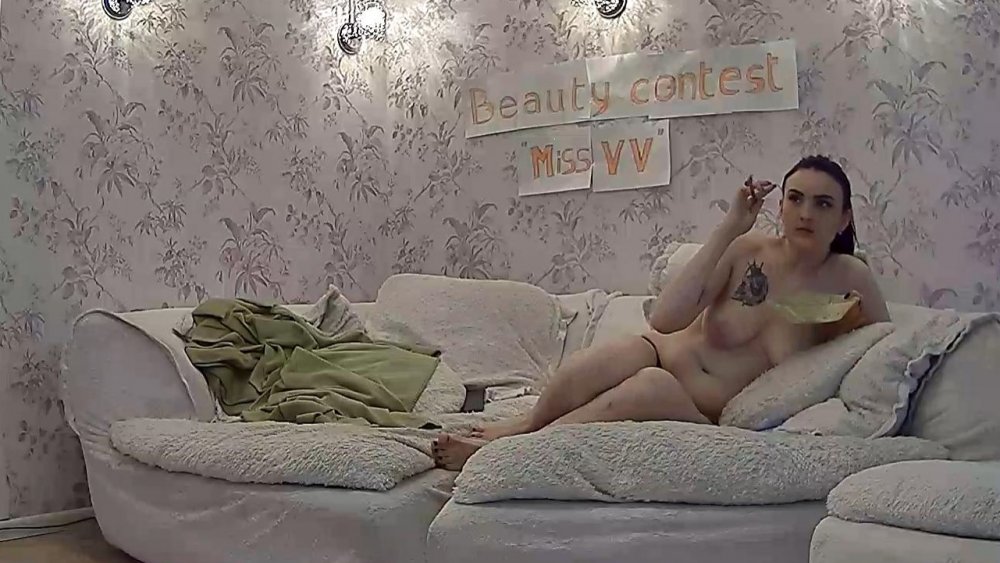
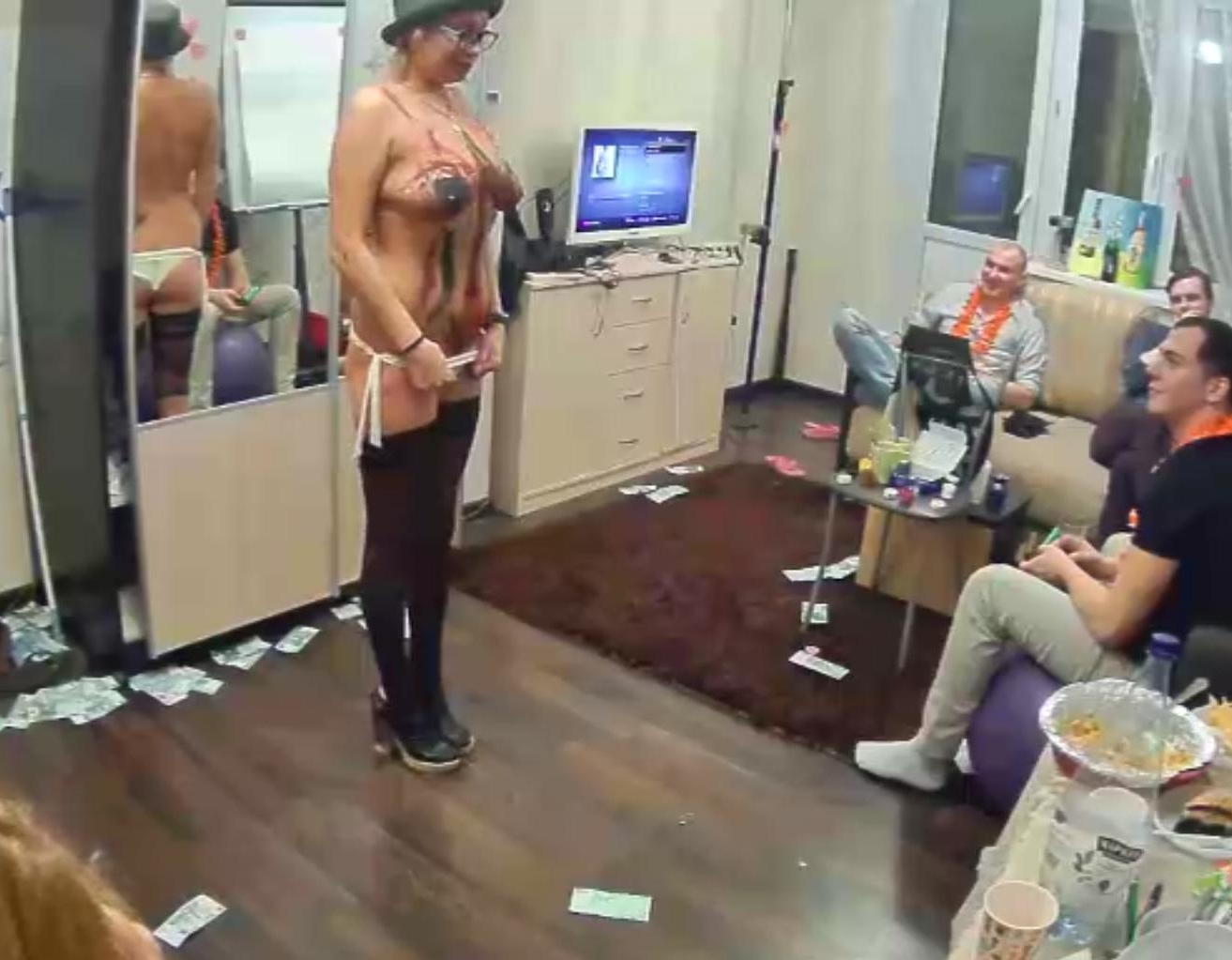
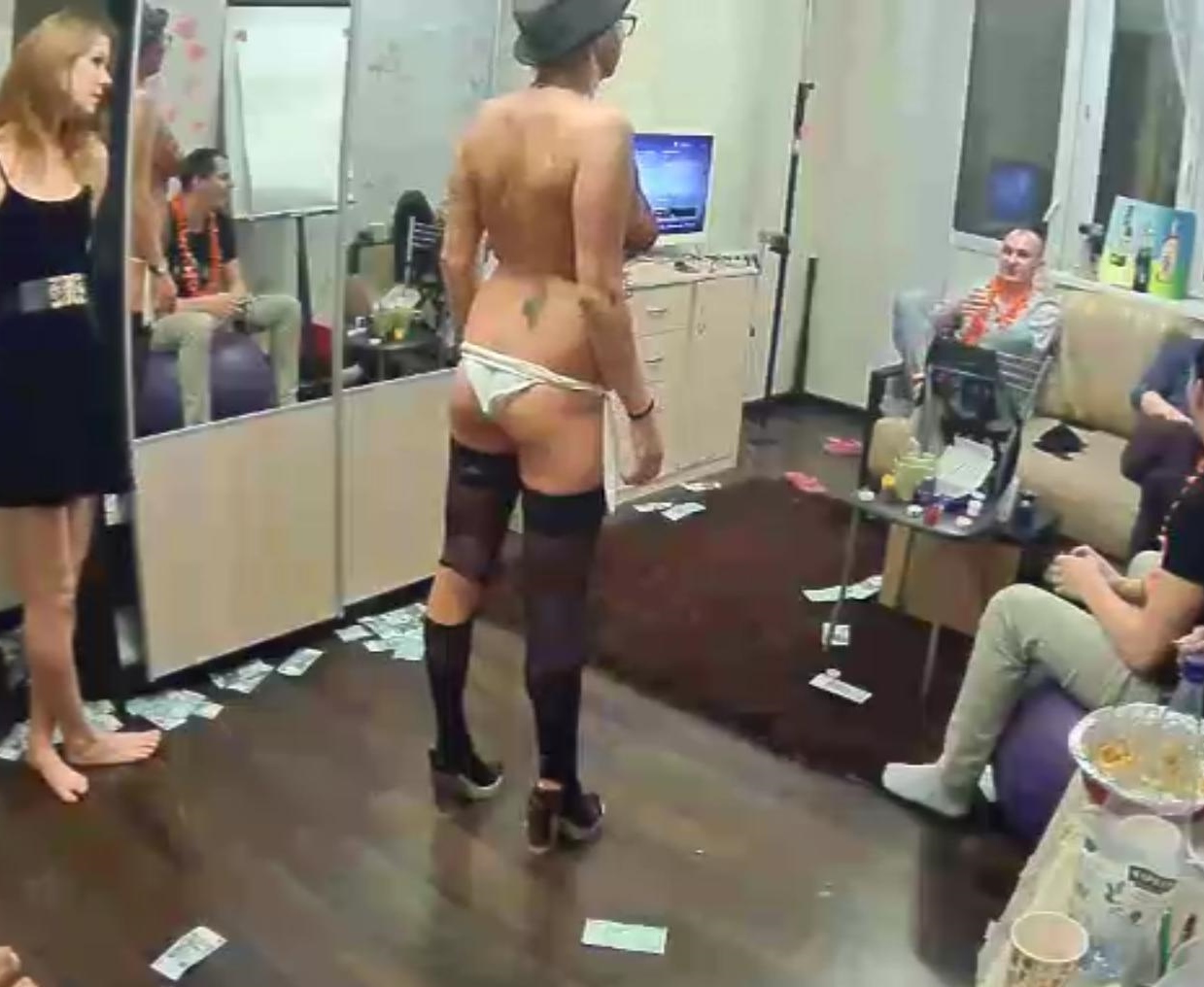
 slowly some bare skin on view
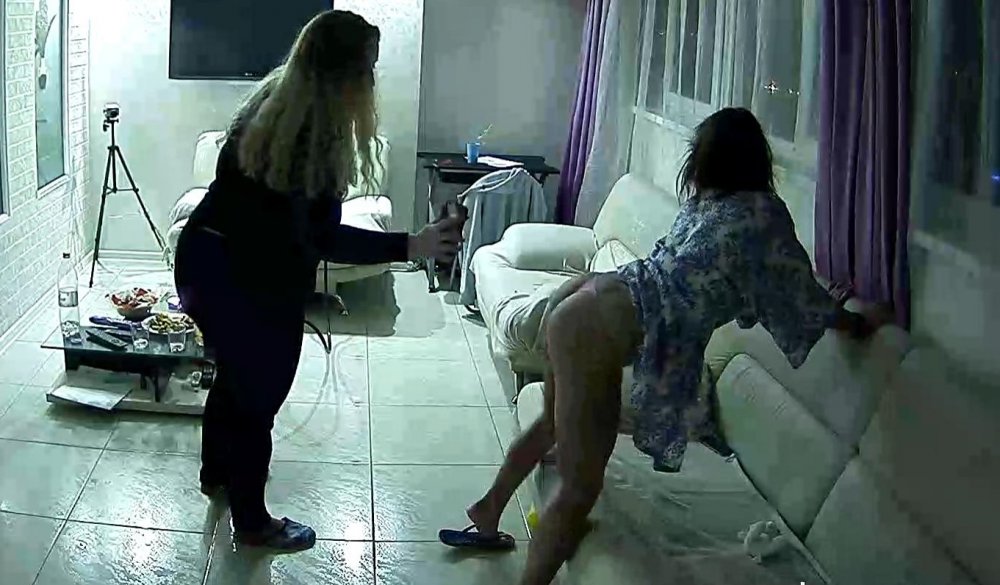
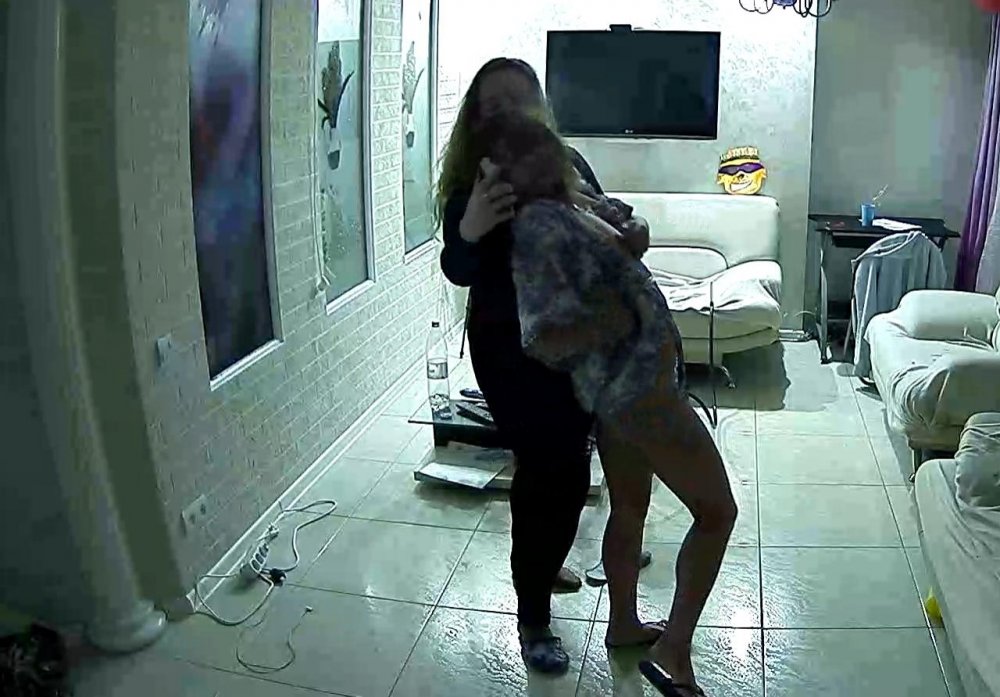
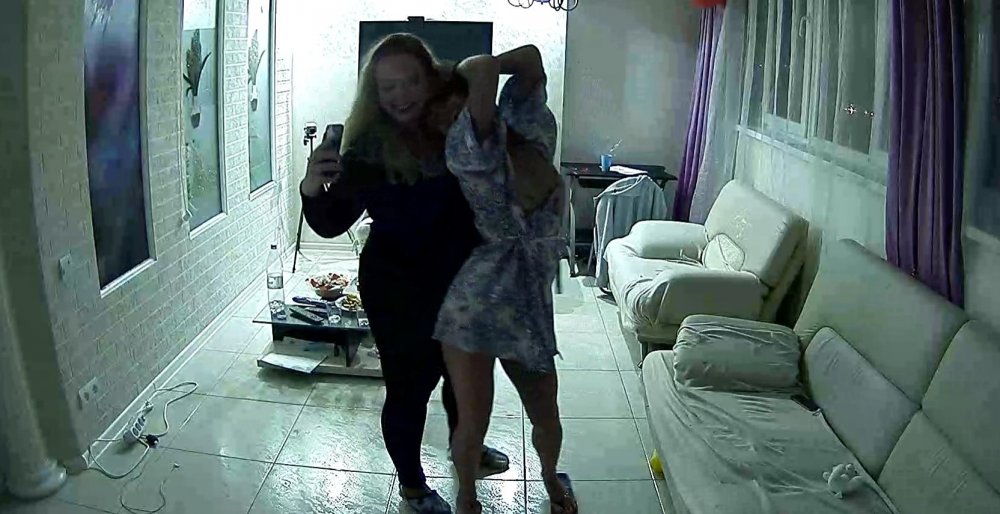
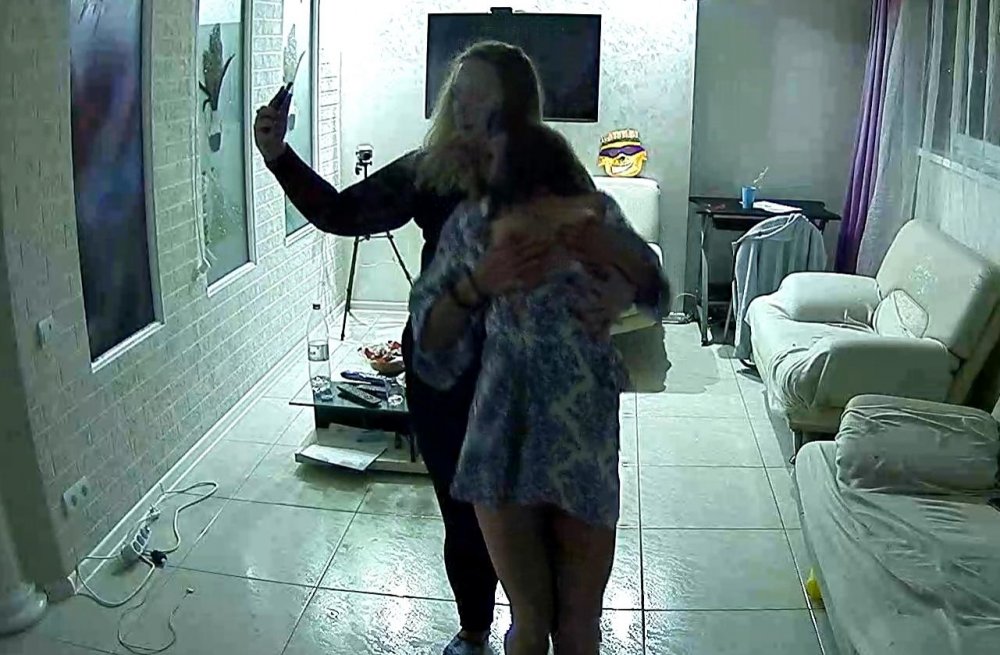
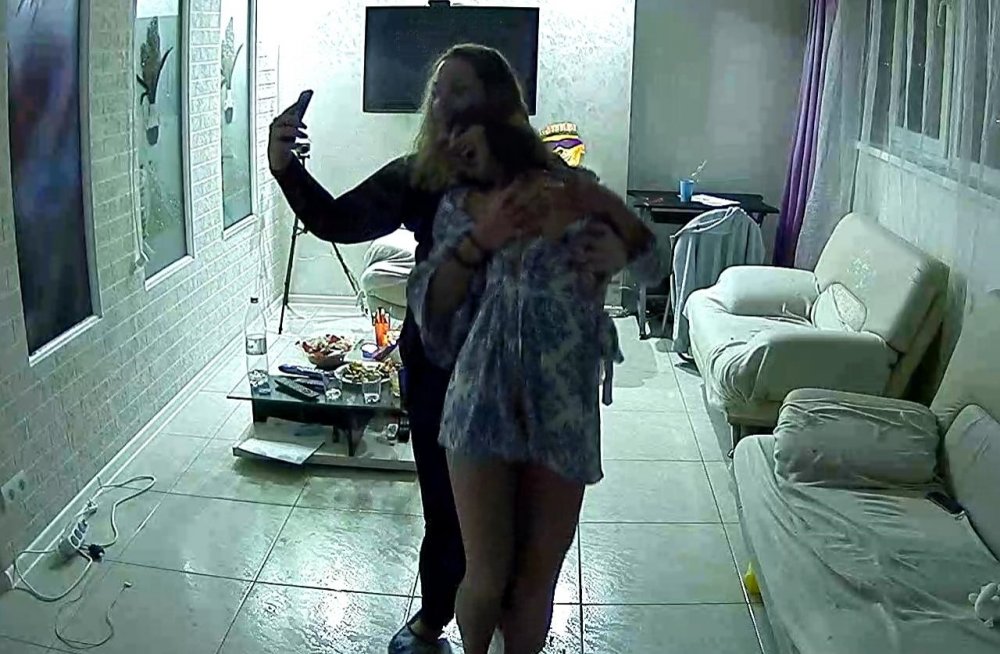
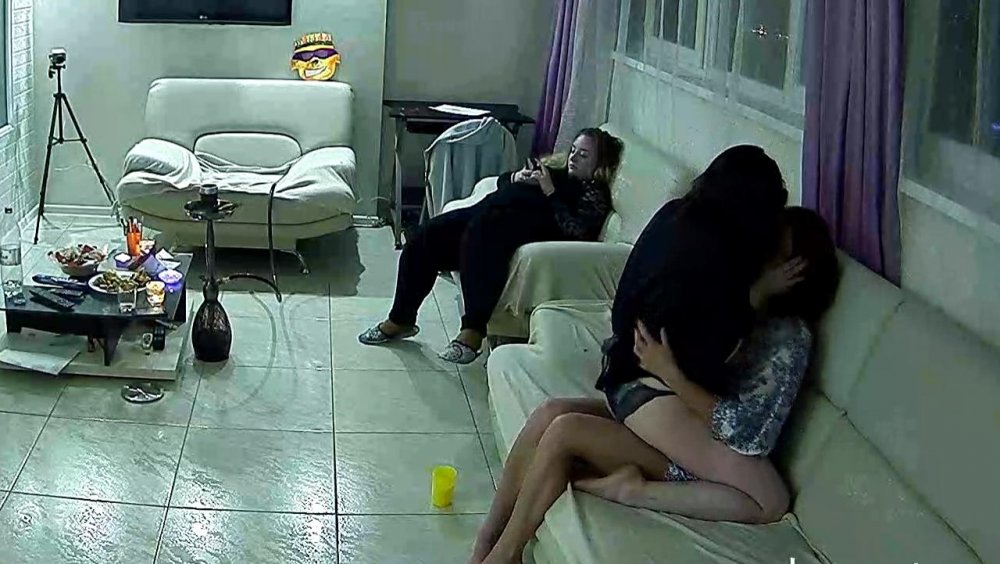
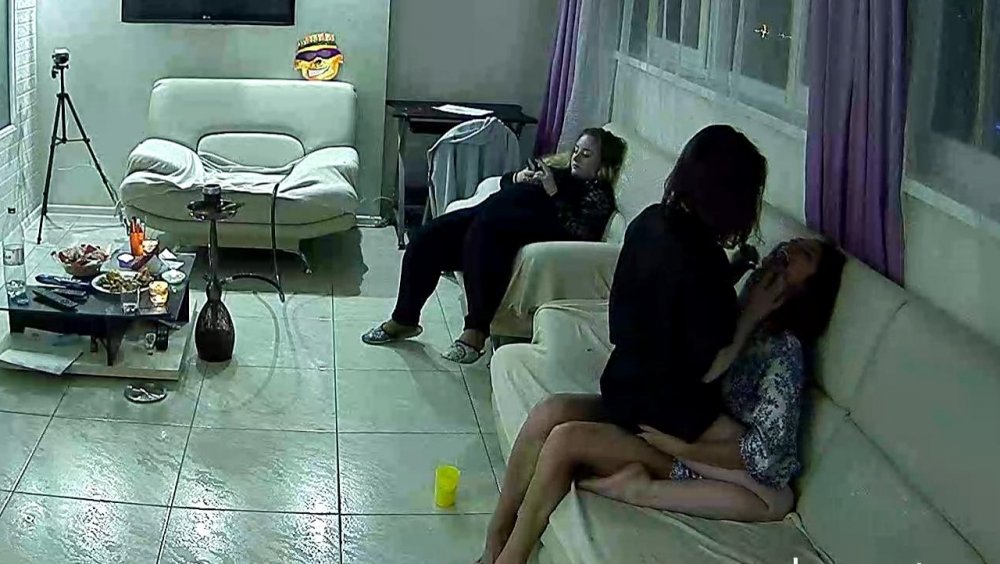
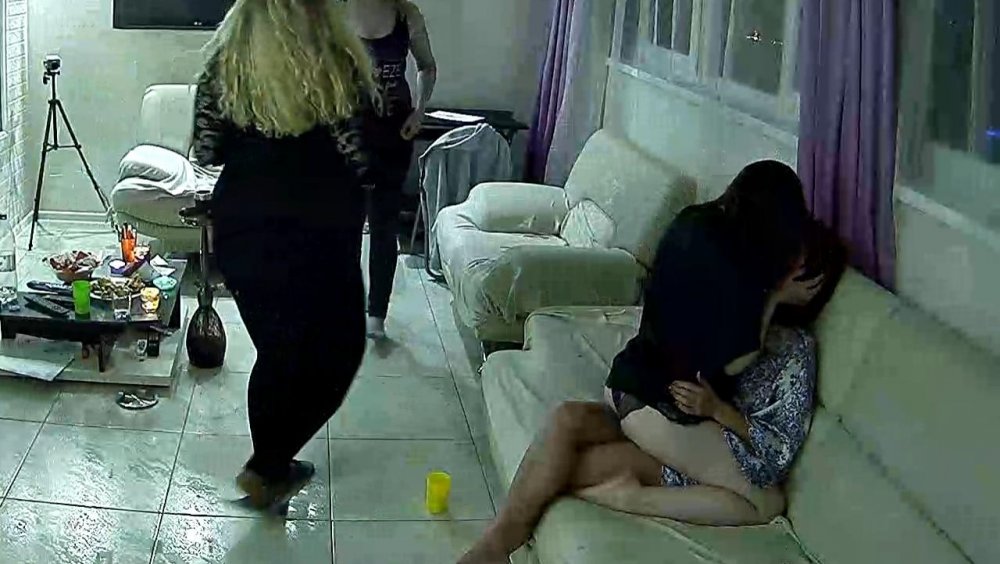
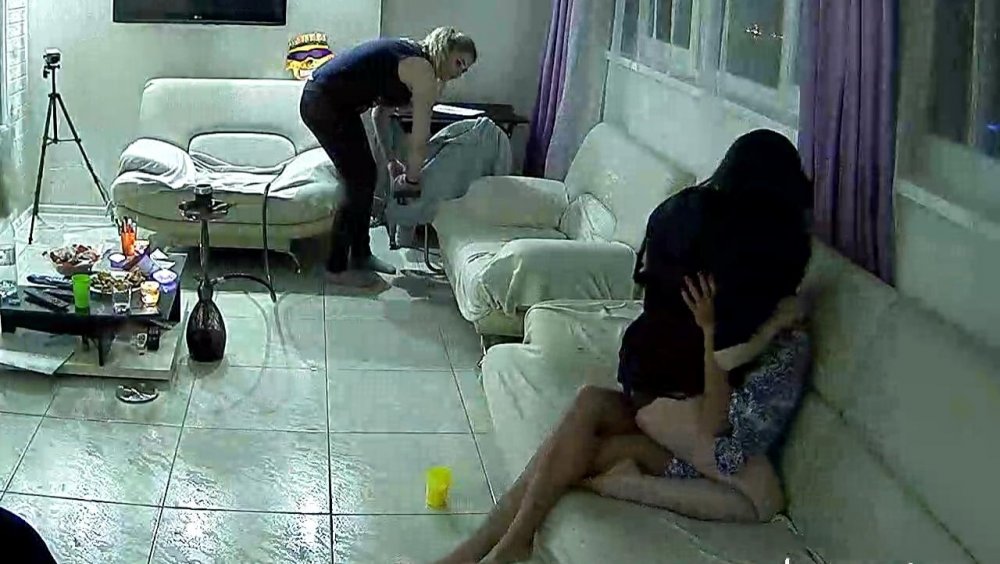
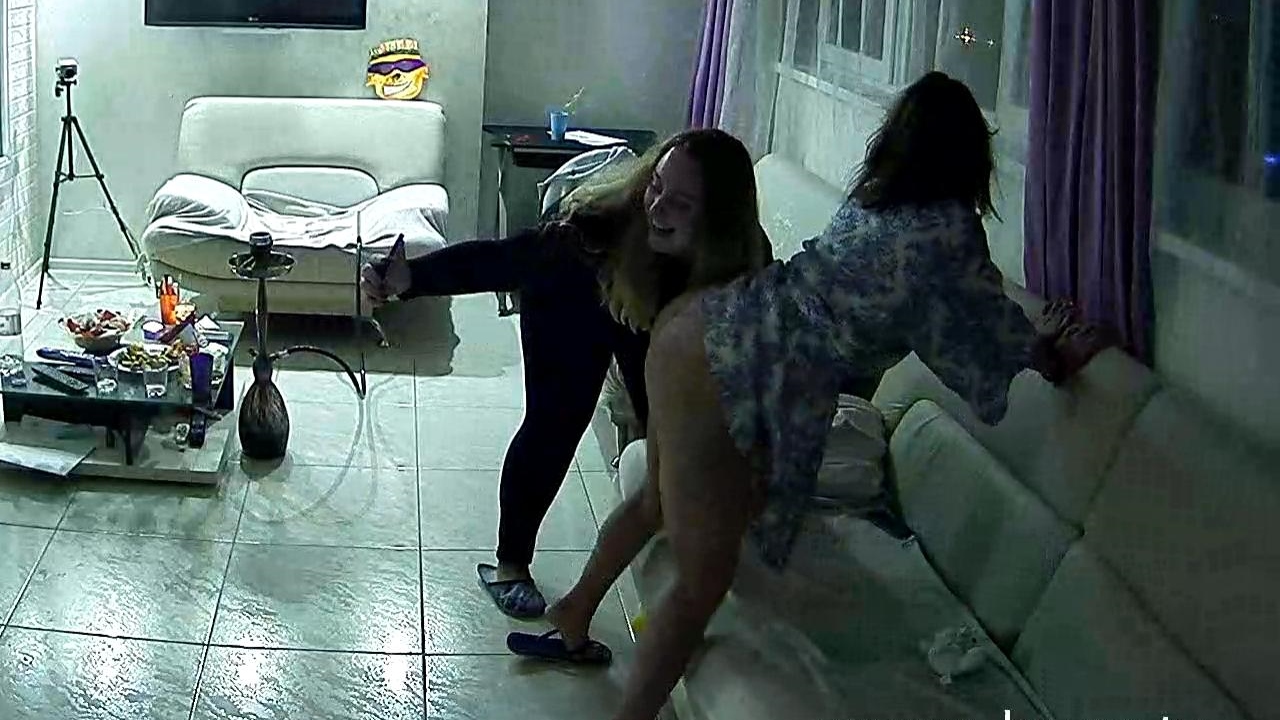
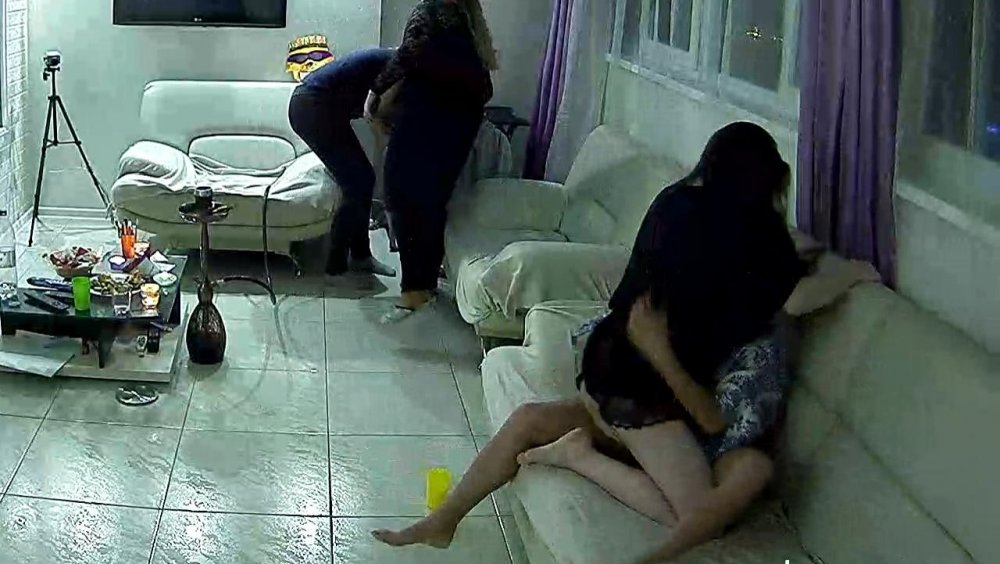 these two have potential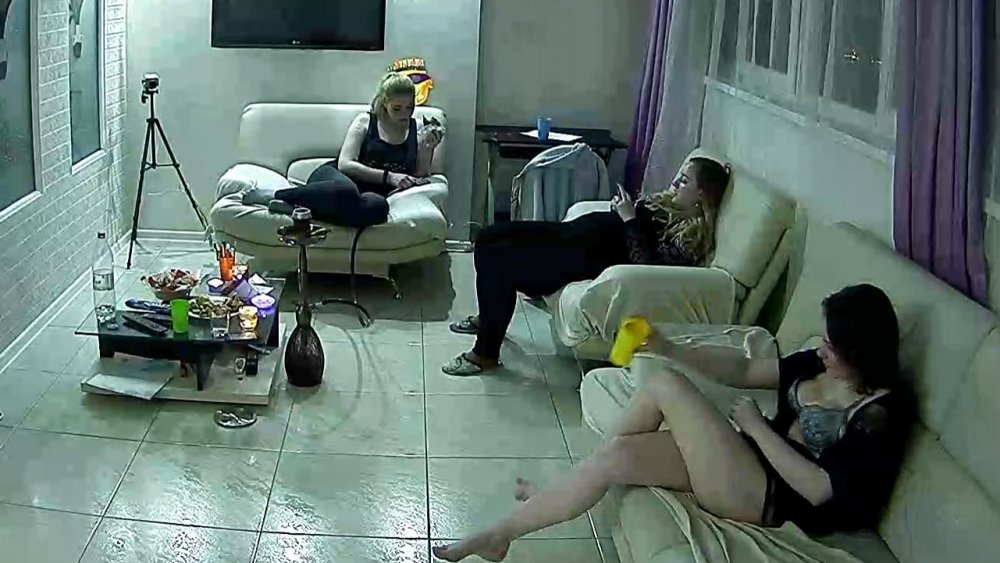
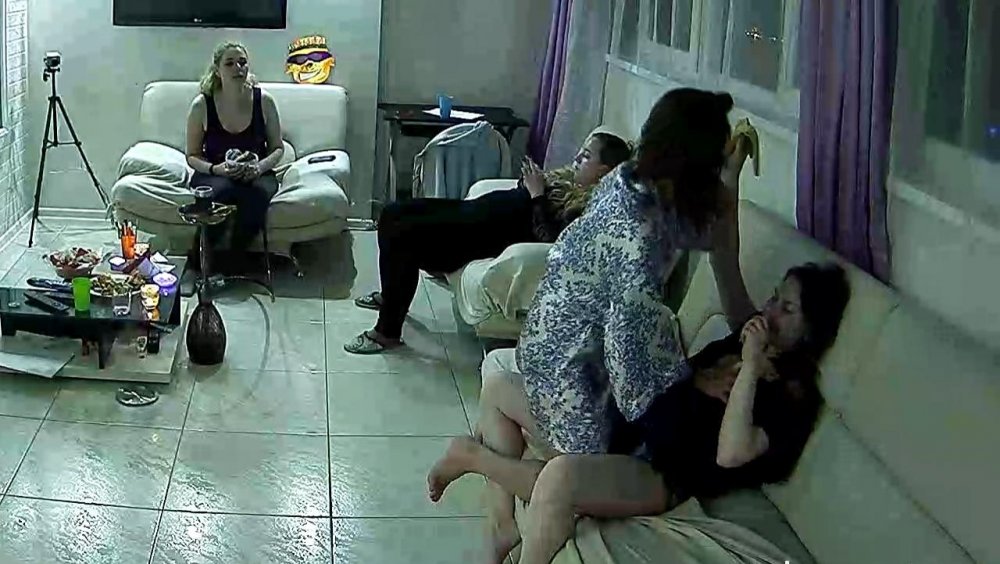
 its that lightbulb again
 top pictures where you get these?.must admit marna is my favourtie
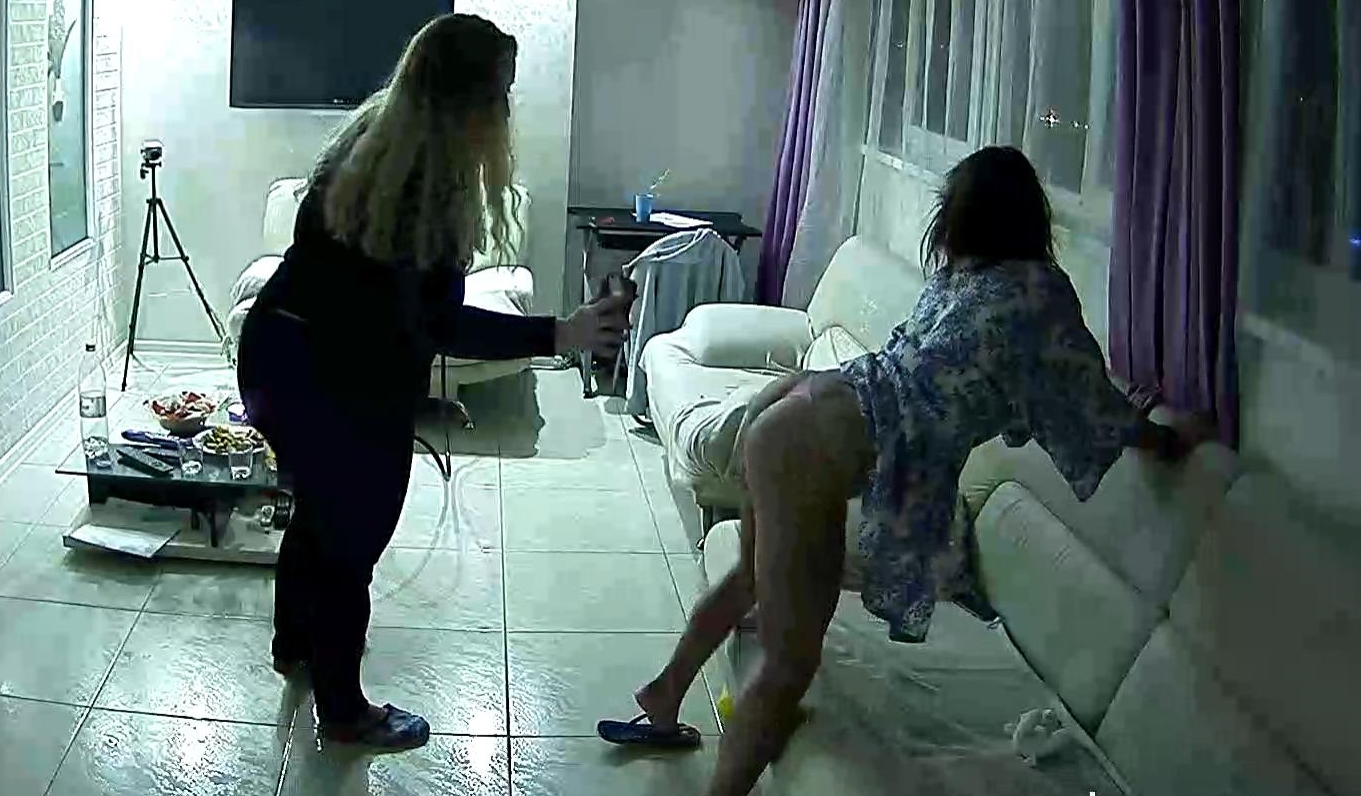
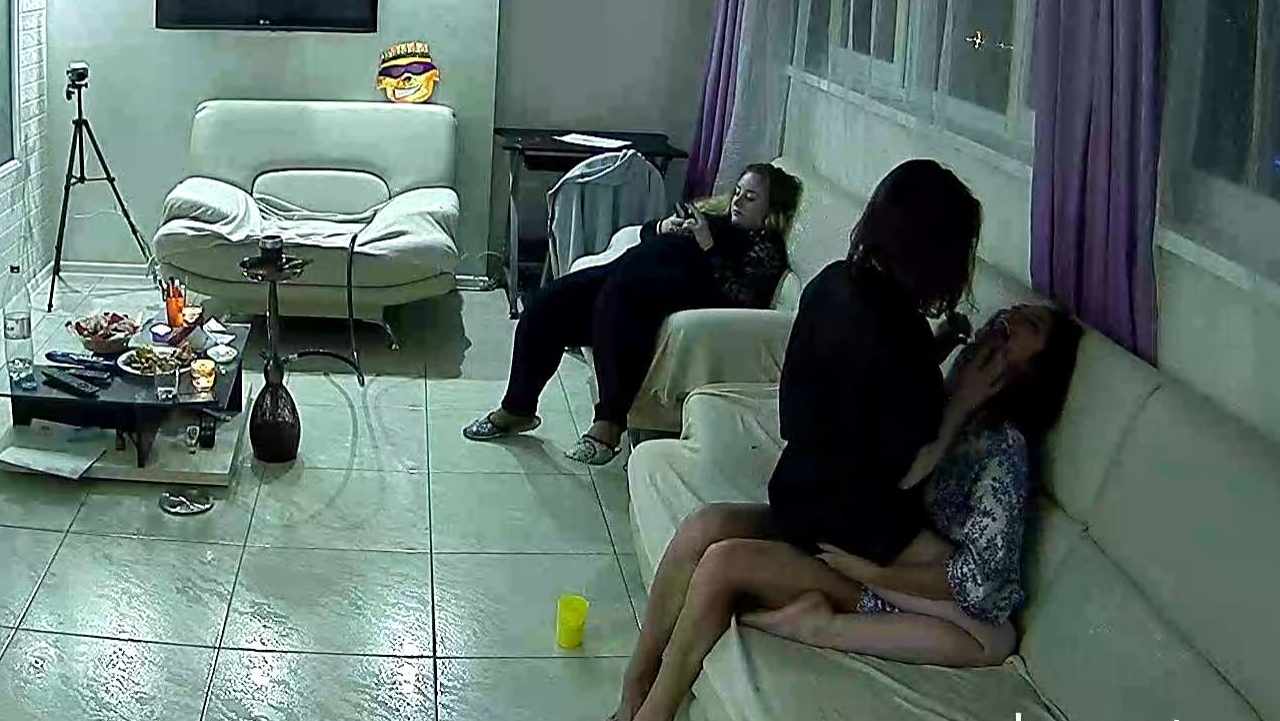
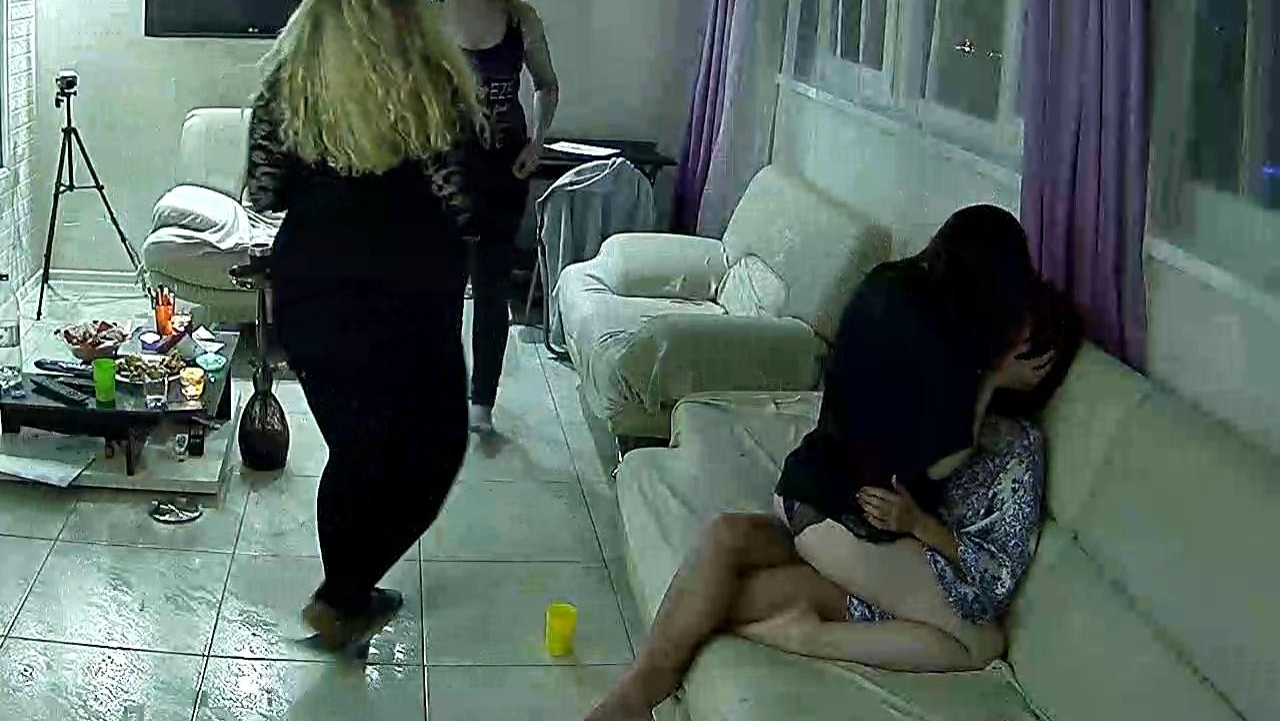
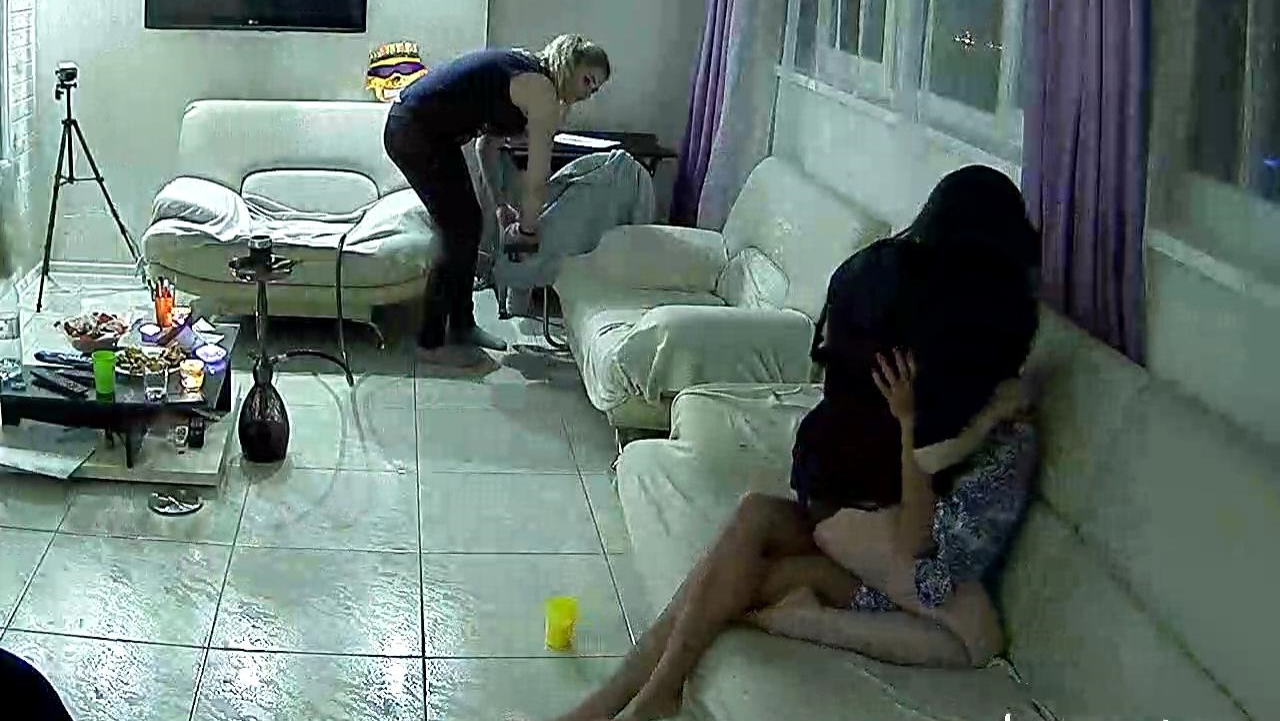
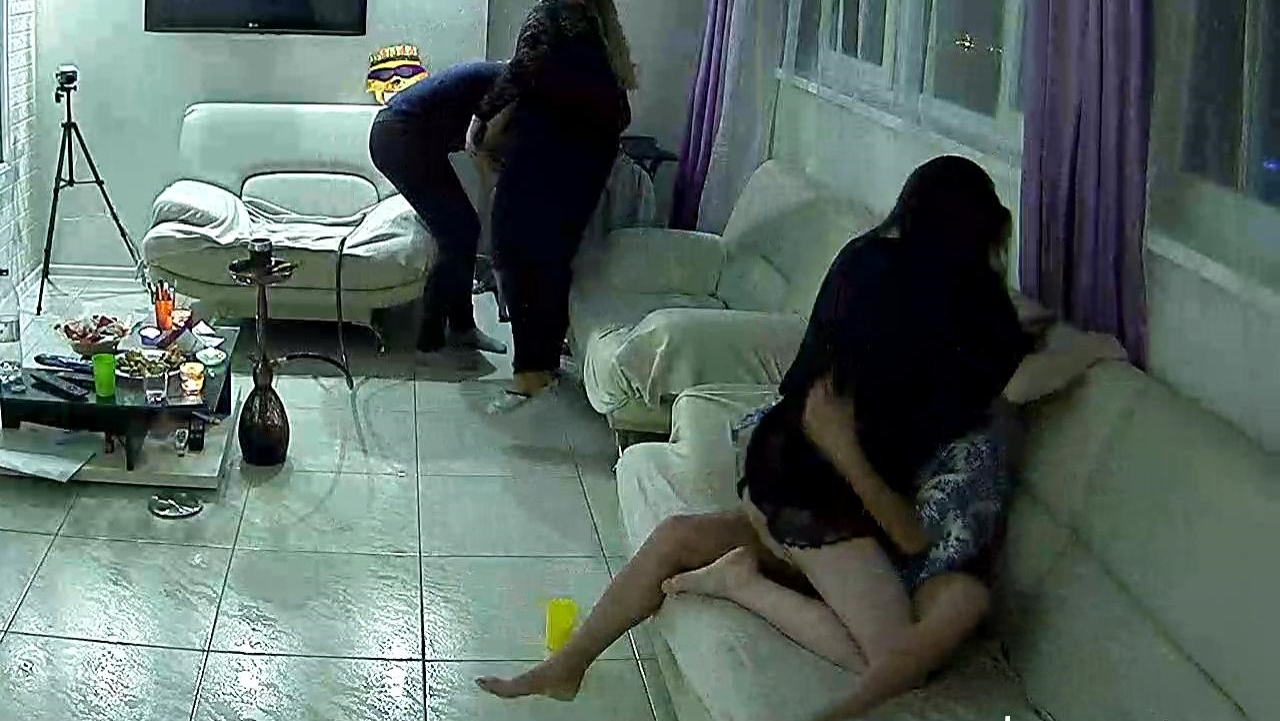
due to bad picture quality these were all i managed to get
top pictures where you get these?.must admit marna is my favourtie
due to bad picture quality these were all i managed to get
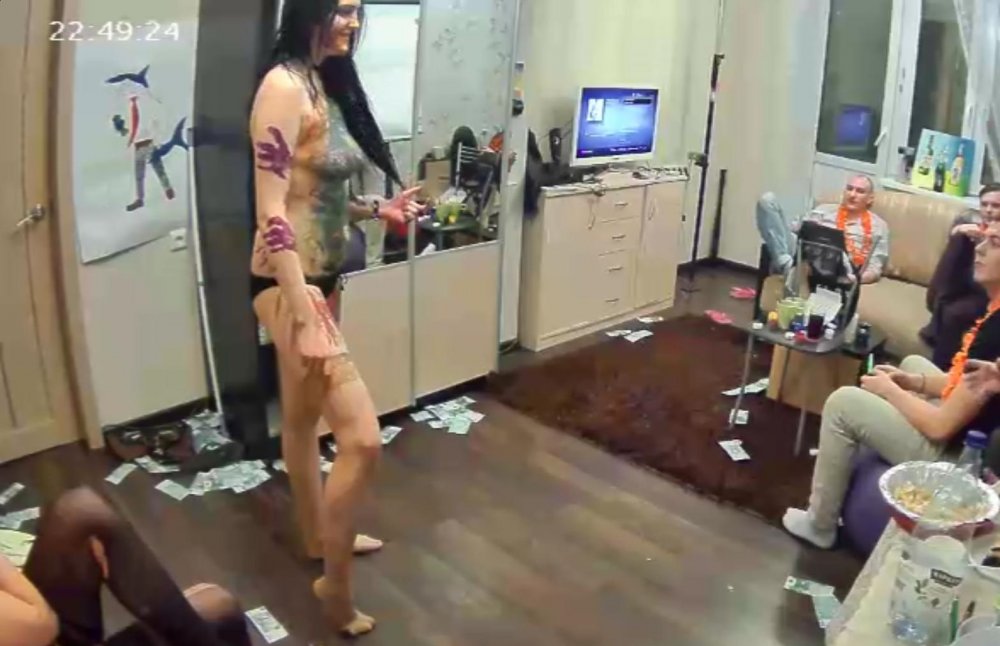
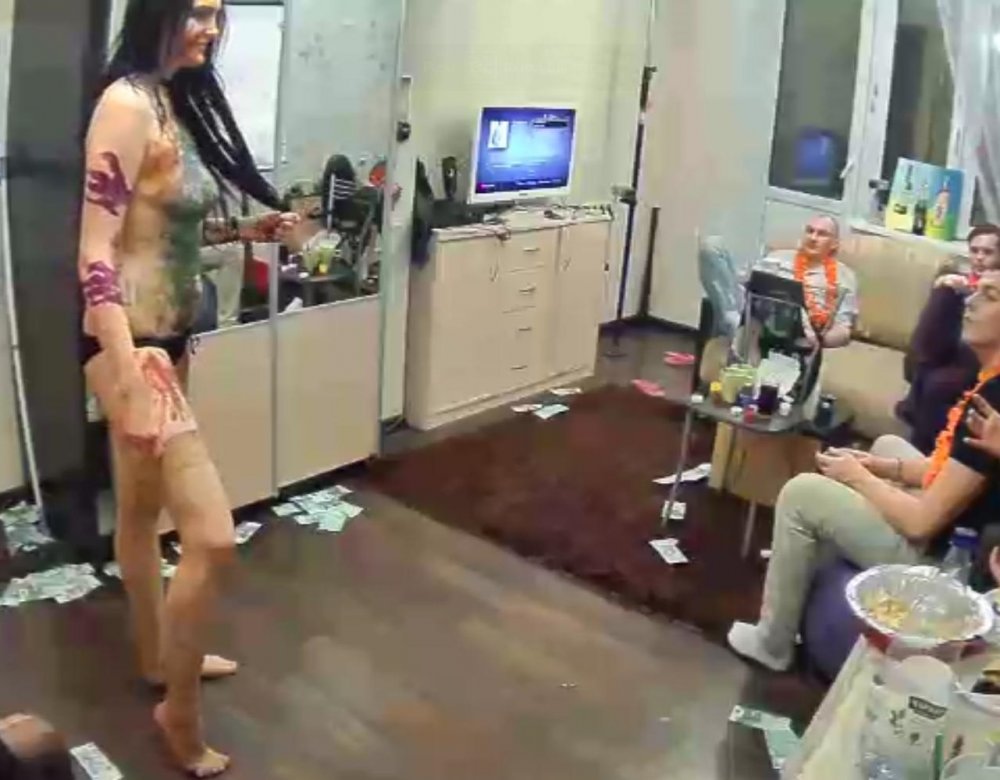
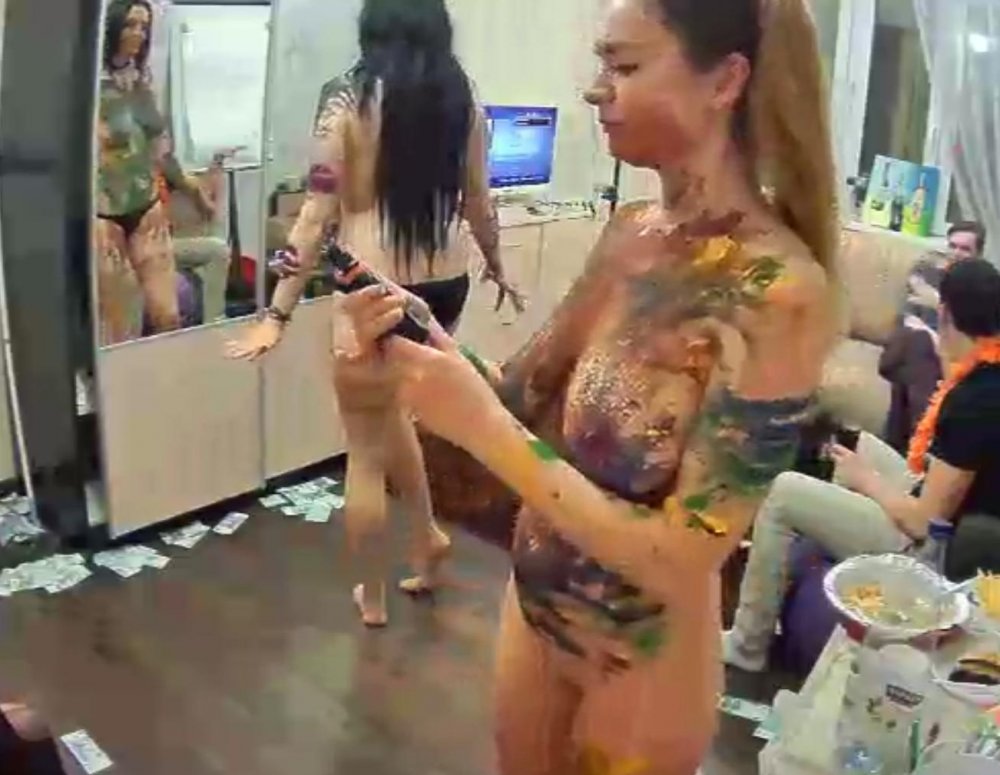
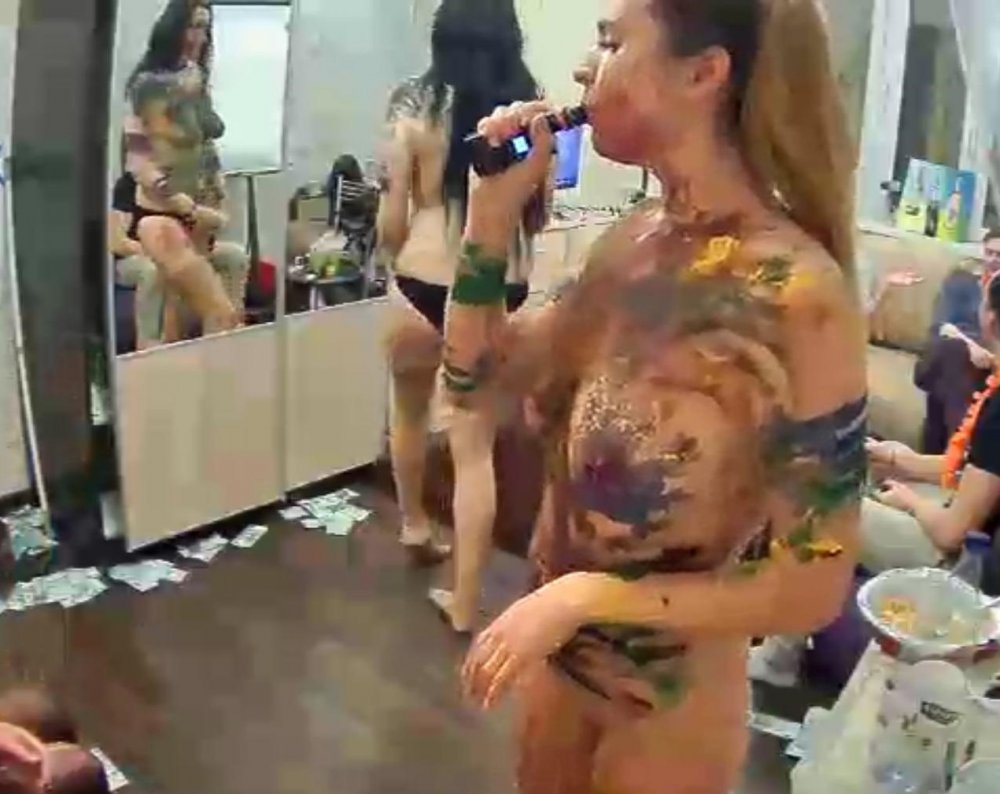
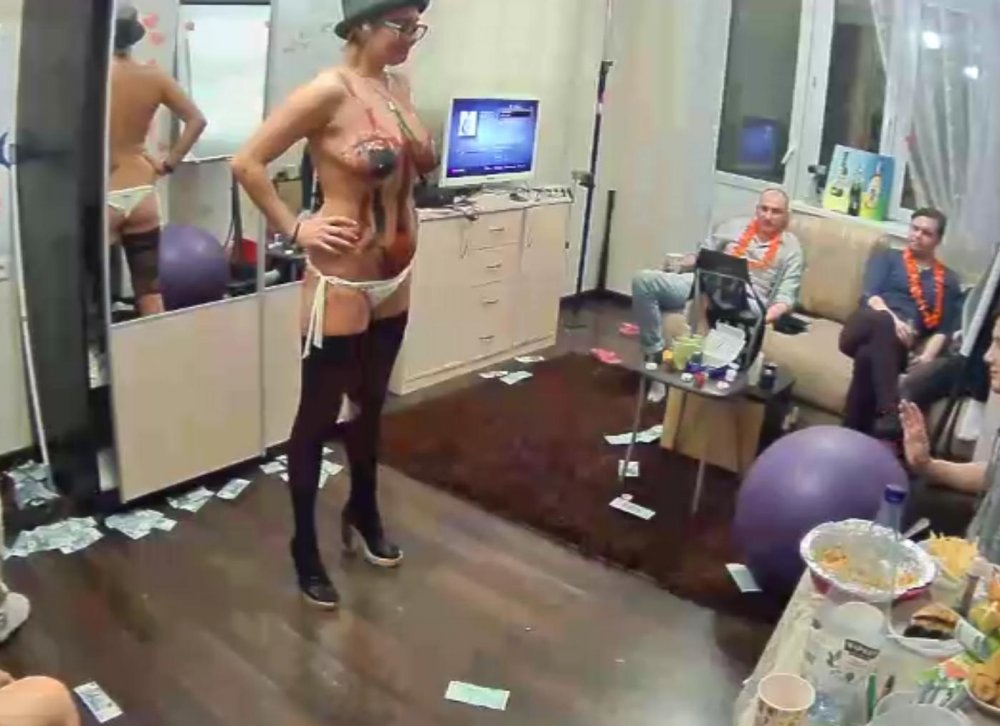
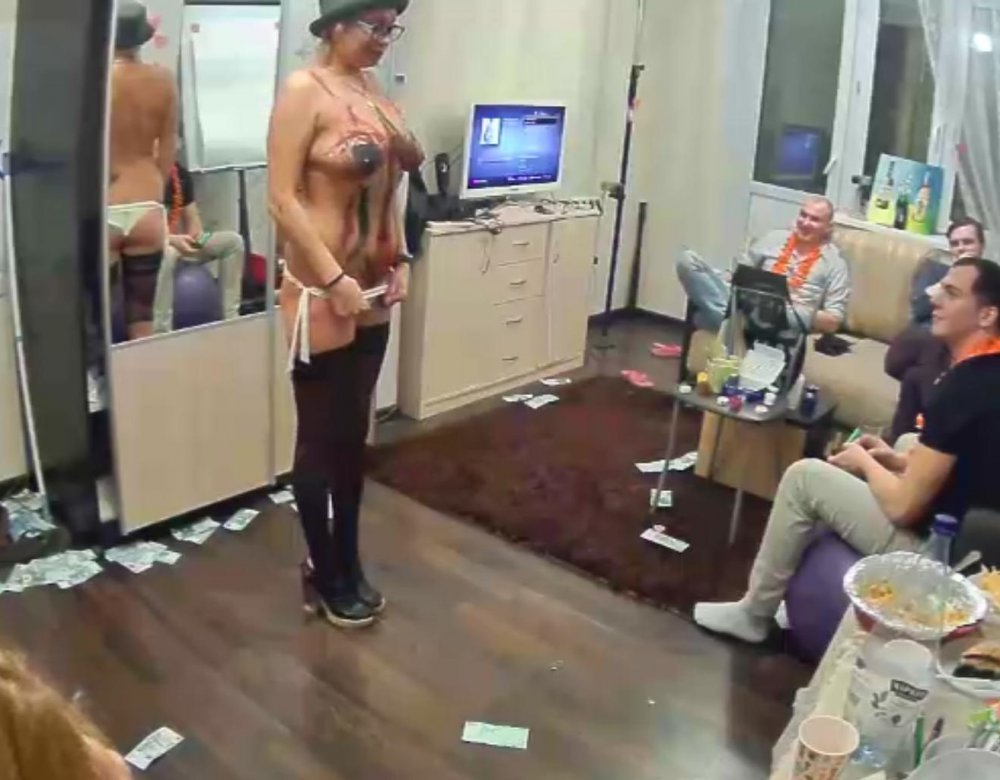
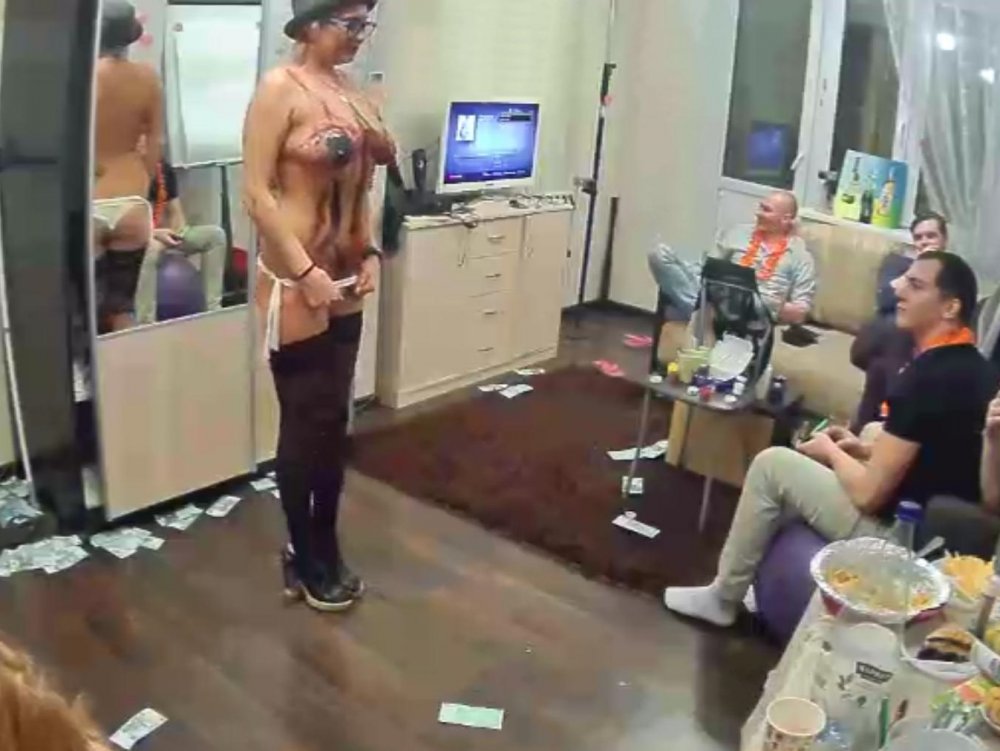
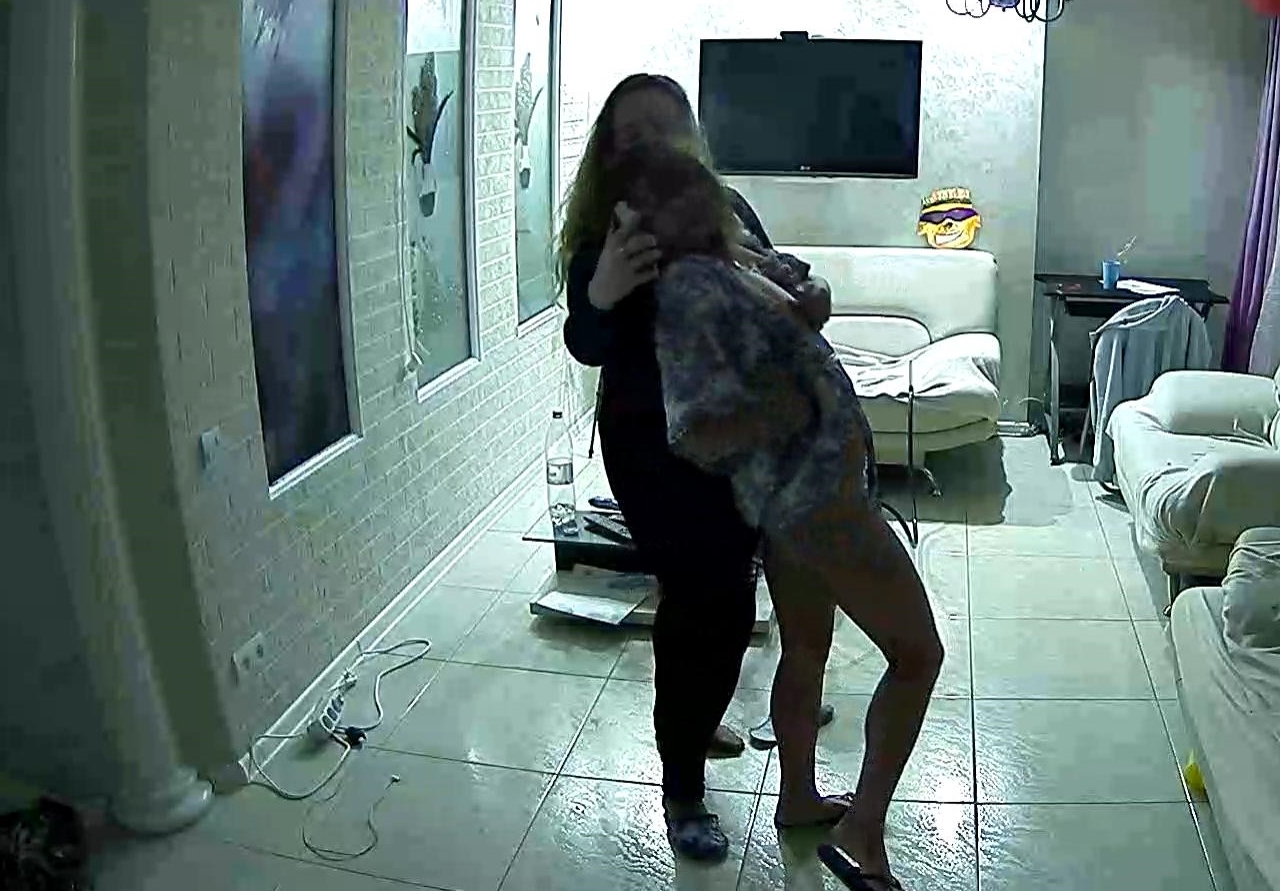
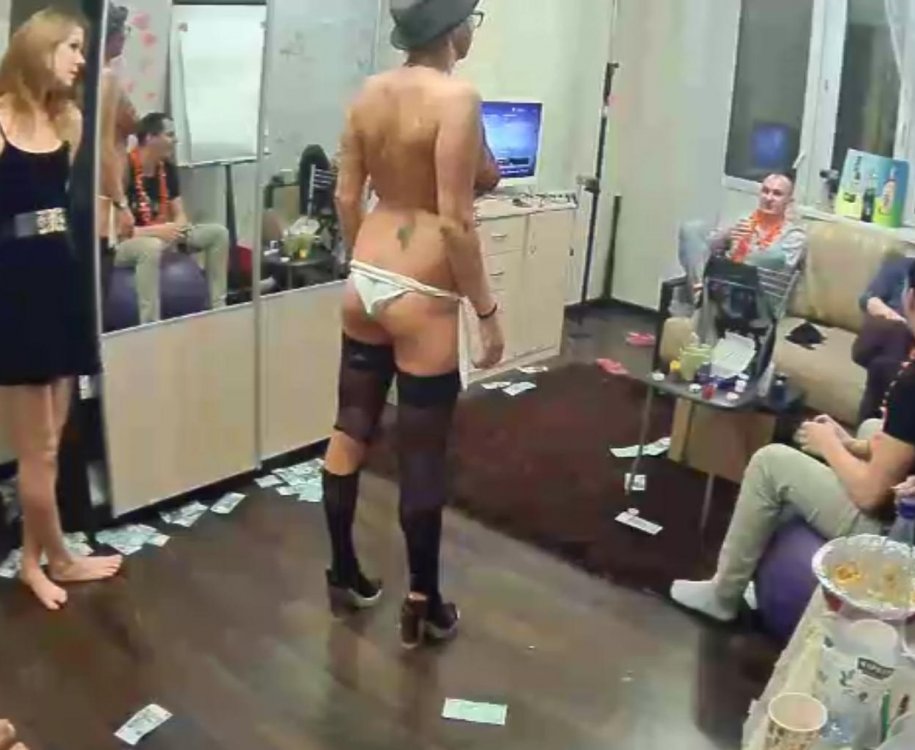 nice to see two girls liplocked what would have made this a flawless victory if they were both in a full state of unclothed,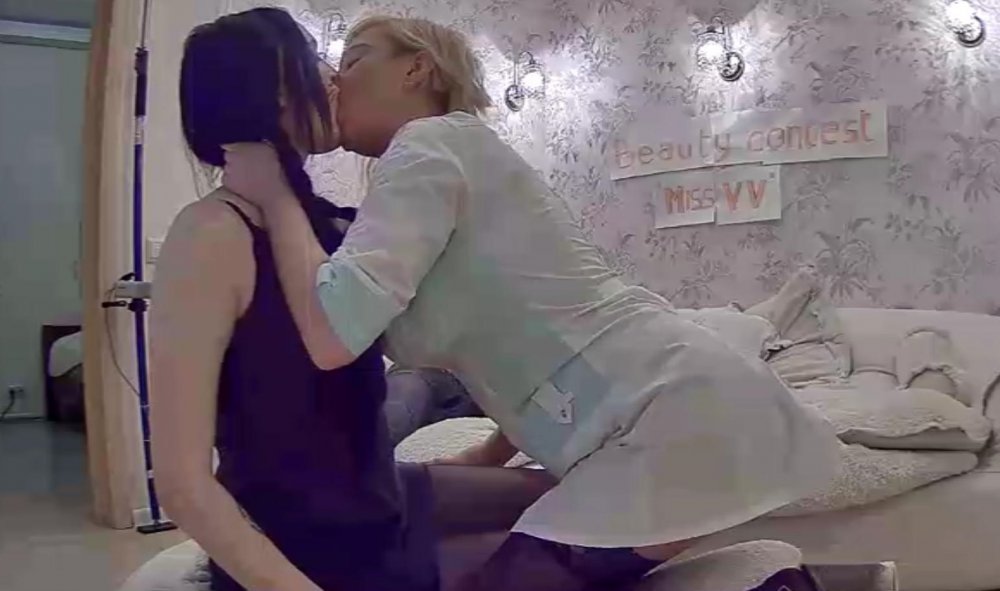
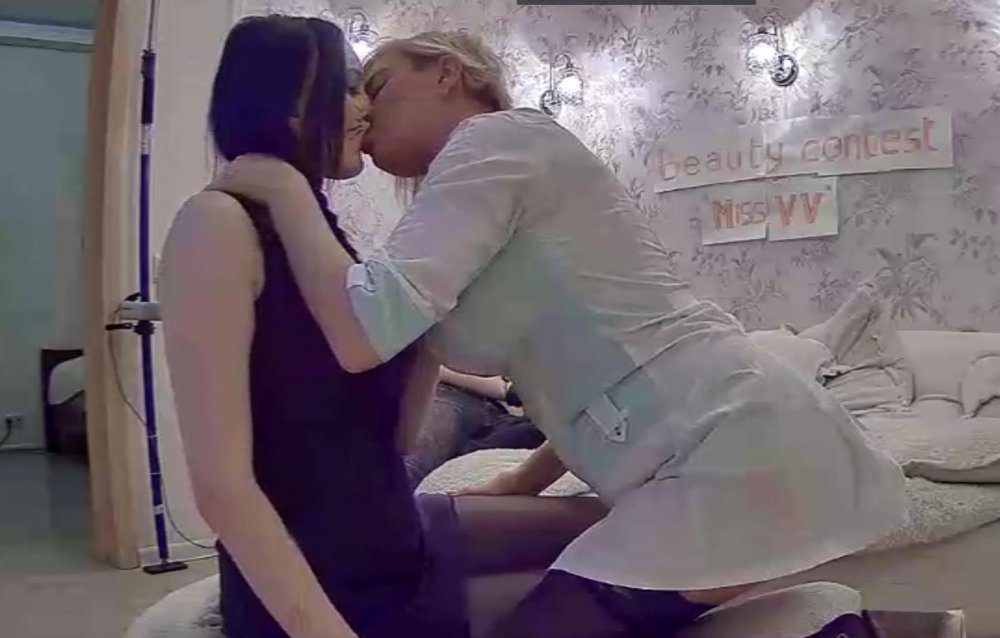
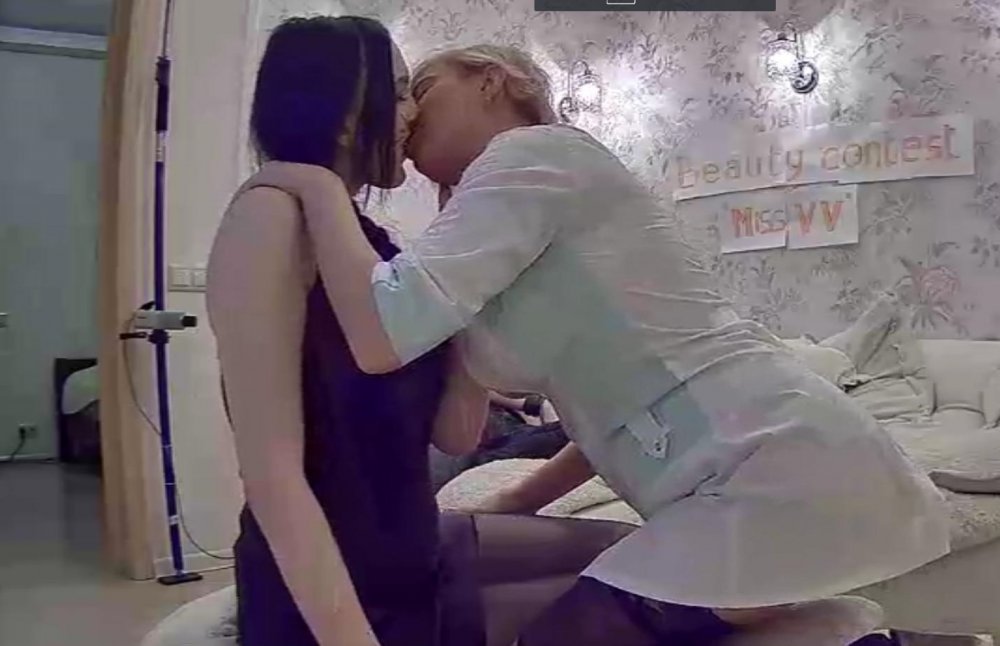 excellent captures momo
it looks like he bruise up her insides
excellent captures momo
it looks like he bruise up her insides
Account
Navigation
Search
Configure browser push notifications
Chrome (Android)
- Tap the lock icon next to the address bar.
- Tap Permissions → Notifications.
- Adjust your preference.
Chrome (Desktop)
- Click the padlock icon in the address bar.
- Select Site settings.
- Find Notifications and adjust your preference.
Safari (iOS 16.4+)
- Ensure the site is installed via Add to Home Screen.
- Open Settings App → Notifications.
- Find your app name and adjust your preference.
Safari (macOS)
- Go to Safari → Preferences.
- Click the Websites tab.
- Select Notifications in the sidebar.
- Find this website and adjust your preference.
Edge (Android)
- Tap the lock icon next to the address bar.
- Tap Permissions.
- Find Notifications and adjust your preference.
Edge (Desktop)
- Click the padlock icon in the address bar.
- Click Permissions for this site.
- Find Notifications and adjust your preference.
Firefox (Android)
- Go to Settings → Site permissions.
- Tap Notifications.
- Find this site in the list and adjust your preference.
Firefox (Desktop)
- Open Firefox Settings.
- Search for Notifications.
- Find this site in the list and adjust your preference.